Blog / How-To Guides
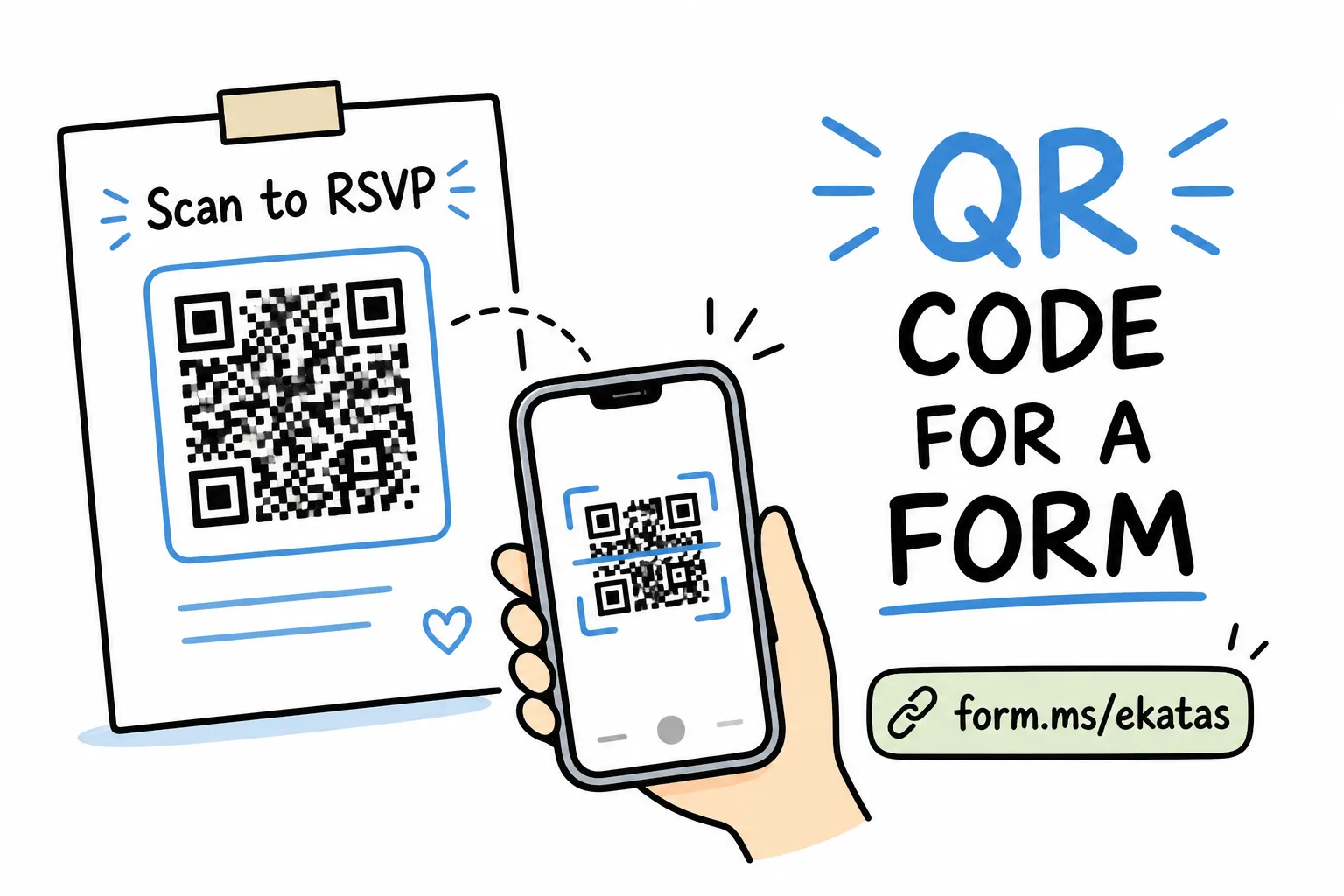
How to Make a QR Code for a Form
Context
How to turn any form into a printable QR code-plus the one-tap path when your form builder includes the QR, with print sizes, contrast tips, and where QR forms work best.
On this page
A QR code turns any printed surface into a form: a flyer, a table tent, a poster, a receipt, a storefront window. Someone points their camera, the form opens, and their answer lands with you.
Here is how to set one up-the general way that works with any form tool, and the one-tap way when the QR is built into the form itself.
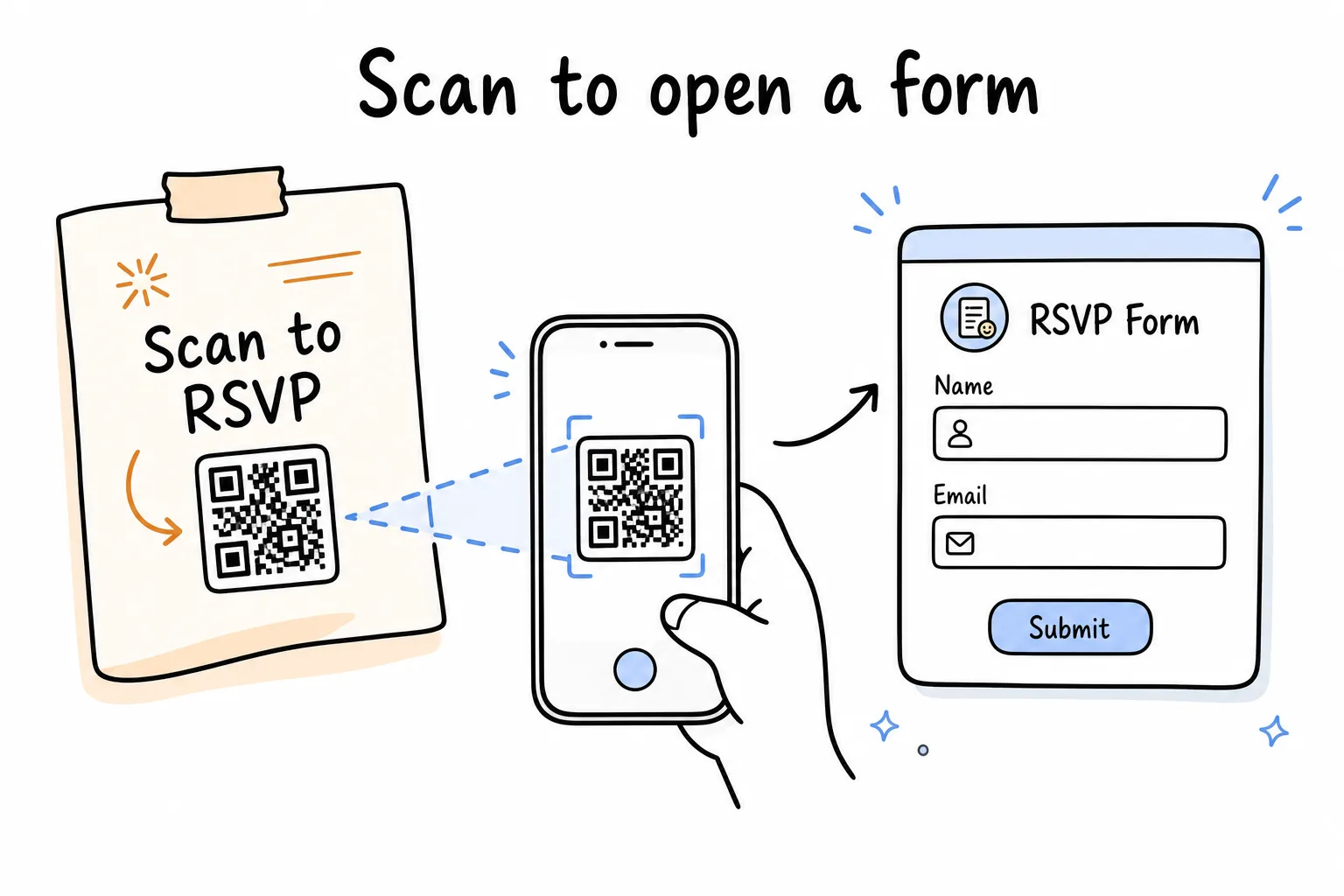
Print the code, scan with a camera, land on a live form-no app install for respondents.
The general way: any form plus a QR generator
- Create your form in whatever tool you use and copy its share link.
- Paste the link into a QR code generator and download the image, ideally as SVG or a high-resolution PNG for print.
- Place it on your design with a short call to action like “Scan to RSVP.”
- Test it with your own camera from arm’s length before printing a hundred copies.
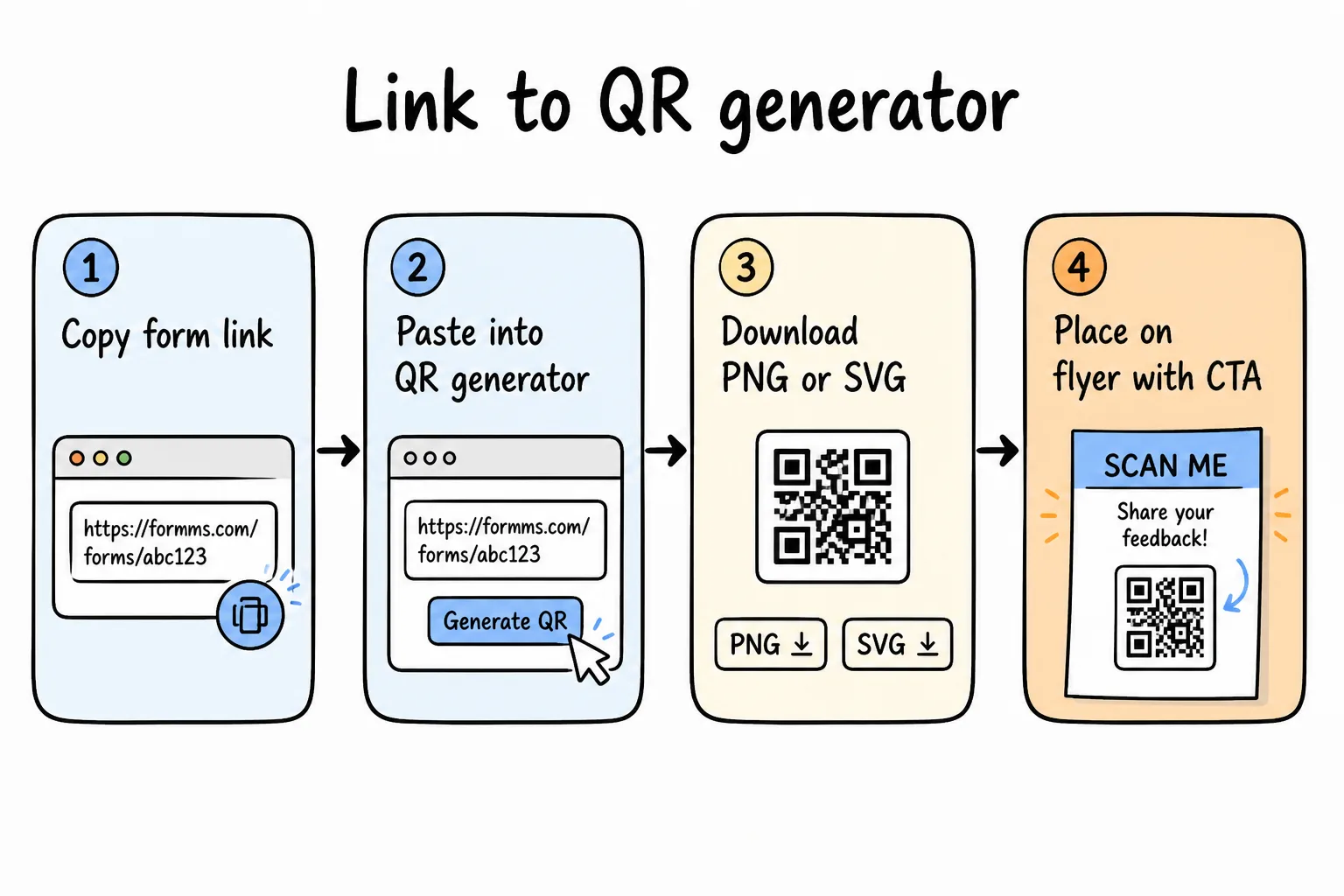
Copy link → generate QR → place on design → test before you print.
This works with any form and any generator. The catches:
- Free generator sites often push trackable “dynamic” codes that expire behind a paywall
- Long form URLs make dense codes that are harder to scan on glossy print
- The QR image lives in your downloads folder, separate from the form it belongs to
If your form URL is a long docs.google.com string, expect a busier code. Short links scan more reliably at small sizes.
The one-tap way: a form that comes with its QR code
With Formms, every form already has a QR code-no separate generator needed:
- Build the form in the app, by describing it or starting from a template.
- Open the share screen. Your form has a short link like form.ms/ekatas and a downloadable QR code, side by side.
- Save the QR image and drop it into your flyer, menu, poster, or invitation.
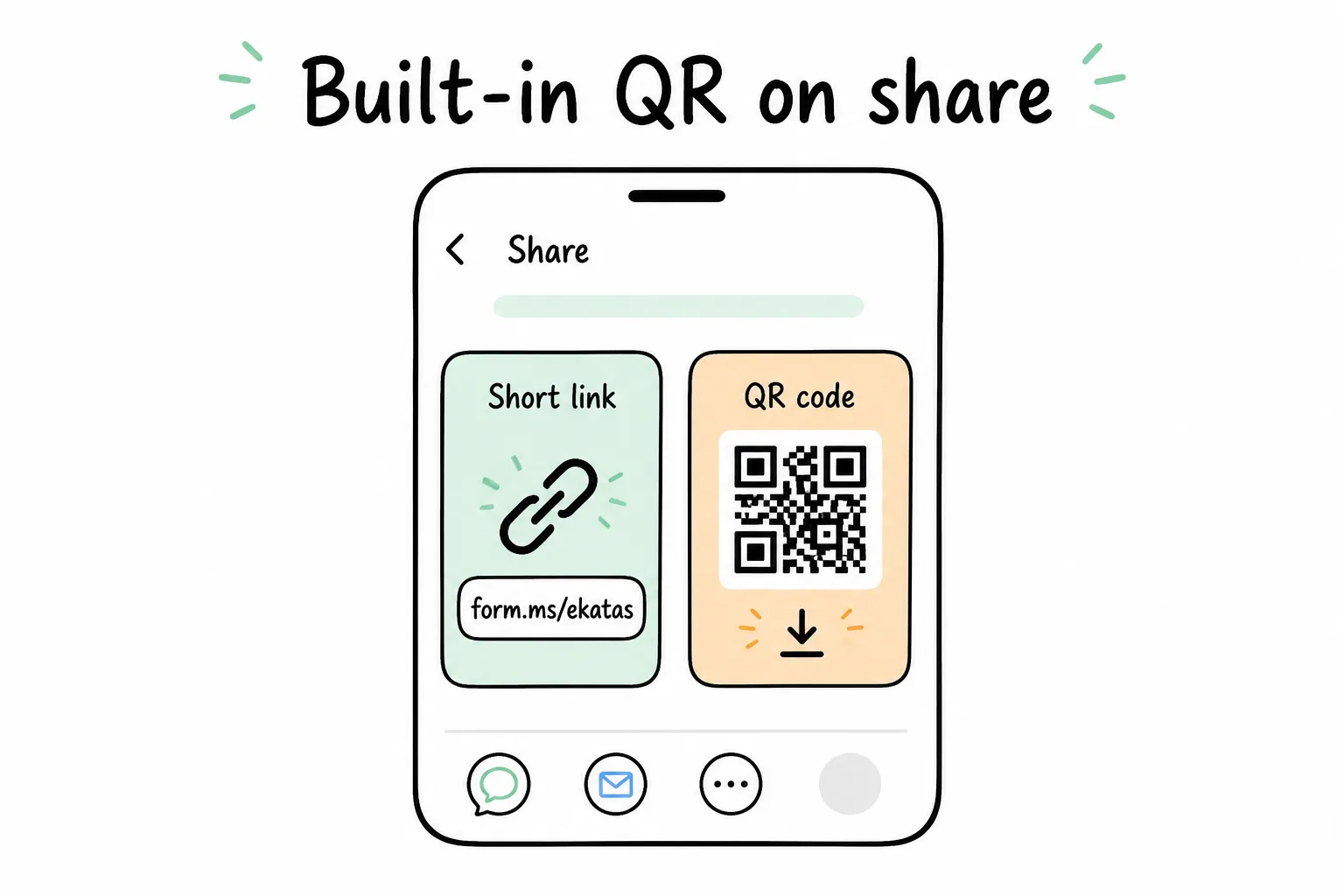
Short link and QR live with the form-always one tap away in the app.
Because the link is short, the code stays sparse and scans reliably even at small sizes. The code never expires, and it stays attached to the form it opens.
Where QR-code forms work brilliantly
- Events: print the code on invitations for RSVPs or at the door for registration.
- Feedback: a code on tables or receipts to a feedback form catches opinions while the visit is fresh. Hallway and classroom feedback tools are compared in best survey tools for teachers.
- Hiring: a “we’re hiring” sign with a code to a job application form.
- Orders and leads: market stalls and pop-ups taking orders or capturing leads without a laptop in sight.
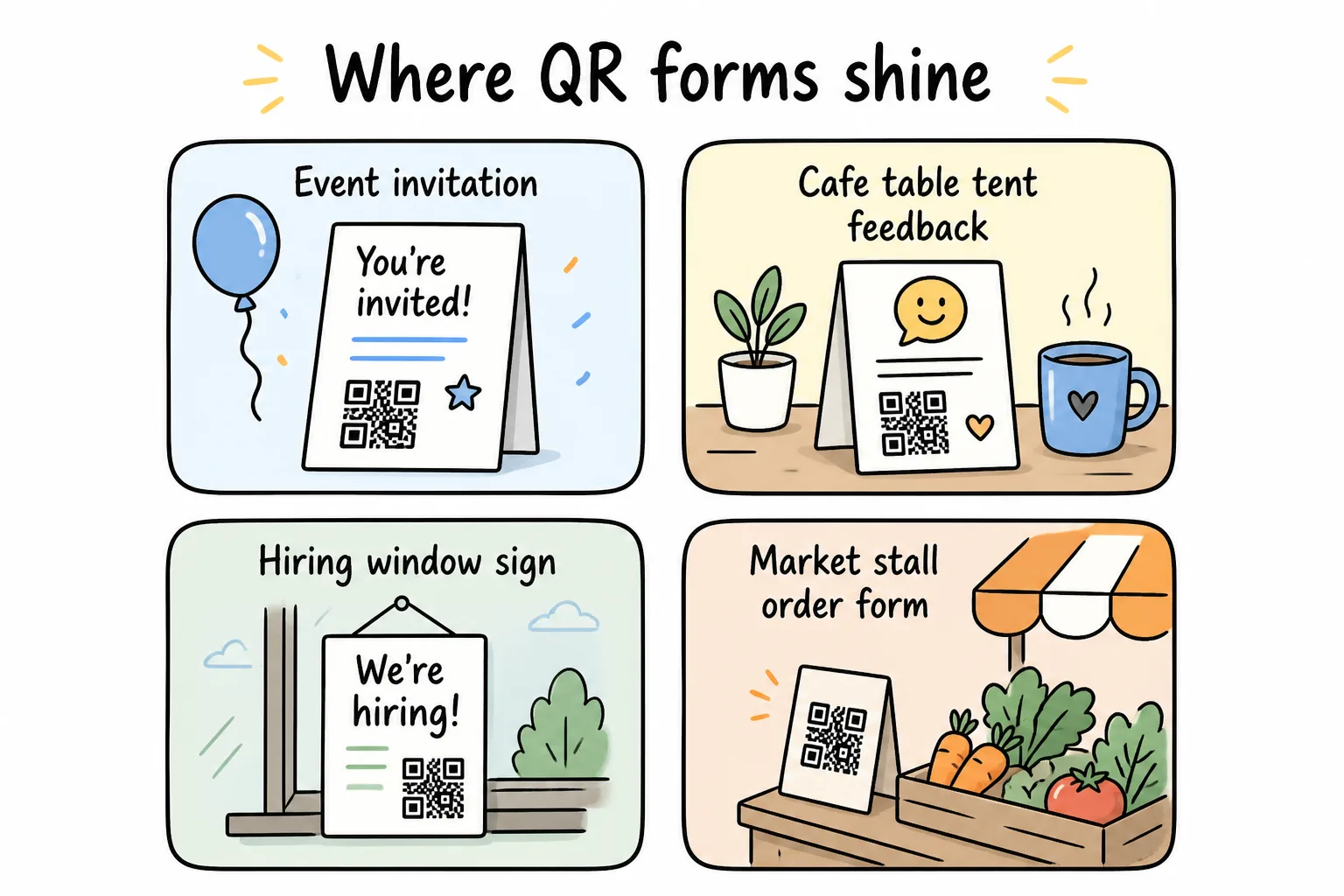
Events, counters, hiring signs, and stalls-anywhere a phone camera beats a typed URL.
Print tips that save reprints
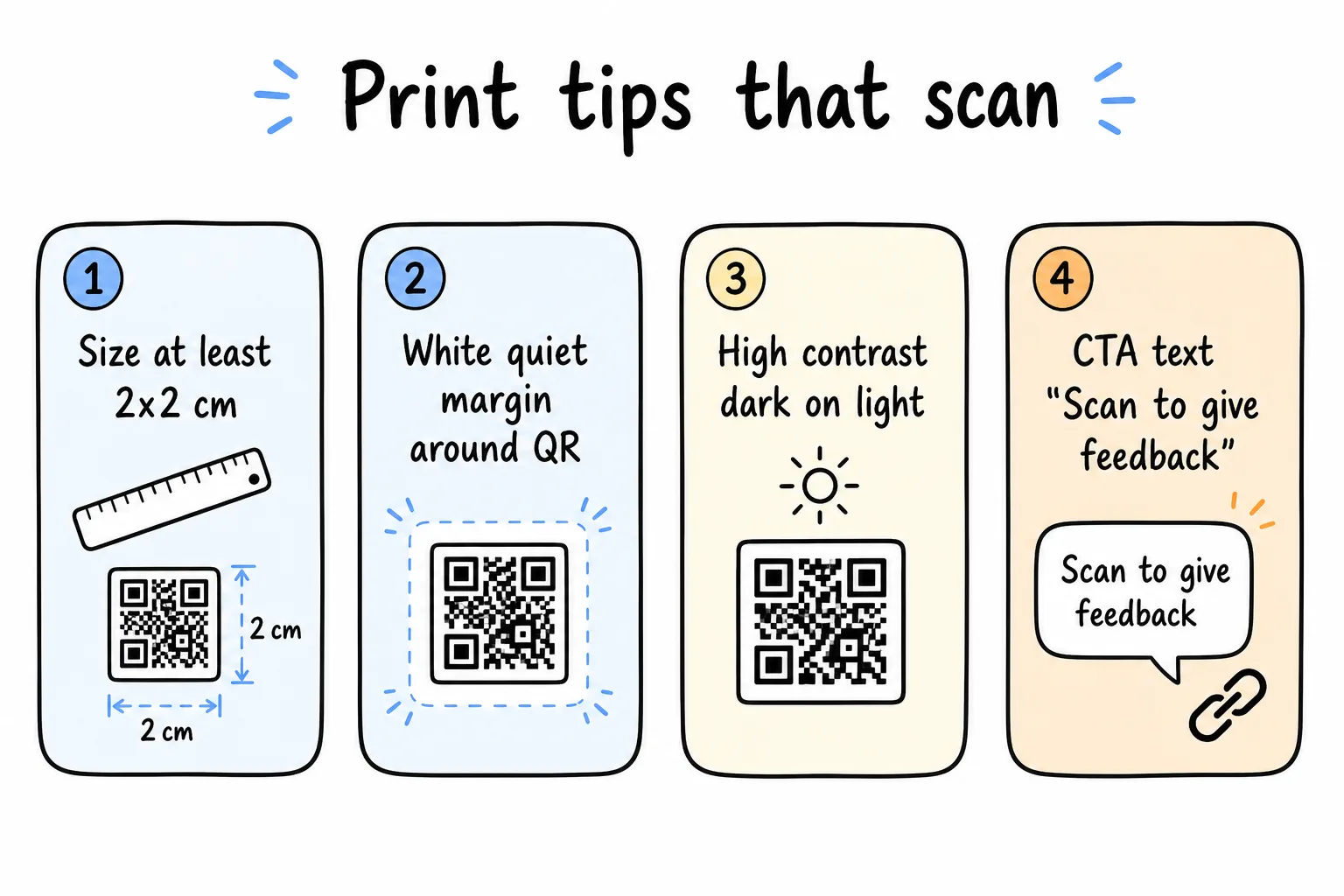
Size, margin, contrast, and a clear CTA-four details that prevent dead codes.
- Keep the code at least 2 × 2 cm for arm’s-length scans; go larger for posters and window distance
- Leave a quiet white margin (quiet zone) around the code
- Keep contrast high-dark code on a light field beats low-contrast brand colors
- Always print a short instruction line: “Scan to give feedback” converts strangers better than a naked square
- Test on a phone camera before the print run; a bad code on 200 flyers is expensive
For building the form itself on a phone, see how to make a form on iPhone or the Google path in how to make a Google Form on your phone.