Blog / How-To Guides
How to Make a Google Form on Your Phone (iOS & Android)
Context
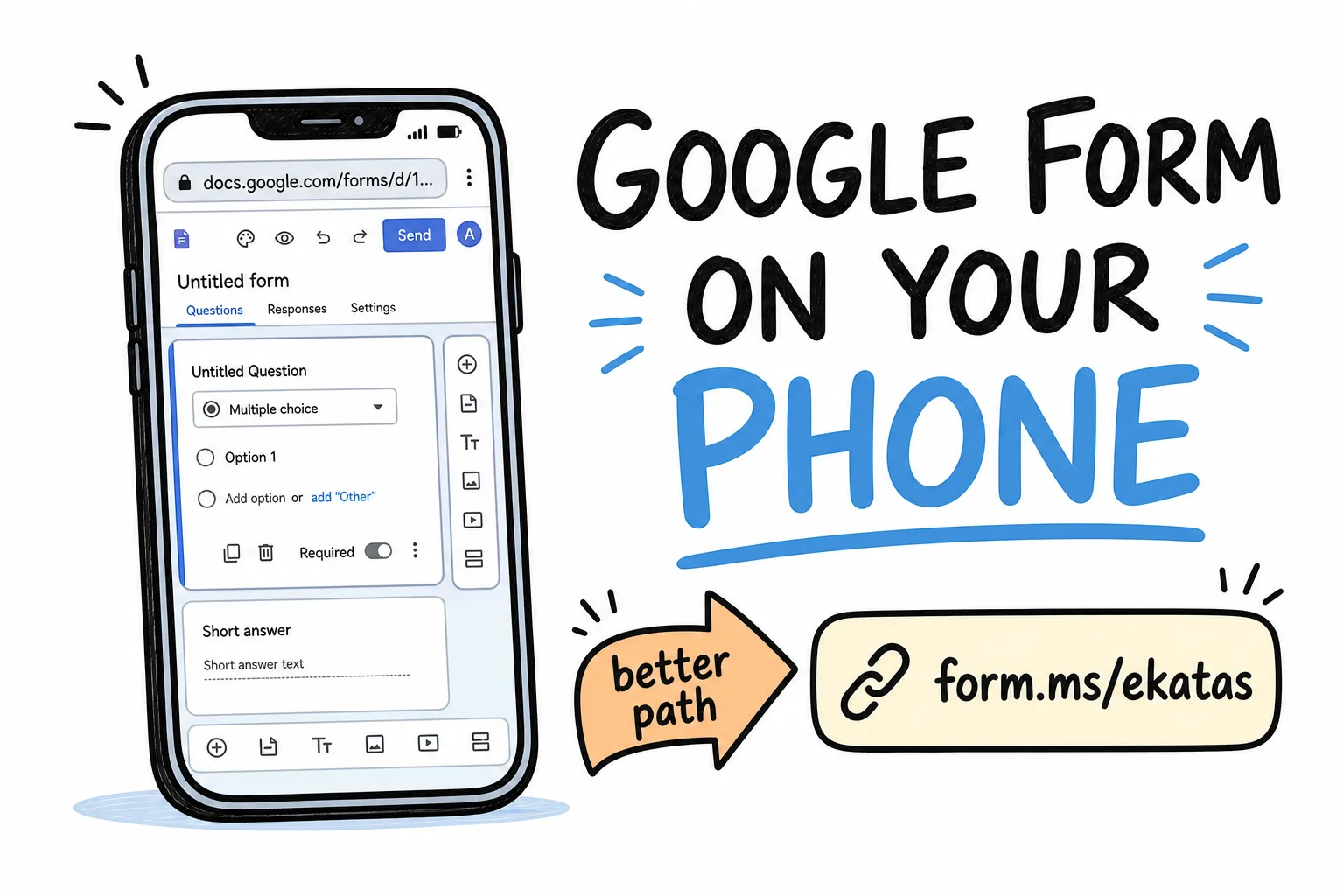
There is no Google Forms builder app. Here are the real mobile options-browser, Drive workaround, and a faster phone-first path-with steps, tradeoffs, and when to switch.
On this page
There is no Google Forms app for building forms. On a phone, you get the desktop site in a mobile browser, or a Drive shortcut that opens the same editor. Both work. Neither feels designed for a thumb.
If you only need a form occasionally, that is fine. If you make forms often-from events, classrooms, shops, or group chats-the friction adds up. This guide covers the real options, step by step, plus a faster phone-first path when you are ready for it. Classroom survey shopping beyond Google Forms alone is covered in best survey tools for teachers.
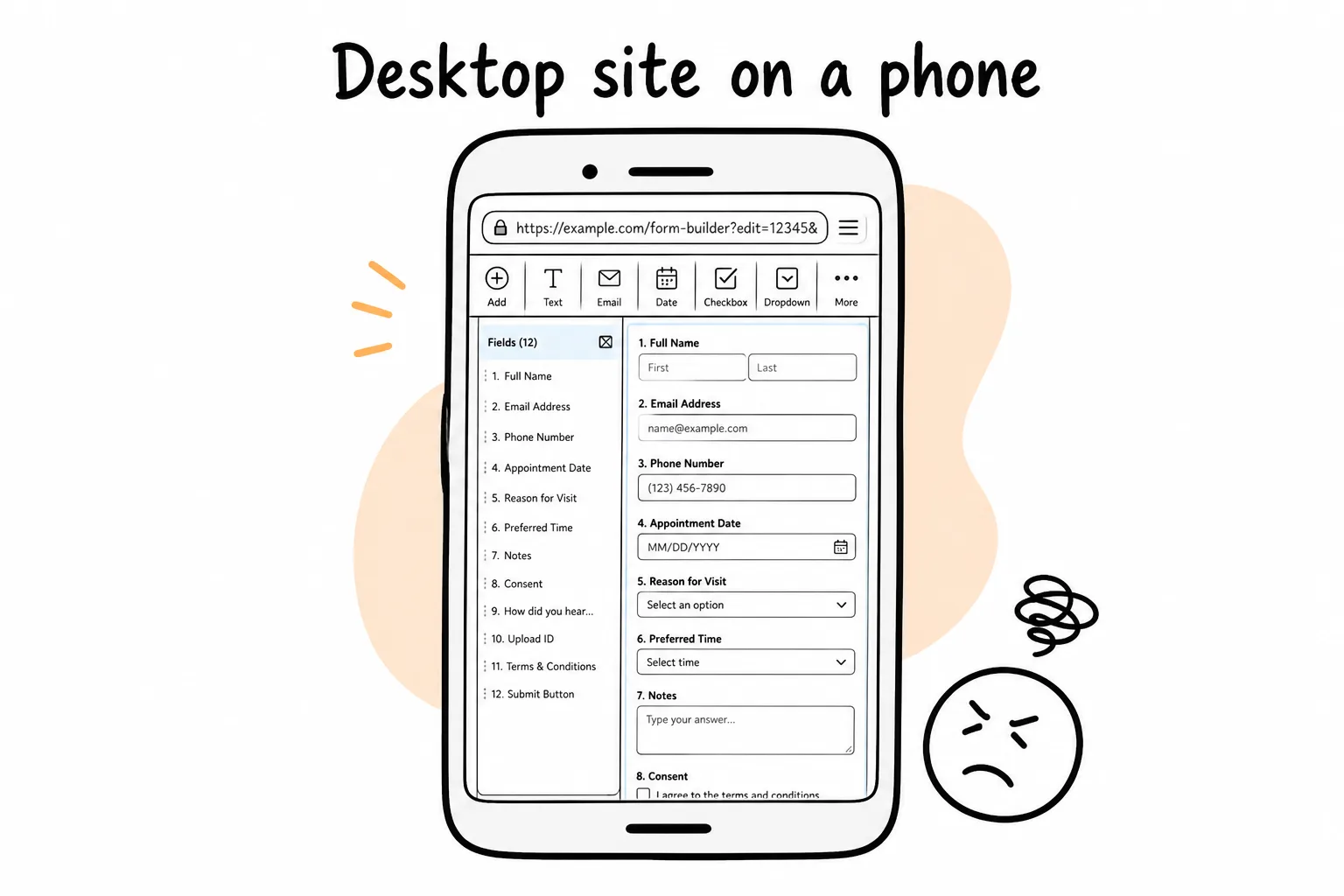
Google Forms on mobile is the desktop editor, scaled down-not a native builder.
Option 1: Google Forms in your mobile browser
This is the official path. It works on iPhone and Android.
- Open forms.google.com in Safari or Chrome and sign in to your Google account.
- Tap Blank form (the plus button) or pick a template from the gallery.
- Tap the title to rename your form, then tap each question to edit it.
- Use the + button to add questions and the dropdown on each question to change its type.
- Tap Send, choose the link icon, and copy the URL to share it.
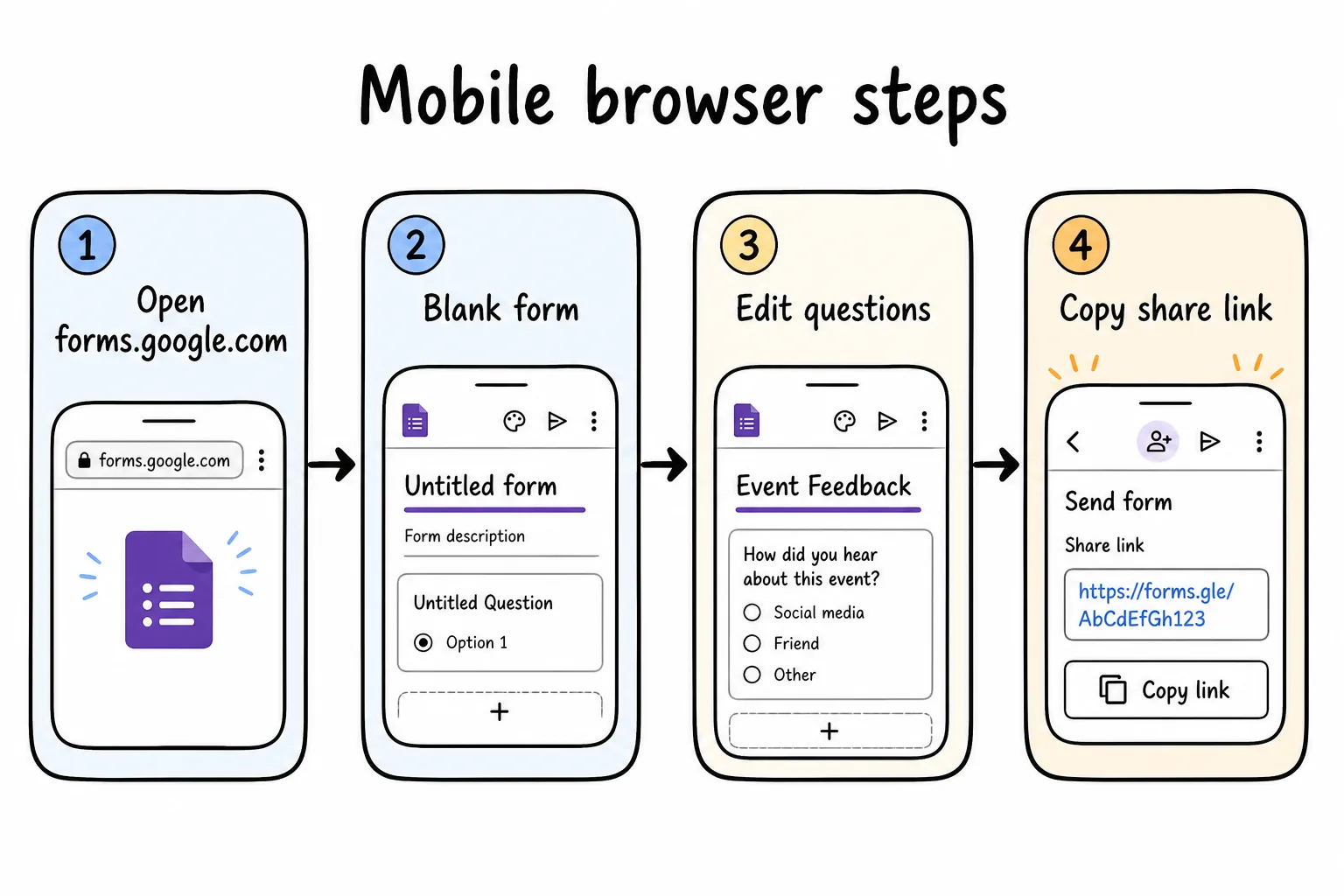
The browser path works-expect small targets and a long share URL.
This works, but the editor is the desktop site. Buttons are small, drag-to-reorder is fiddly on touch, and the share link is a long docs.google.com URL that wraps awkwardly on a flyer or in a bio. Responses still live in a spreadsheet-style view you will mostly prefer on a larger screen.
Option 2: Through the Google Drive app
Some people prefer launching from Drive because they already live there.
- Open the Google Drive app and tap the + button.
- Choose Google Forms from the create menu (on iOS this may open the browser anyway).
- Edit and share the form the same way as in Option 1.
Drive only changes how you launch the editor. Once you are in, it is the same browser experience. Nothing about question editing, sharing, or reading responses becomes phone-native.
What Google Forms still does well on mobile
Keep using Google Forms from your phone if:
- Your team already lives in Google Workspace
- You need live Sheets sync more than a short share link
- You build long, desk-style forms and only publish from a phone once in a while
For a deeper Formms vs Google Forms comparison-including import-see the Google Forms alternative page.
The faster way: a form app built for your phone
If you build forms from your phone more than once in a while, a form builder that is actually an app saves real time. Formms is a free form builder app for iPhone and Android built for that job:
- Download Formms and describe your form in plain words, like “a signup sheet for Saturday volunteer shifts.”
- AI builds the form in seconds with the right question types. Tweak anything by hand.
- Share a short link like form.ms/ekatas or a built-in QR code.
- Get a push notification for every response, with the full list in the app and CSV export.
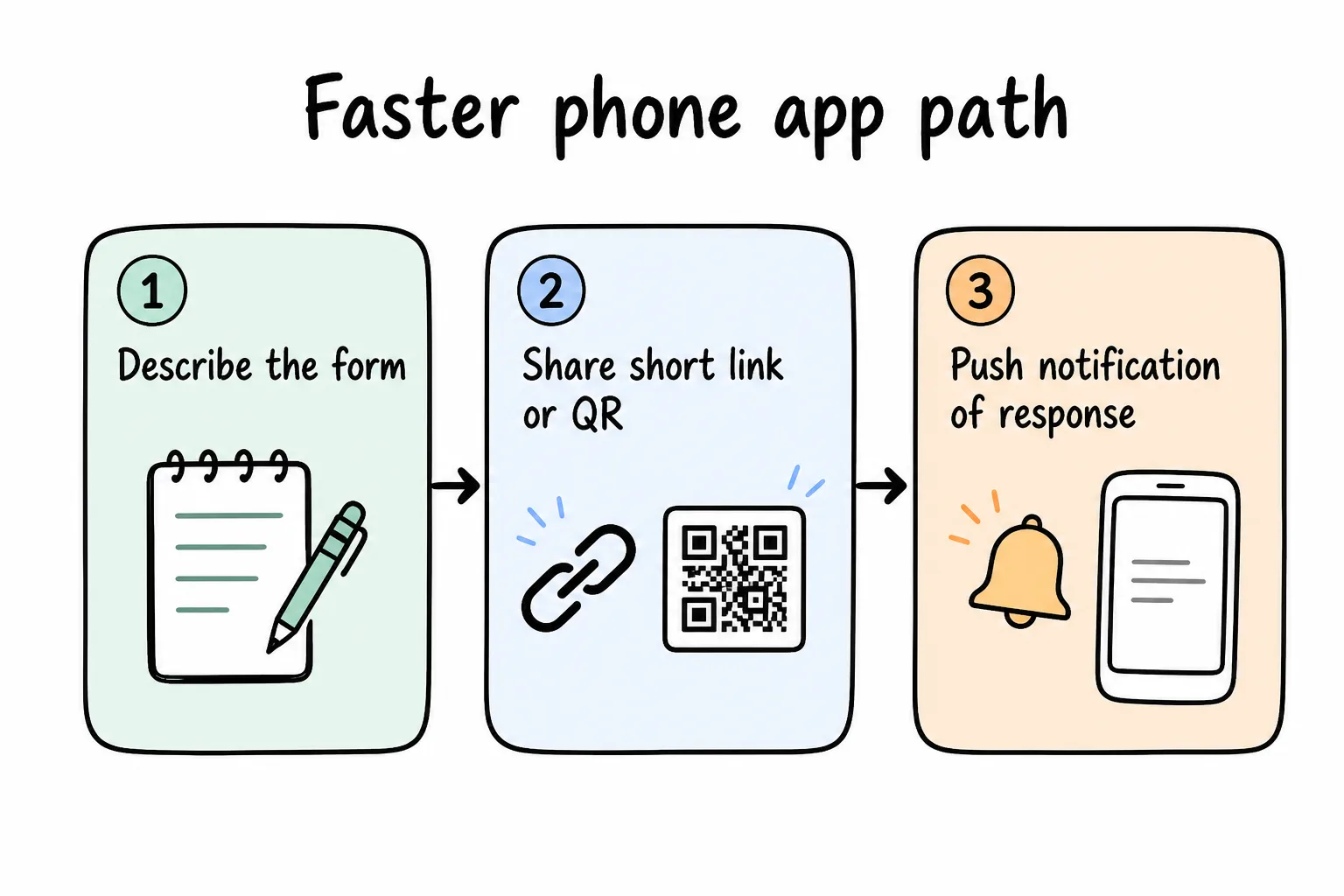
Describe → share a short link or QR → read replies on the phone you already have.
Already have forms in Google Forms? Formms imports them directly, so you can keep old forms and build new ones without a desktop. For stronger prompt wording, use how to turn a prompt into a shareable form. Or start from a free form template.
Which path should you pick?
| Situation | Best path |
|---|---|
| Occasional form, already in Workspace | Google Forms in the browser |
| Need Sheets live sync | Stay on Google Forms |
| Forms from events, counters, chats | Phone-first app (Formms) |
| Short link or QR on print | Phone-first app with built-in QR |
For the wider “why phone-first” case, see why your next form should start on your phone. If you are on iPhone specifically, the companion guide how to make a form on iPhone compares three methods side by side.
Quick checklist before you share
- Open the form on a real phone before you announce it
- Confirm required fields are intentional (extra required fields kill completion)
- Prefer a short link or QR if the form will live on a flyer or poster
- Decide where you will read responses-spreadsheet at a desk, or notifications in your pocket
Google Forms can leave your phone. A phone-first builder can leave your desk. Pick based on where the need shows up.