
Blog / Form Building
How to Turn a Prompt Into a Shareable Form
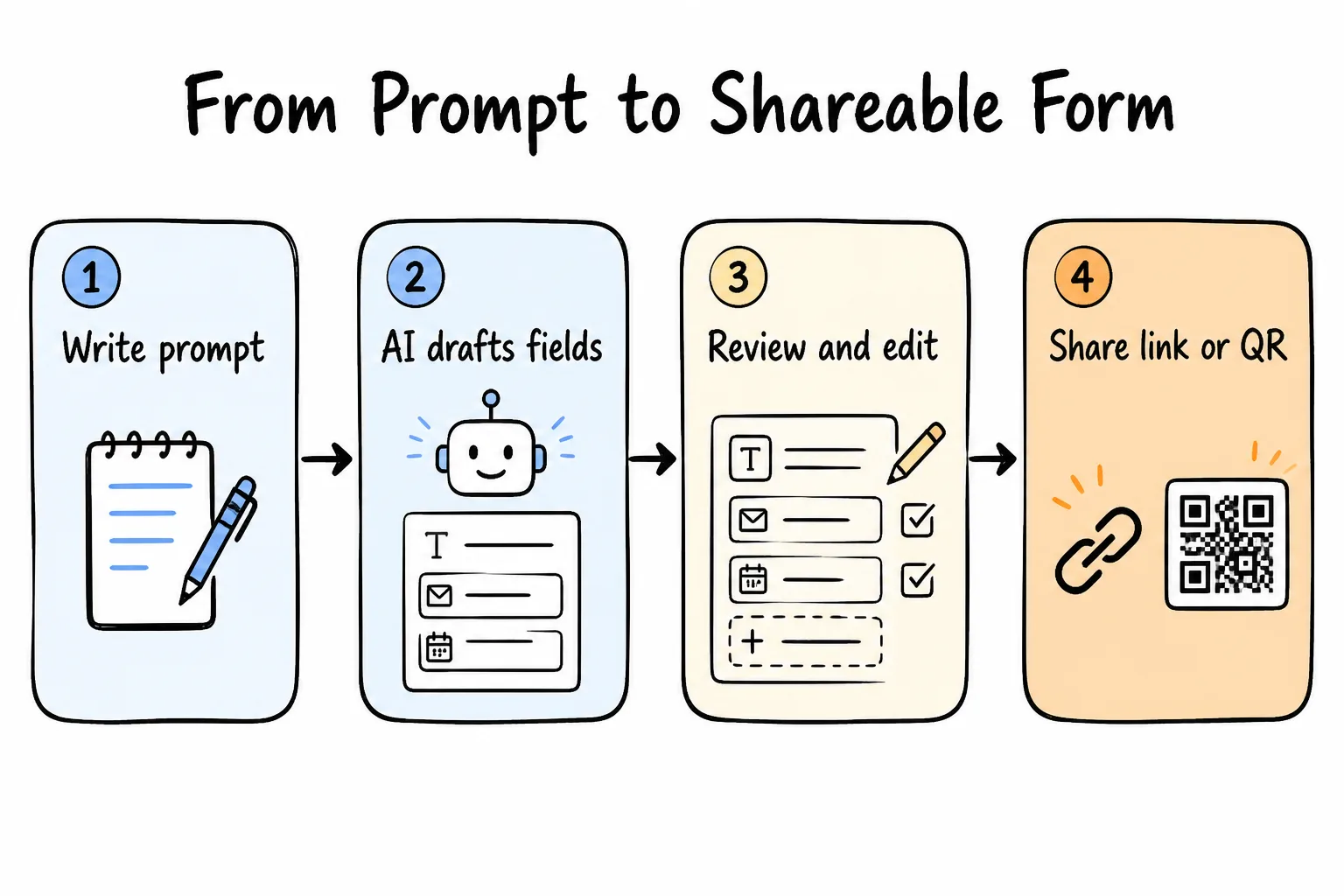
Context
Learn how to turn a plain-language prompt into a live, shareable form-with stronger prompts, smarter field types, review checklists, link and QR sharing, and mobile response collection.
On this page
Most people do not need a better form builder. They need a faster path from “I should collect this” to a link someone can open.
That gap is where prompts help. Instead of dragging fields onto a blank canvas, you describe the job in plain language. An AI form builder drafts the questions and field types. You review, share a link or QR code, and answers start arriving.
This guide shows how to turn a prompt into a shareable form-end to end: write a usable brief, review field types, check before you share, and collect responses without living in a spreadsheet. The examples map to mobile-first tools like Formms. If the need appears away from a desk, pair this with why your next form should start on your phone.
The useful workflow is prompt → draft → review → share-not prompt → hope.
What “Prompt to Shareable Form” Actually Means
A prompt is a plain-language brief. A shareable form is a live page with structured fields, a public URL (and often a QR code), and a place where submissions are stored.
Those are different jobs:
| Output | What you get | What you still need |
|---|---|---|
| AI-generated question list | Text suggestions | Rebuild the form elsewhere |
| AI form builder draft | Editable fields + types | Review, then publish |
| Shareable form | Public link + stored responses | Distribution and follow-up |
A good prompt is only half the workflow. The other half is publishing something people can complete without installing anything.
On Formms, that path stays on your phone: describe what you need, edit the draft, share a short link or QR code, and read replies with notifications. Respondents open the form in a browser; they do not need the app.
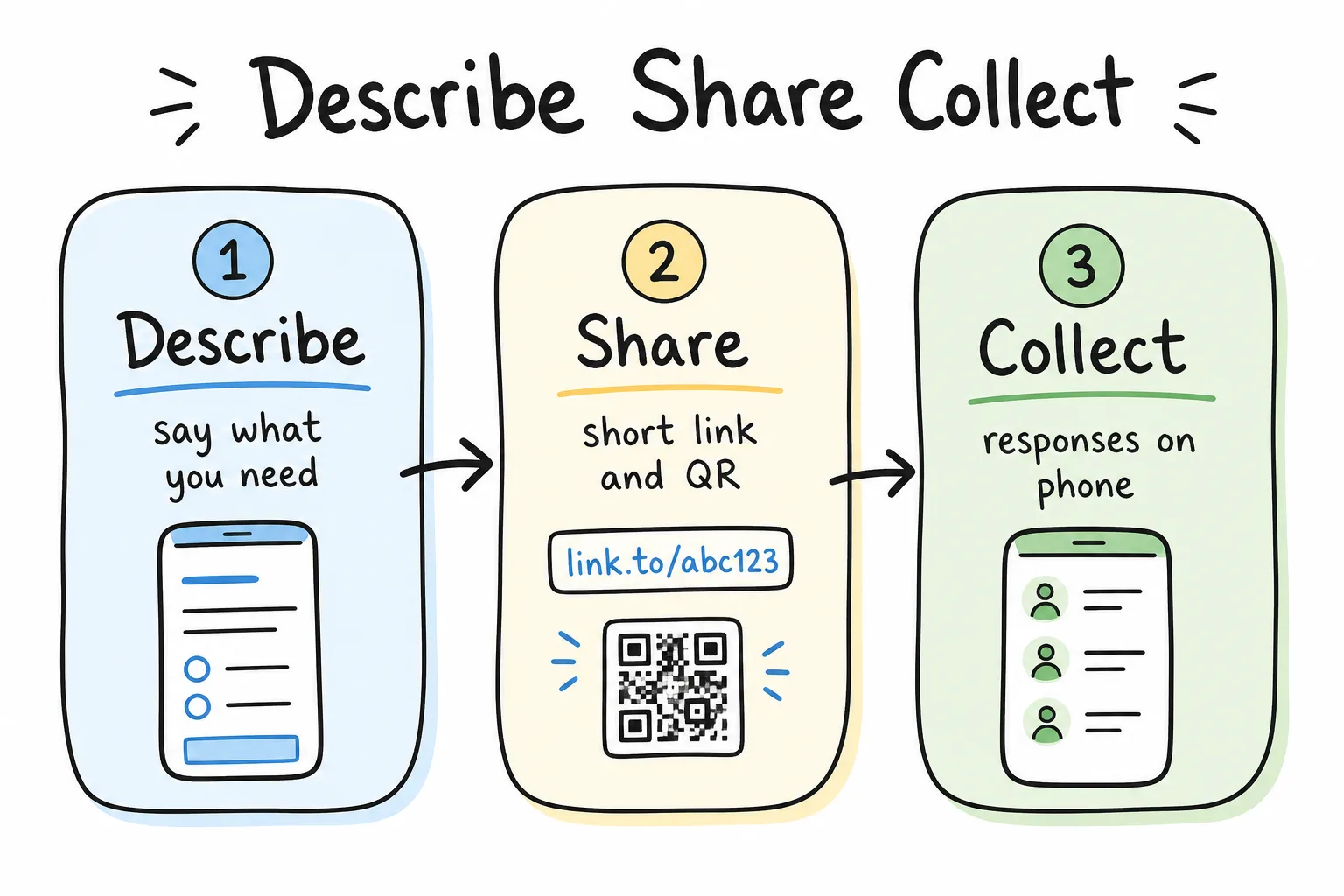
Describe the need, share one link, collect answers where you already work: your phone.
Why Prompts Beat Blank Canvases
Blank form builders force you to invent structure before you clarify intent. Prompts reverse that order.
You start with the outcome:
- “I need Saturday signup names and shirt sizes.”
- “I need a five-question class quiz that closes Friday.”
- “I need counter feedback with a star rating and one comment.”
The AI proposes fields. You decide what stays. That is usually faster than choosing every field type from a menu-especially on a phone screen.
Prompts also reduce two common failures:
- Missing the decision. Forms that collect data nobody will use.
- Overbuilding. Forms that ask fifteen questions when five would do.
Form length matters. Baymard Institute checkout research finds that long, complicated forms are a common abandonment reason in ecommerce, and that many checkouts show far more fields than an efficient flow needs. The same principle applies outside checkout: every extra question is a chance for someone to quit. For a fuller look at that cost, see how much time you lose building forms.
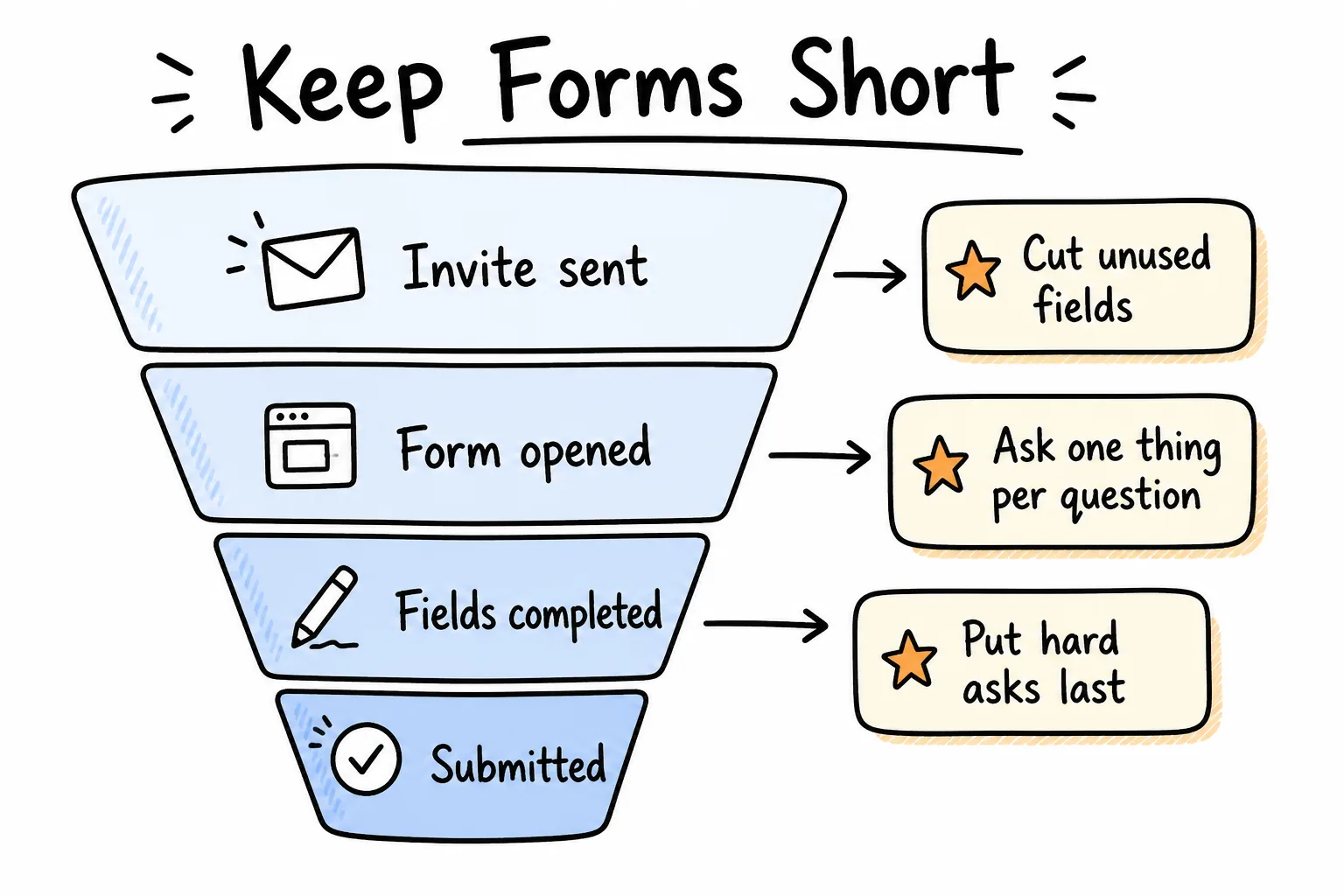
Shorter forms protect completion. Cut unused fields before you share.
Anatomy of a Strong Form Prompt
Vague prompts create generic forms. Specific prompts create drafts you can ship after a quick edit.
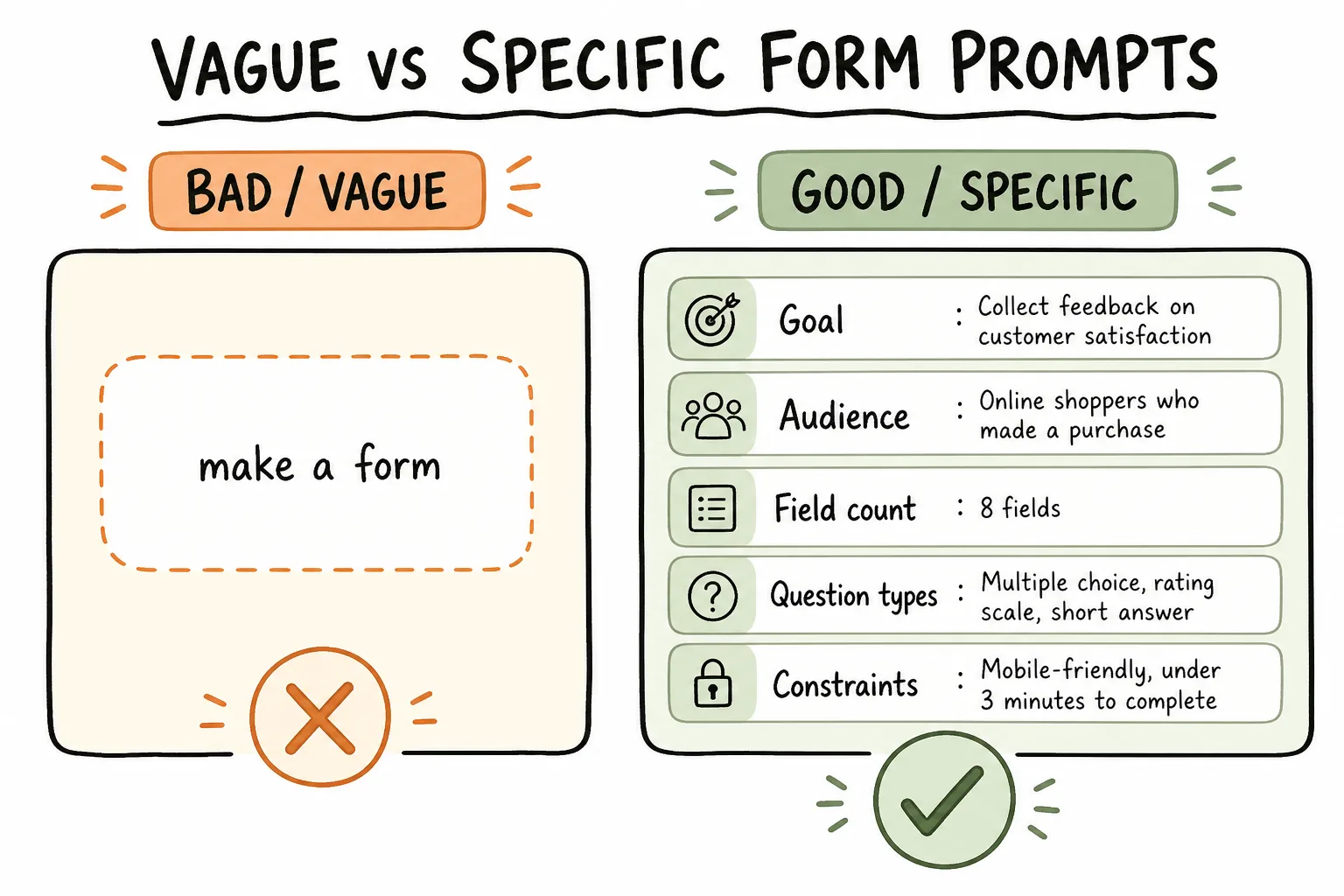
“Make a form” is a wish. A strong prompt is a brief.
The five parts worth including
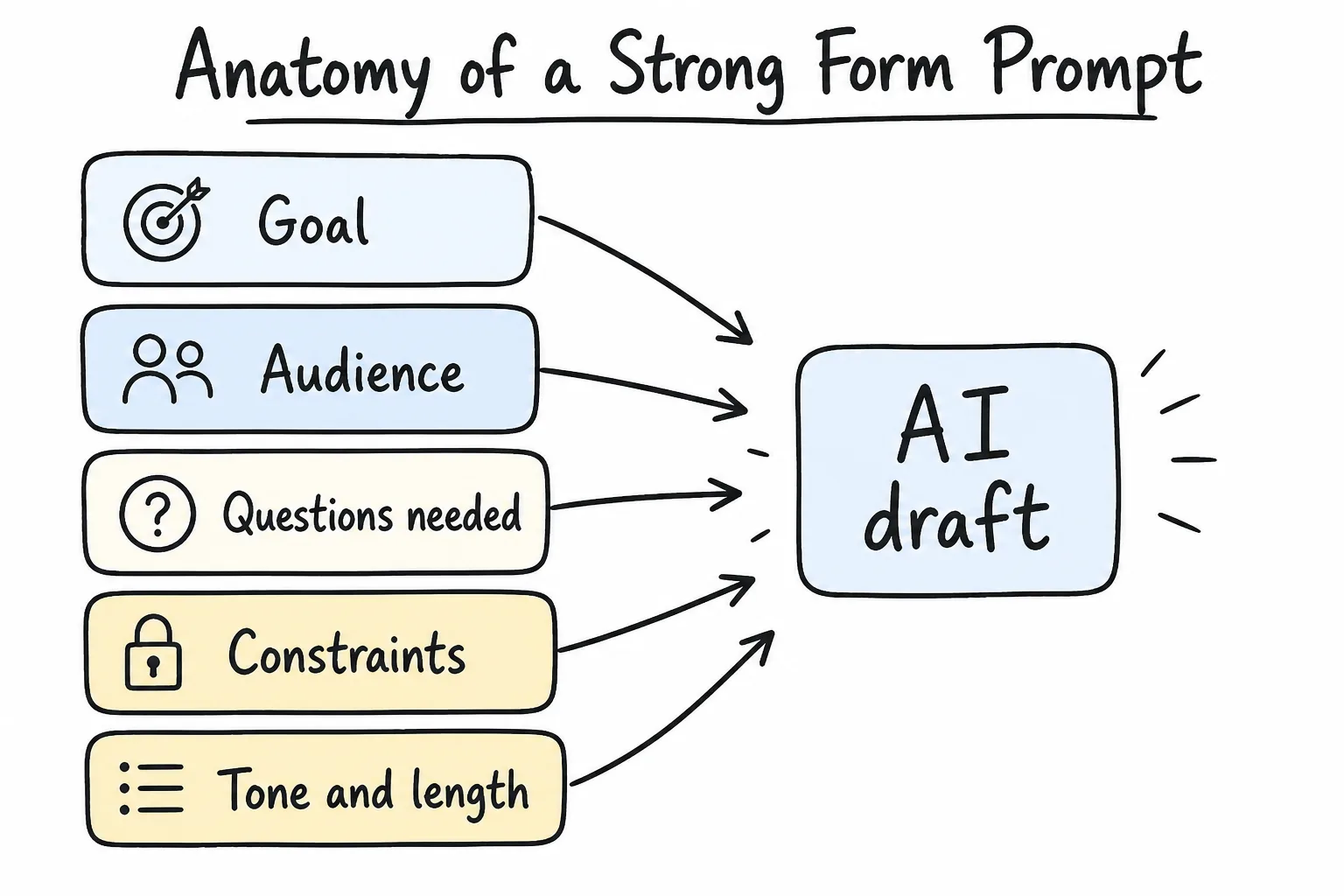
Goal, audience, questions, constraints, and tone-those five parts shape a usable first draft.
- Goal - What decision will the answers support?
- Audience - Who is filling it in, and on what device?
- Questions needed - The must-have topics, not a wish list.
- Constraints - Length, required fields, close date, response cap, file uploads.
- Tone - Friendly classroom, neutral HR, short retail counter copy.
A reusable prompt formula
Use this template and fill the brackets:
Create a [form type] for [audience] to [goal]. Include about [N] questions. Prefer [field types]. Required fields: [list]. Optional fields: [list]. Tone: [tone]. Constraints: [close date / response limit / mobile-first / no jargon]. Avoid collecting [data you do not need].
Weak vs strong examples
Weak: “Make a feedback form.”
Strong: “Create a mobile-friendly customer feedback form for a neighborhood cafe. Five questions max: overall star rating, what they ordered (short text), speed of service (1–5), one thing to improve (long text), and optional email. Friendly tone. Do not ask for phone number or birthday.”
Weak: “Event form.”
Strong: “Create an RSVP form for a Saturday community workshop. Ask name, email, number of guests (number), dietary needs (checkboxes: none / vegetarian / vegan / allergies with short text), and how they heard about the event (multiple choice). Close responses Saturday at noon. Keep it under two minutes.”
If you can paste your prompt into a message to a colleague and they would know what to build, the AI probably will too.
Step-by-Step: From Prompt to Live Link
1. Write the job, not the widget list
Start with the outcome (“collect permission slips by Thursday”) rather than micromanaging every control. Let the builder propose types, then correct them.
2. Generate the draft
In Formms, you describe the form in plain words-for example, “a customer satisfaction survey with a star rating.” The AI drafts questions in the right formats; you edit by hand or ask it to refine. For customer feedback specifically, pull from the customer service survey question bank instead of inventing CSAT wording from scratch.
3. Review field types deliberately
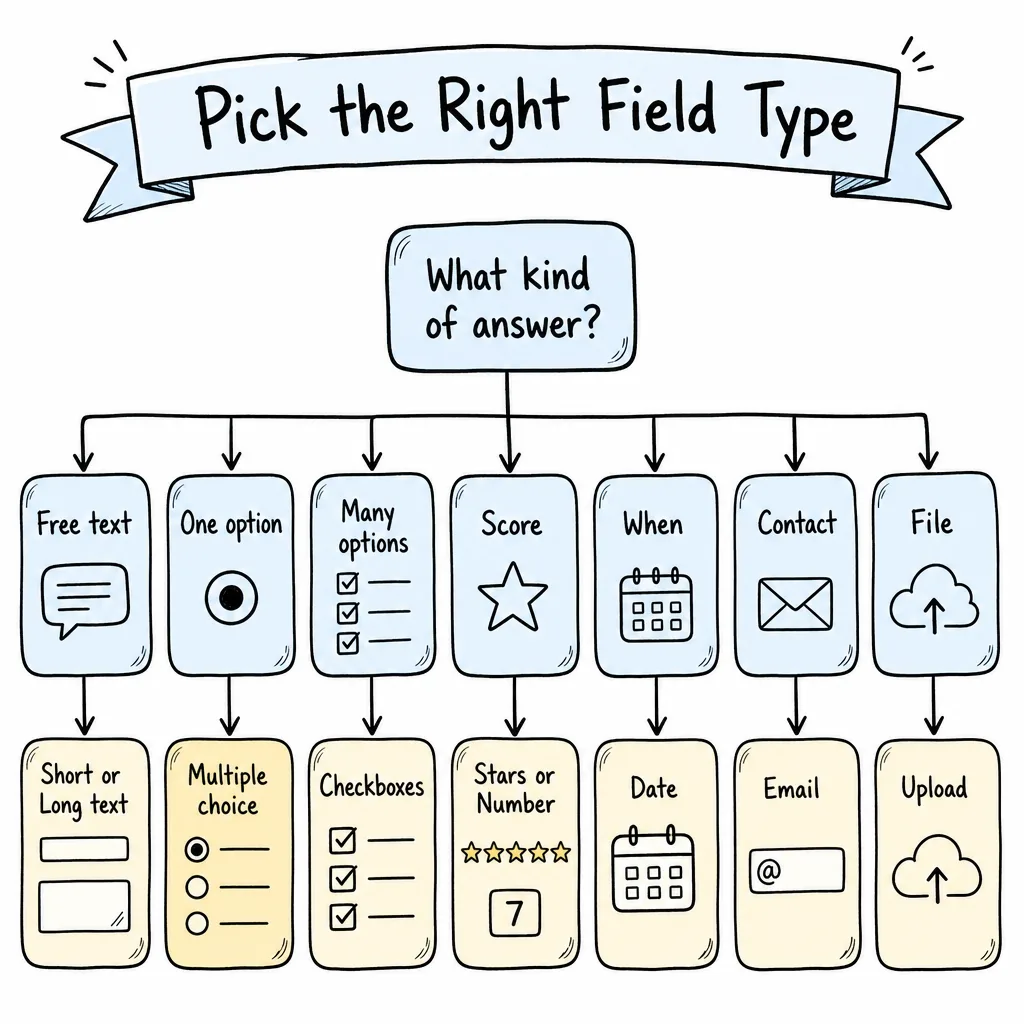
Match the answer shape to the field type so analysis stays easy.
| If you need… | Prefer… | Avoid… |
|---|---|---|
| Comparable ratings | Stars or number scale | Paragraph boxes |
| One choice from a list | Multiple choice | Free text with “type A or B” |
| Several applicable options | Checkboxes | Single-select when multi is needed |
| Contact for follow-up | Email field | Unvalidated short text |
| A deadline or appointment | Date | Ambiguous “next week” text |
| Proof or attachment | File upload | “Email it to me later” |
Open text is valuable for “why,” not for everything. Too many paragraph fields create forms that are easy to draft and hard to analyze.
4. Cut anything you will not use this week
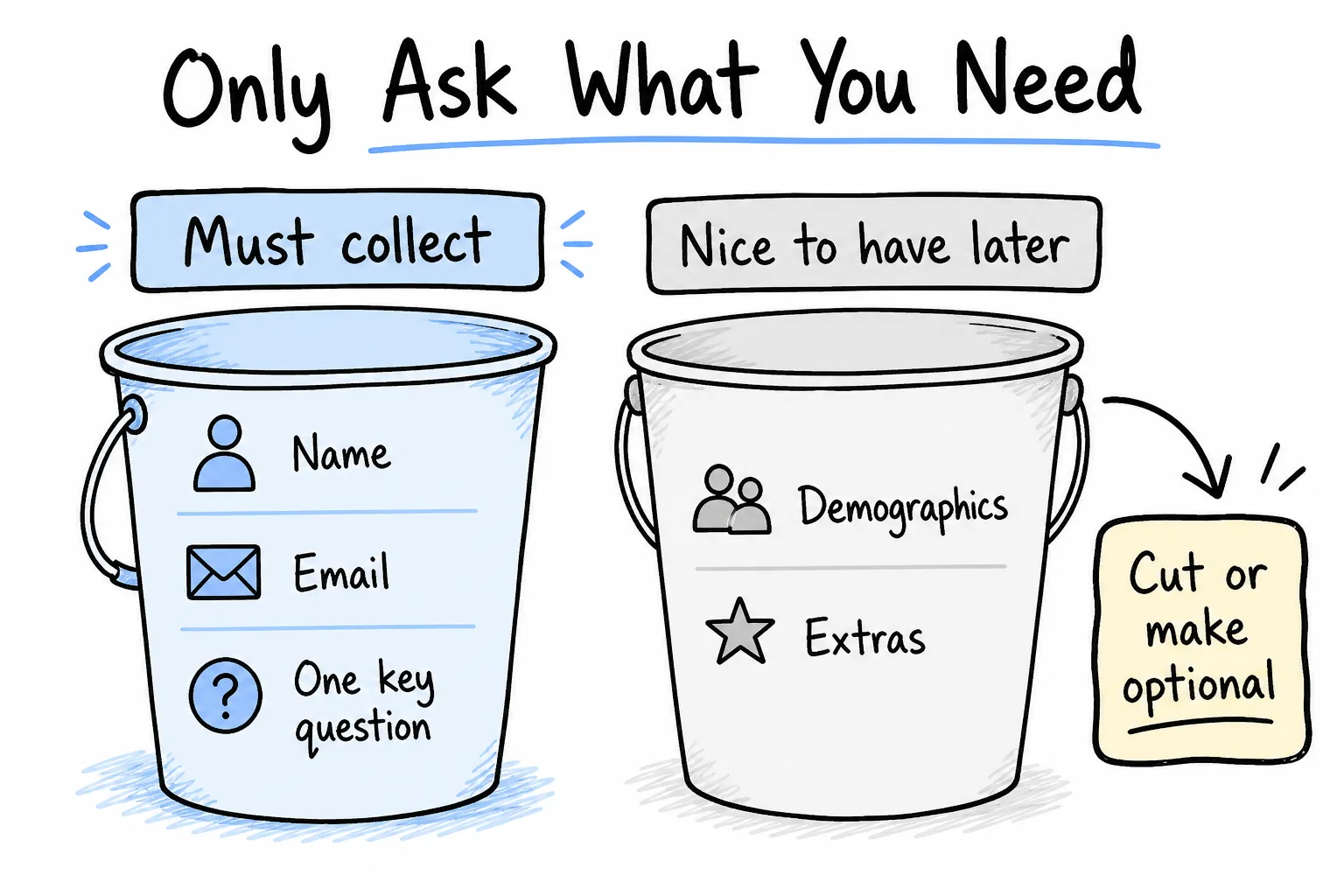
Must-have fields ship. Nice-to-haves wait-or stay optional.
Ask whether each answer changes an action. If it does not change staffing, inventory, seating, grading, or follow-up, remove it.
5. Run a one-person pilot
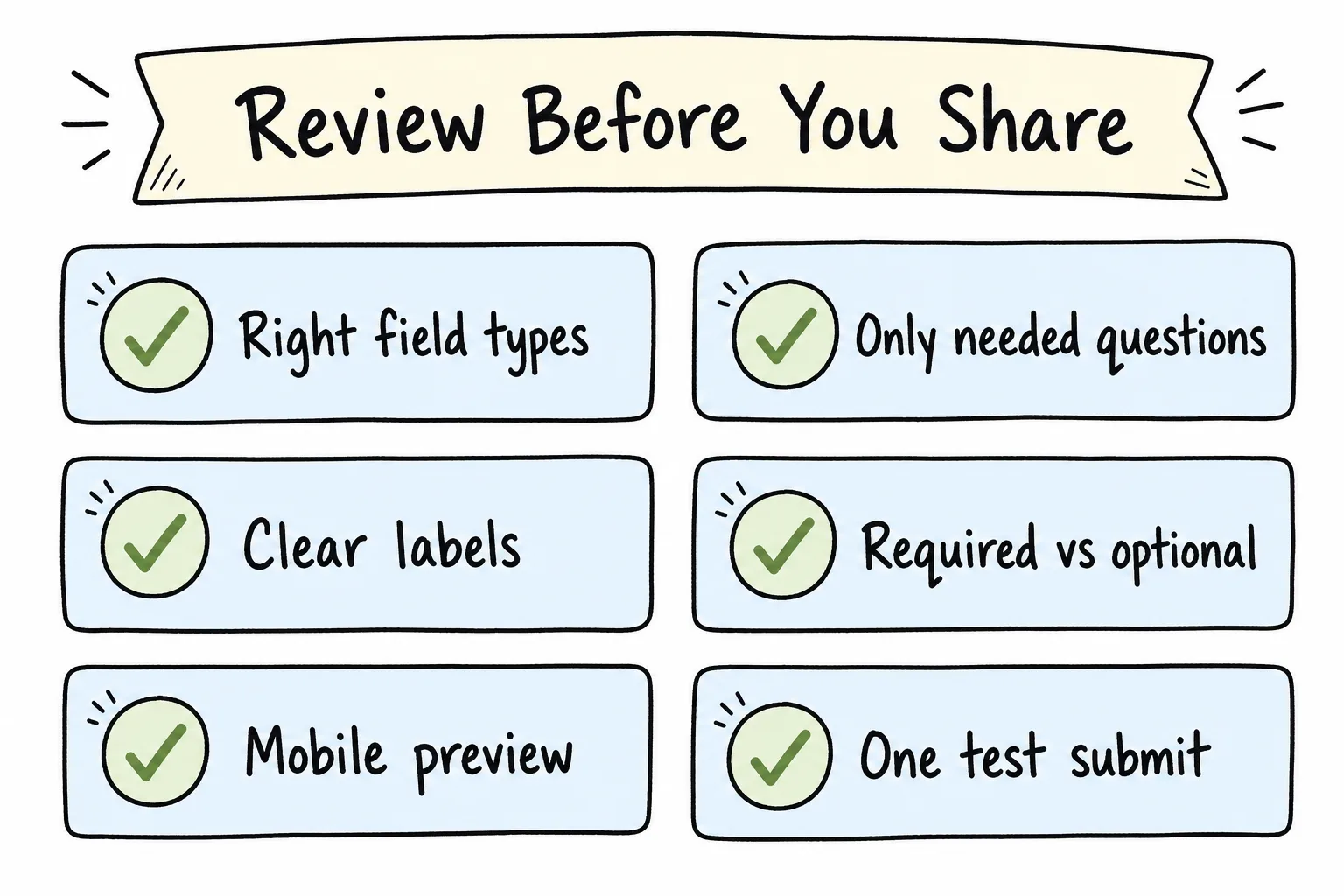
A two-minute review prevents most embarrassing live-form mistakes.
Before you broadcast the link:
- Submit one test response yourself
- Check required vs optional labels
- Confirm the form is readable on a phone
- Verify email/date/upload fields behave as expected
- Read the confirmation or thank-you state if your tool shows one
6. Share the smallest possible surface area
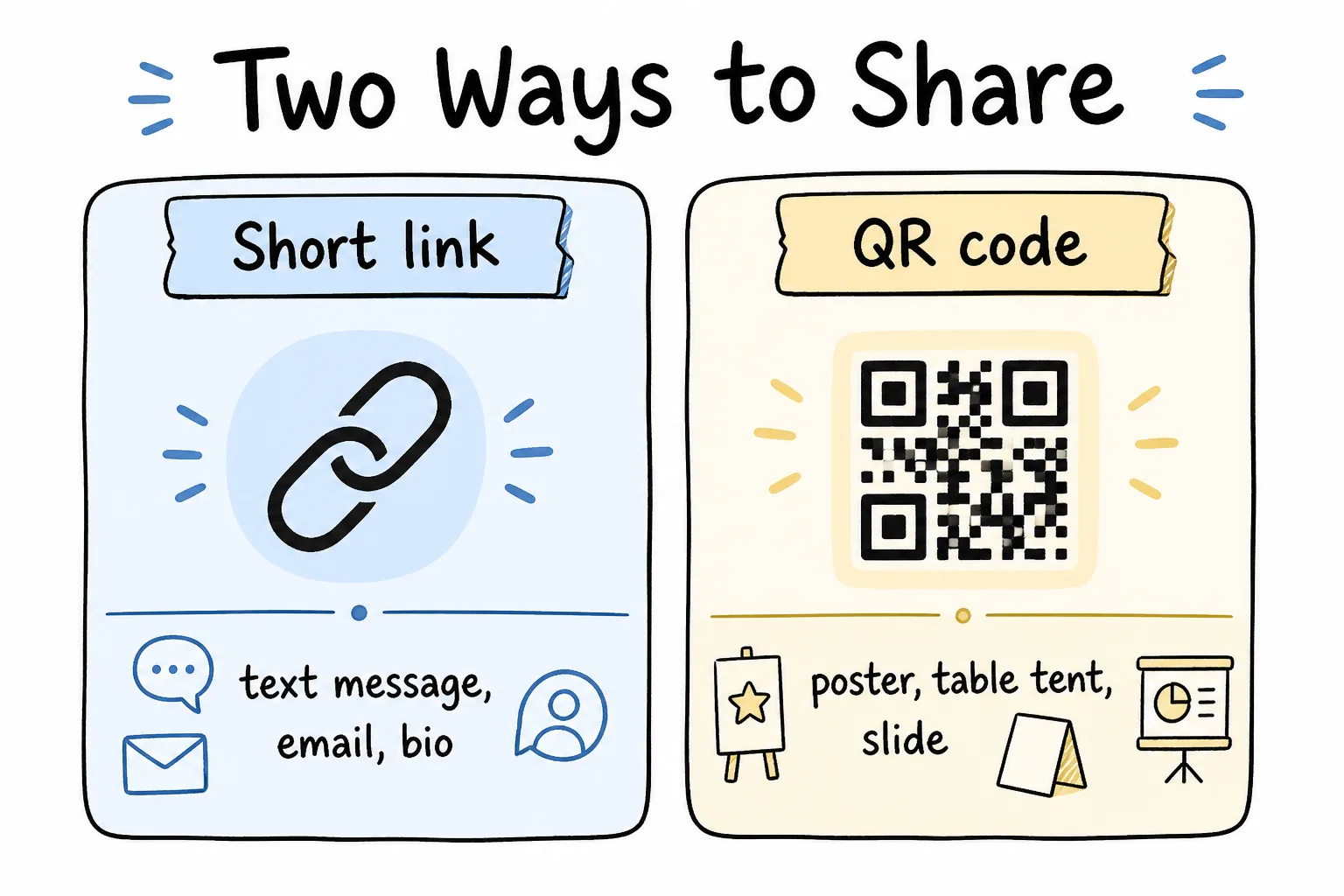
Links travel in chats and emails. QR codes travel on posters, slides, and counters.
Formms gives every form a short link and a downloadable QR code. Anyone can open it in a browser on any device-no app or account required for respondents.
Use the channel that matches the moment:
- Chat / email / bio: short link
- Poster / table tent / slide / window: QR code
- Both: common for events (link in the invite, QR at the door)
7. Collect and close the loop on your phone
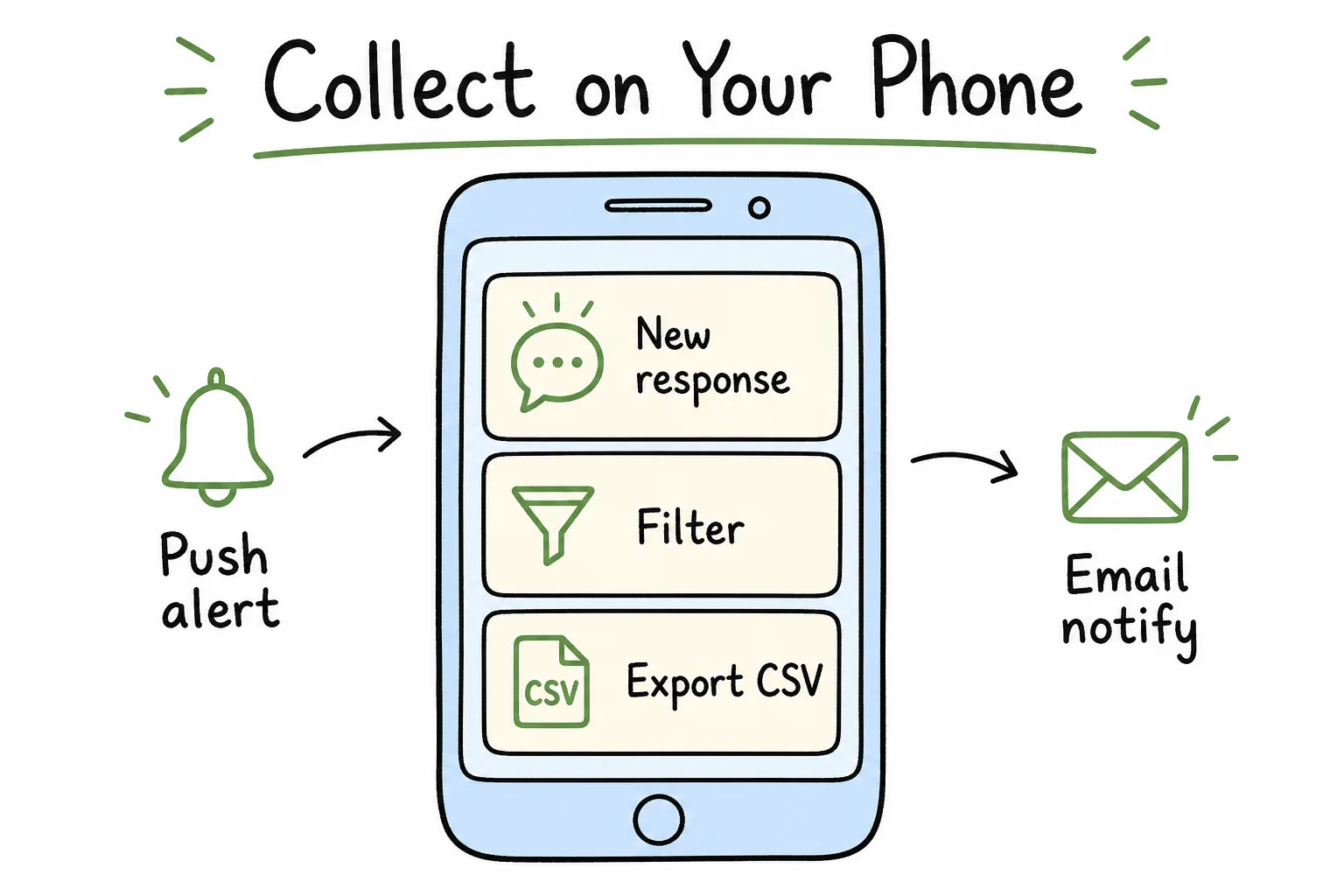
Push alerts, in-app reading, and CSV export keep the workflow mobile.
With Formms, new responses can trigger push or email notifications. Export CSV when you need a spreadsheet. Set a response cap or close date before you share-“open forever” forms accumulate noise and stale intent.
Prompt Recipes You Can Copy
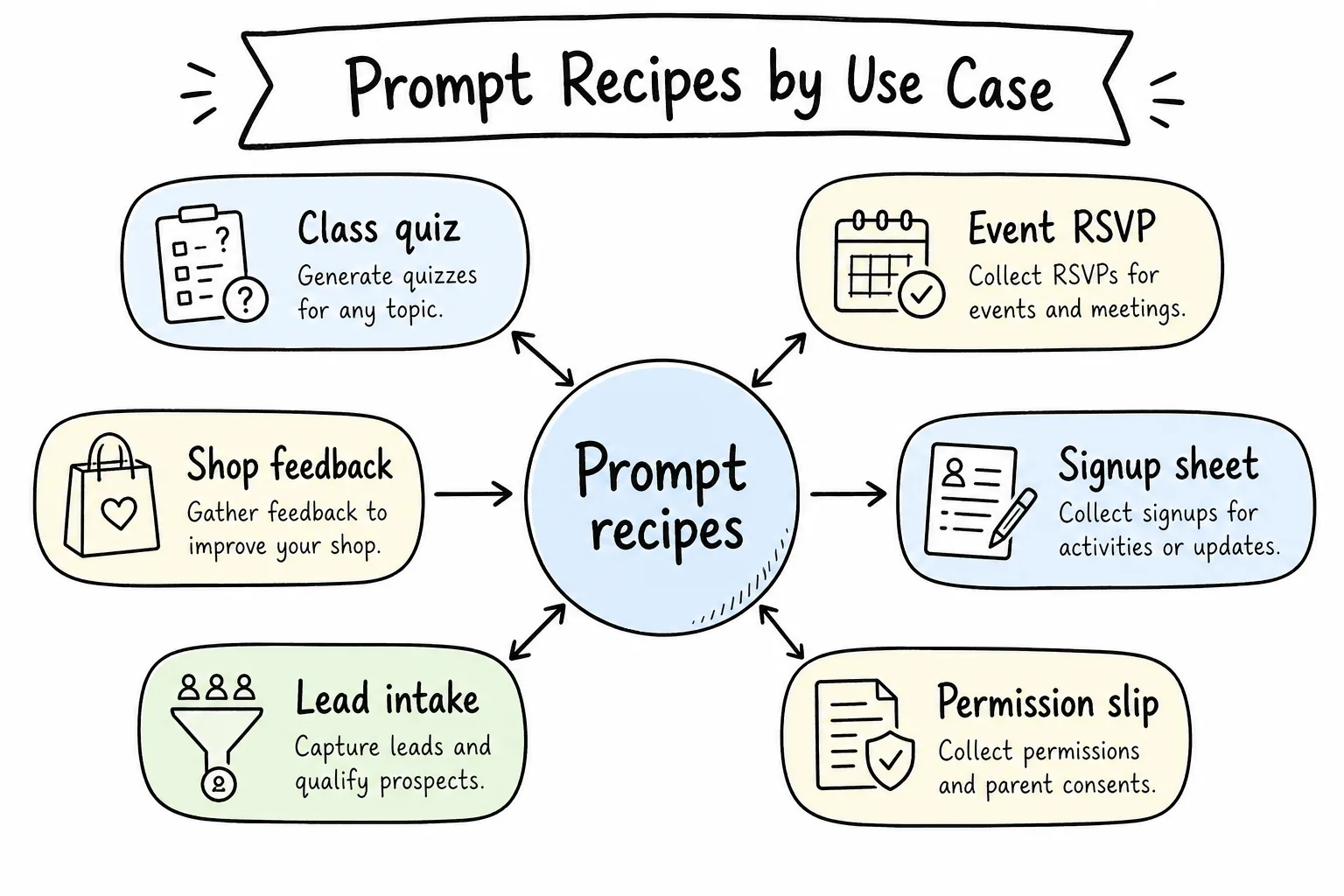
Reuse recipes for quizzes, RSVPs, shop feedback, signups, intake, and permission slips.
Classroom quiz
Create a 8-question quiz for high school biology students on cell organelles. Use multiple choice for 6 questions, one short text definition, and one file upload for a labeled diagram photo. Show a friendly academic tone. Close submissions Friday 5pm. Limit to 35 responses.
Event RSVP
Create an RSVP for a Friday evening community meetup. Ask name, email, number attending (number 1–4), arrival time preference (multiple choice), and accessibility needs (optional long text). Mobile-first. Close Thursday night.
Small shop feedback
Create a counter feedback form for a bakery. Four questions: overall stars, wait time rating (1–5), favorite item (short text), one improvement (long text). Optional email for a follow-up. Keep under 60 seconds. Friendly local tone.
Signup sheet
Create a Saturday volunteer signup sheet. Fields: full name, phone or email (email preferred), preferred shift (checkboxes: morning / afternoon), emergency contact (optional), and notes (optional). Cap at 20 responses.
Permission slip / consent
Create a parent permission form for a school field trip on May 12. Required: student name, parent name, parent email, emergency phone (short text), consent checkbox with clear wording, and allergy notes (optional long text). Serious, plain language. Close May 10.
Lightweight lead intake
Create a short inquiry form for a freelance photographer. Ask name, email, event date, approximate budget range (multiple choice), and project details (long text). No postal address. Professional tone. Five fields maximum.
You can paste any of these into an AI form builder, then refine. On Formms, that looks like a chat-style description followed by an editable draft.
How to Refine a Draft Without Starting Over
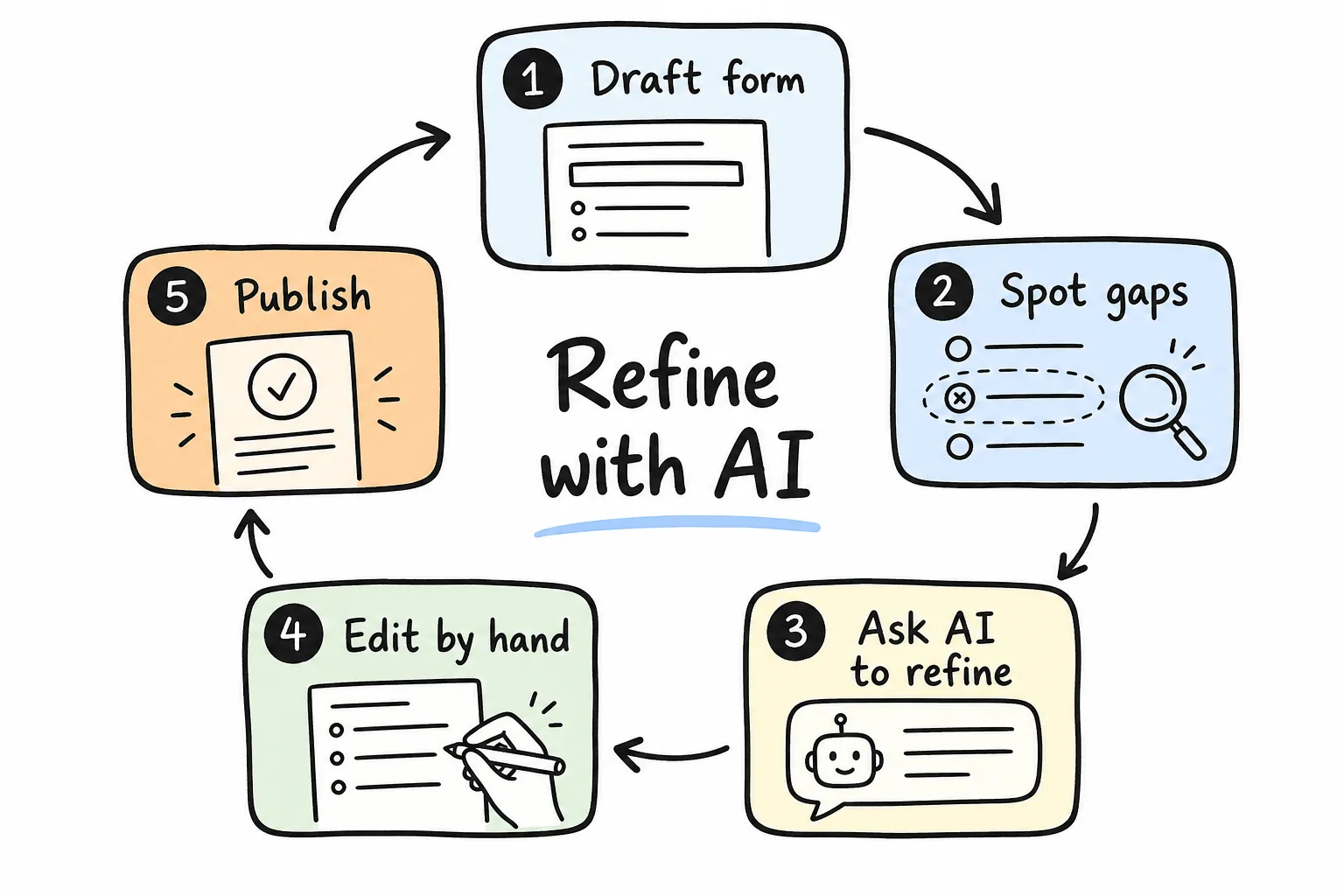
Draft, spot gaps, refine with AI, edit by hand, then publish.
First drafts are rarely final. Use short refinement prompts:
- “Make question 3 multiple choice instead of long text.”
- “Remove the phone number field.”
- “Add a close date for Sunday 6pm and a 50 response limit.”
- “Shorten all labels for mobile and keep a friendly tone.”
- “Add one optional comment box at the end.”
Then do the last mile yourself: rename awkward labels, reorder fields so easy questions come first, and put the highest-friction asks last.
Tip: Easy → specific → sensitive is a reliable order. Name and email before opinions. Opinions before optional contact for follow-up-unless contact is required for the workflow.
Sharing Strategy: Get Completions, Not Just Clicks
A shareable form still needs a reason to open.
Write a one-line context note
When you send the link, say:
- How long it takes (“about 1 minute”)
- Why it matters (“helps us plan food for Saturday”)
- When it closes (“link closes Friday noon”)
Match medium to moment
| Situation | Best share method |
|---|---|
| Group chat | Short link + time estimate |
| Printed poster | QR + short URL underneath |
| Email newsletter | Link button + plain URL fallback |
| In-person counter | QR on a standee |
| Classroom projector | QR on the slide |
Respect respondent effort
Do not send a 12-question form for a yes/no decision. Do not ask for accounts when a guest submission works. Formms respondents do not need an account-keep that advantage by not inventing extra hurdles in your copy.
After Responses Arrive
Collection is not the finish line. Decide what “done” looks like:
- Scan for blockers - allergies, accessibility needs, angry feedback.
- Tally structured fields - ratings, multiple choice, counts.
- Skim open text for themes - three bullets beat a full novel of notes.
- Export CSV when you need filters, charts, or handoff.
- Close the form when the decision is made so late answers do not confuse the plan.
Formms is built for that pocket workflow: notifications as replies arrive, responses in-app, CSV when you need a file. If you already have forms in Google Forms, Typeform, or Tally, you can import them instead of rebuilding every prompt from scratch.
Common Mistakes When Turning Prompts Into Forms
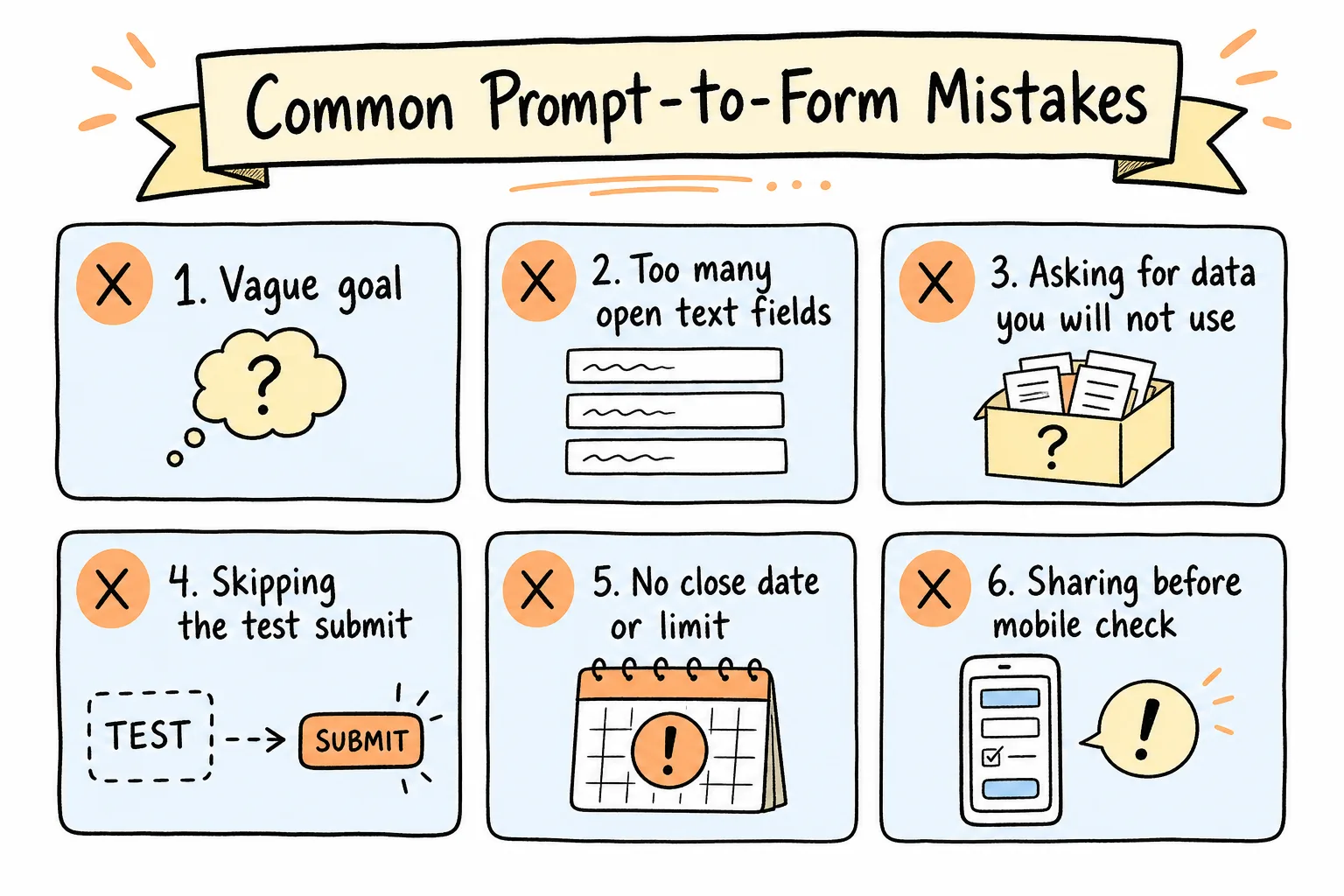
Most failures come from vague goals, excess fields, and skipping the test submit.
Mistake 1: Prompting for fields instead of decisions
“Add name, email, company, role, industry, budget, timeline, notes…” dumps a CRM into a form. Start from the decision, then add only supporting fields.
Mistake 2: Letting AI turn everything into text boxes
Comparable data needs structured types. Force ratings, choices, and dates when you will compare answers later.
Mistake 3: Collecting sensitive data “just in case”
Phone numbers, birthdays, and file uploads increase friction and responsibility. Collect them only when the workflow requires them.
Mistake 4: Sharing before a mobile preview
If you build on a phone, you are halfway there-but still submit a test. If you build on a larger screen, preview on a small one before the QR goes on a poster.
Mistake 5: No close date or response limit
Open forms collect stale answers and make it unclear when a list is final. Formms lets you set a close date, a response cap, or manually toggle responses off.
Mistake 6: Ignoring notifications until it is too late
Turn on push or email alerts for time-sensitive RSVPs and permission slips. Waiting until “later” is how seats get double-booked. And do not treat the first AI draft as sacred-the draft is clay; your review is the craft.
Privacy, Trust, and Good Defaults
Even simple forms carry trust expectations.
- Collect the minimum data needed for the stated purpose.
- Prefer email over phone when either works.
- Use clear consent language for permission slips and photo releases.
- Avoid surprise file requirements on first share tests.
- Know how to export and delete data when you are done.
According to Formms, forms and responses are private to your account, sent over encrypted connections, and never sold. You can export CSV anytime and delete your account to remove everything. Look for those defaults in any prompt-to-form tool-not just clever generation.
Frequently Asked Questions
How do I turn a prompt into a shareable form?
Describe the form’s goal, audience, and constraints in plain language inside an AI form builder. Review the drafted fields, fix types and required settings, then publish a public link or QR code people can open in a browser.
What makes a good prompt for an AI form builder?
Include the goal, who will fill it out, roughly how many questions, which field types you prefer, required vs optional fields, tone, and limits such as close dates. Specific prompts produce tighter drafts than “make a form.”
Do respondents need to install an app to fill out the form?
No-not if you use a tool that publishes a browser link. With Formms, respondents open a short form.ms/… link or scan a QR code; they do not need the app or an account.
How many questions should my form include?
As few as the decision requires. Many operational forms work well with 3–7 questions. Longer forms need a stronger reason and clearer motivation, or completion drops.
What question types should I use?
Use structured types (multiple choice, checkboxes, ratings, dates, email) when you need comparable data. Use short or long text for explanations. Use file upload only when an attachment is truly required.
Can I build and manage the form entirely on my phone?
Yes. Formms is built to run on iPhone and Android-describe, edit, share, and read responses without a laptop.
How do I know when someone responds?
Use push notifications and/or email notifications. Formms can alert you instantly in-app and can email each new response with answers included.
Can I limit how many people respond?
Yes. Set a response cap, a close date, or turn responses off manually when you have what you need.
What if I already have Google Forms, Typeform, or Tally forms?
Import them if your builder supports it. Formms can import from Google Forms, Typeform, and Tally so you can continue collecting in one mobile workflow.
Is Formms free?
Yes. According to Formms, you can build forms, share them, and collect unlimited responses for free. They may add paid features later, but collecting responses is stated to remain free.
Should I always edit an AI-generated form before sharing?
Yes. Check field types, labels, required flags, mobile layout, and privacy. AI drafts speed you up; your review keeps the form trustworthy.
How do I share a form on a poster or at an event?
Download a QR code and print it with a short URL underneath as fallback. Put the same link in the digital invite so remote guests can respond too.
Conclusion
Turning a prompt into a shareable form is a workflow, not a magic trick. Write a clear brief. Let AI draft the structure. Review field types and cut anything you will not use. Share a short link or QR code with context. Collect answers where you can act on them-ideally on your phone-and close the form when the decision is done.
If you want a mobile path from sentence to live form, use Formms. Describe what you need, edit the draft, share a link or QR code, and read responses on your phone. For timing and delay costs, see how much time you lose building forms. For classroom survey options beyond a single prompt, see best survey tools for teachers.