
Blog / AI Tools
10 Best ChatGPT Plugins in 2026 (Worth Trying)
Context
Discover 10 of the best ChatGPT plugins in 2026 to build forms, publish websites, create presentations, catch up on Slack, plan trips, and automate everyday tasks, all without leaving ChatGPT.
On this page
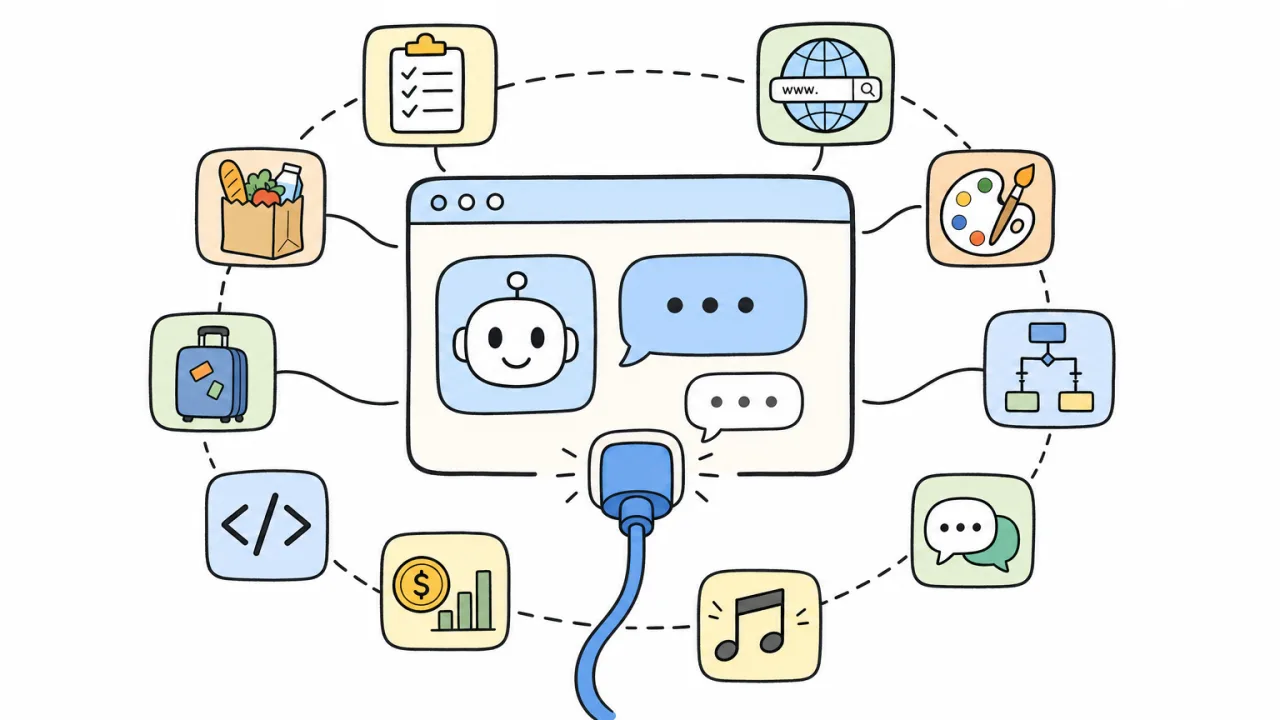
If you stopped paying attention to ChatGPT plugins in 2024, you missed a lot. The original plugin store closed, custom GPTs and “apps” took its place, and in July 2026 OpenAI brought the plugin name back with a new Plugin Directory. The plugins in it are more capable than the 2023 versions. Many of them open a real card or editor inside the chat, act on your own account, and work in Codex as well as ChatGPT.
The directory keeps growing, so this list stays short. It covers ten plugins that each do one job well enough to change how you work, what you can ask each of them, and the catches worth knowing before you connect an account.
What ChatGPT plugins are in 2026
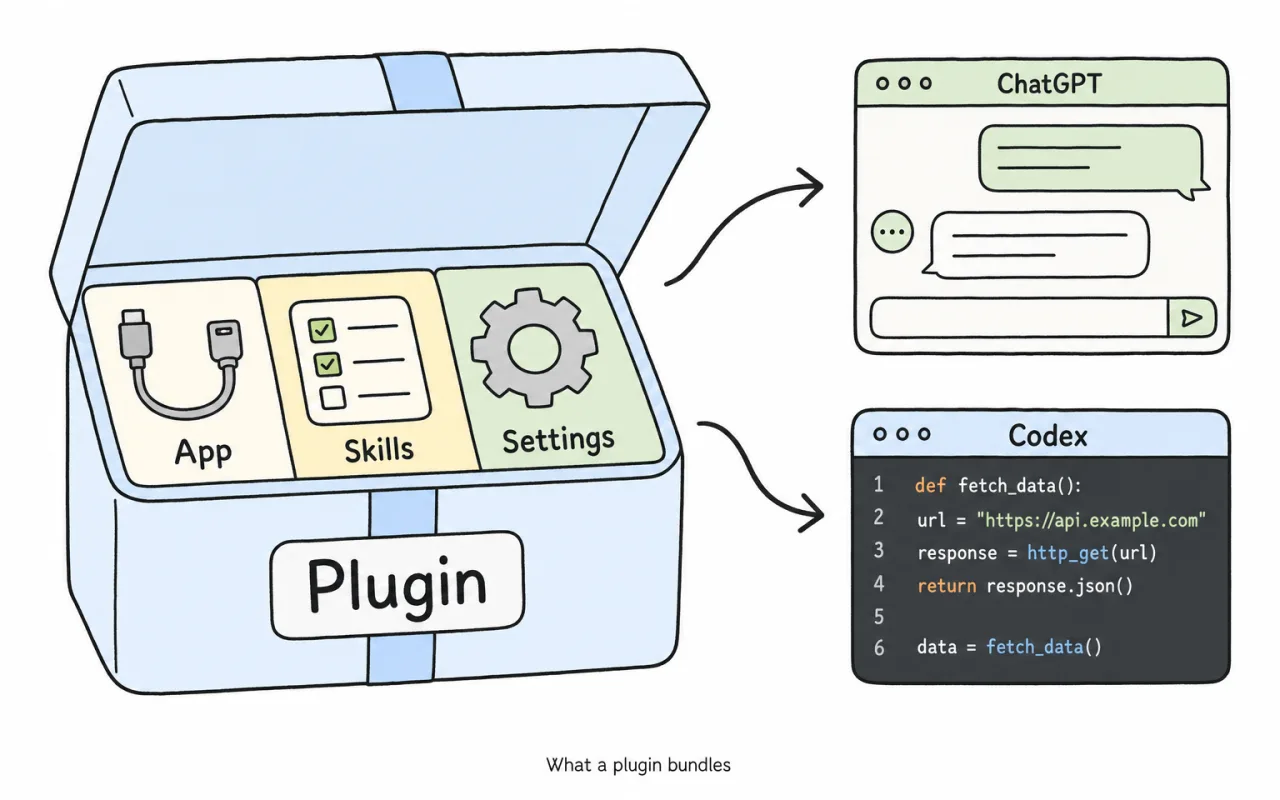 A plugin packages apps, skills and settings under one name you can install.
A plugin today is a package. OpenAI’s developer docs describe it as a bundle that tells ChatGPT and Codex which skills (repeatable workflows), app connections (usually an MCP server that talks to the other service) and other resources belong together. You install the plugin once, sign in to the service if it asks, and then call it by name in any chat.
Three things changed compared with the plugins people remember from 2023:
- They act on your account. A Canva plugin creates a design in your Canva, a Stripe plugin reads your revenue. You approve that access when you connect.
- They show real interfaces. Many plugins render cards, lists, maps or editors in the conversation rather than a wall of text.
- One directory serves ChatGPT and Codex. A plugin published to the directory can be used in both.
The directory itself lives at chatgpt.com/plugins and in the Plugins item in the ChatGPT sidebar. OpenAI’s plugins overview notes that select plugins are available on every plan, including Free, while some need a paid plan, and that Enterprise and Edu workspaces have plugins switched off until an admin enables them.
Plugins, GPTs, apps and MCP servers
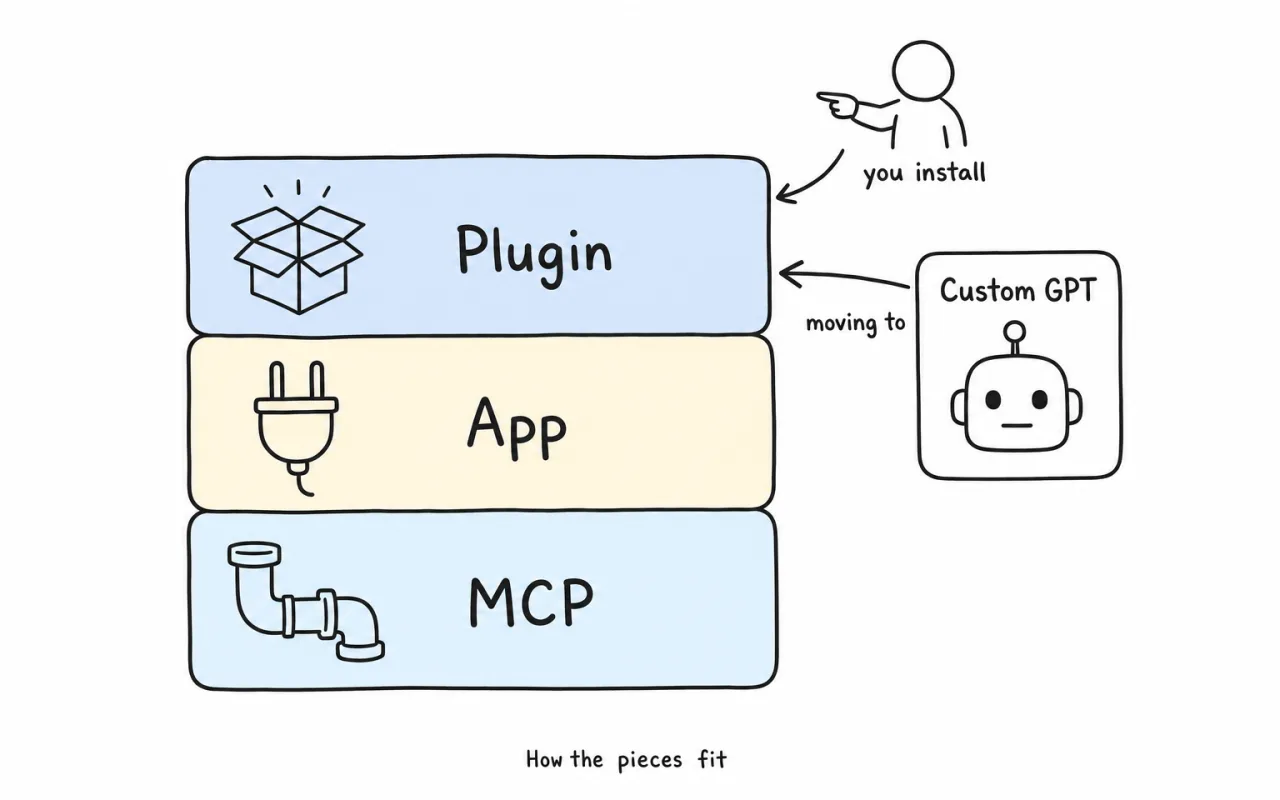 MCP is the plumbing, apps are the connection, the plugin is what you install.
These words get mixed up, so here is the short version:
| Term | What it is in 2026 | What you do with it |
|---|---|---|
| Plugin | The installable package in the Plugin Directory | Install it, then mention it in a chat |
| App | The connection to an outside service inside a plugin | Sign in once so it can act for you |
| Skill | A saved, repeatable workflow | Runs when your request matches it |
| MCP server | The open protocol most apps are built on | Add one by URL if it is not in the directory |
| Custom GPT | A configured version of ChatGPT | Being moved over to plugins |
The last row matters for one plugin on this list. Any service with a public MCP server can be added to ChatGPT by URL as a custom plugin, even if it is not in the directory yet.
How we picked these ten
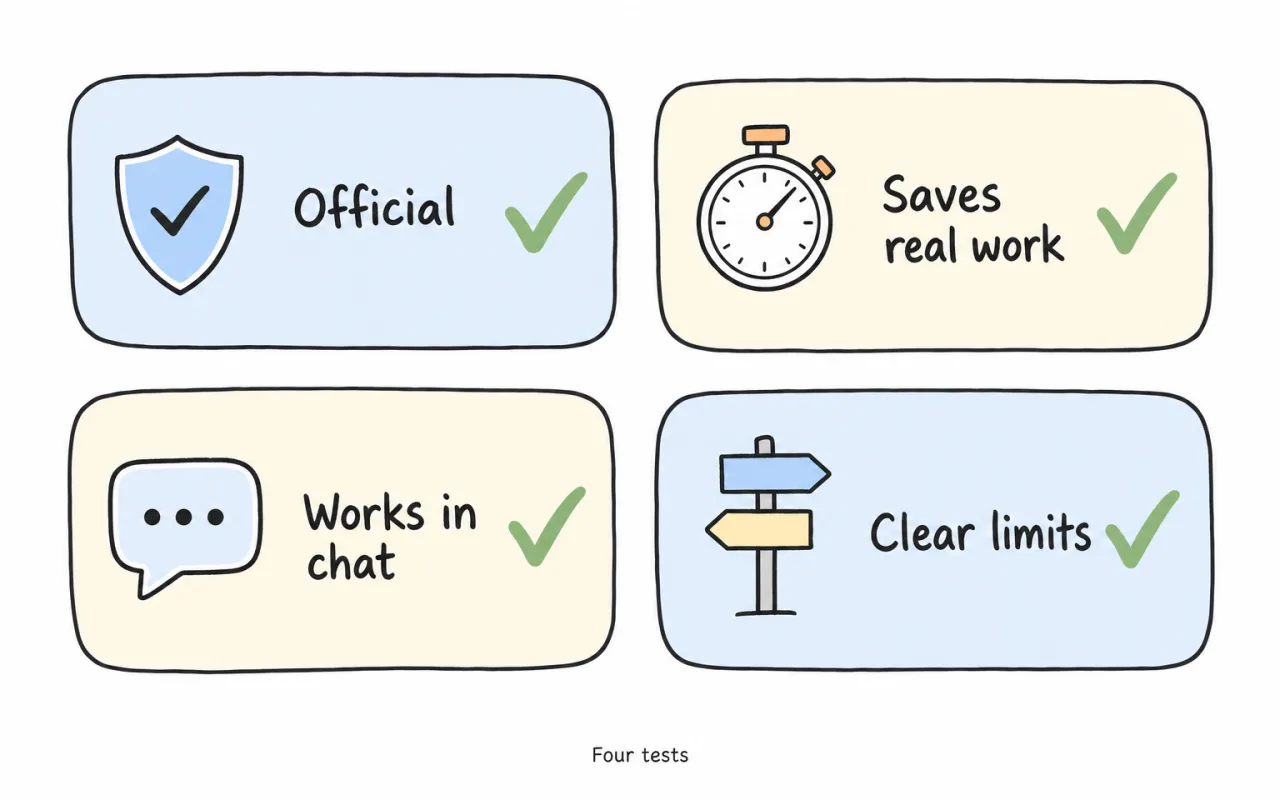 Official, useful, in-chat, and honest about its limits.
We started from the directory and the official announcements and kept only plugins that pass four tests:
- Built or backed by the company behind the service. No unofficial wrappers that break when the service changes.
- Saves real work. It has to finish a task you would otherwise do in another tab, not just answer questions about it.
- Works inside the chat. You should see a result in the conversation, not just a link out.
- Clear limits. We note regional gaps, paid features, and where you still have to leave ChatGPT to finish.
We build Formms and Sitelink, so those two entries come from daily use. For the other eight we relied on each company’s own documentation and OpenAI’s listings, and we say where something depends on your plan or region.
The 10 best ChatGPT plugins at a glance
| # | Plugin | Best for | Good to know |
|---|---|---|---|
| 1 | Formms | Forms, surveys, RSVPs and their results | Free on every Formms plan, added by URL |
| 2 | Sitelink | A real address for a site made in ChatGPT | First 30 days free, from $9 a year |
| 3 | Canva | Decks, posters and social posts | Can apply your Brand Kit |
| 4 | Figma | Diagrams and slide decks | FigJam and Slides only |
| 5 | Slack | Catching up on channels | Workspace admins may need to approve |
| 6 | Stripe | Revenue and subscription questions | Reads live account data |
| 7 | Lovable | Turning an idea into a working app | Credits start when the build starts |
| 8 | Expedia | Comparing hotels and flights | You book on Expedia |
| 9 | DoorDash | Turning a recipe into a grocery cart | You check out in DoorDash |
| 10 | Spotify | Playlists and podcasts on request | Premium gets fully personalized picks |
1. Formms: build forms and read the answers in chat
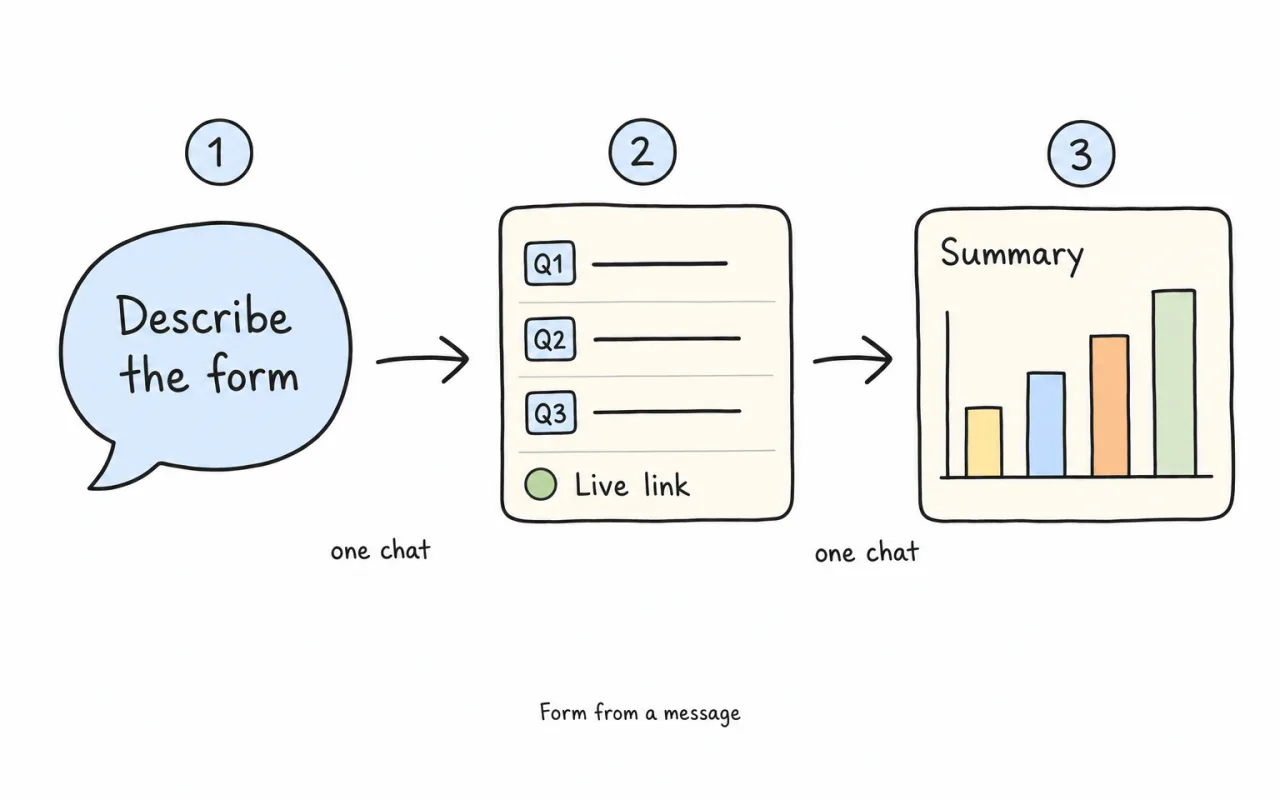 Describe the form, get a live link, ask for a summary later.
Full disclosure: Formms is our product. It is first on the list because it covers a job almost everyone has (collecting information from other people) and does the whole thing from the chat, from the first question to the final tally.
You describe what you need, for example “an RSVP form for our team offsite on March 14 that asks for name, dietary needs and whether they need a hotel room.” ChatGPT writes the questions, Formms saves and publishes the form, and a card with the live link appears in the chat. A week later you can ask “how many people need a hotel room?” and get the answer from the actual responses.
What it handles well:
- Creating forms of any kind: sign-ups, RSVPs, feedback, quizzes, applications, with real choice questions rather than free text everywhere.
- Importing an existing form. Paste a Google Forms link or attach a PDF or screenshot and it recreates the questions as a draft for you to check.
- Editing and settings. Add questions, close the form on a date, cap responses or change the thank-you message.
- Reading results. Totals per question, averages, and individual answers, without exporting anything.
It connects through Formms’ MCP server. In ChatGPT, open Plugins, click +, choose Add custom MCP server, paste https://api.form.ms/mcp and sign in with your Formms account. The full steps for ChatGPT, Claude and other apps are on the Formms MCP page.
Tip: Ask for the goal, not the fields. “A feedback form for Saturday’s workshop that tells me what to change next time” gets better questions than a list of field names. Our guide to creating surveys with AI goes deeper on prompting.
2. Sitelink: give the site you made in ChatGPT a real address
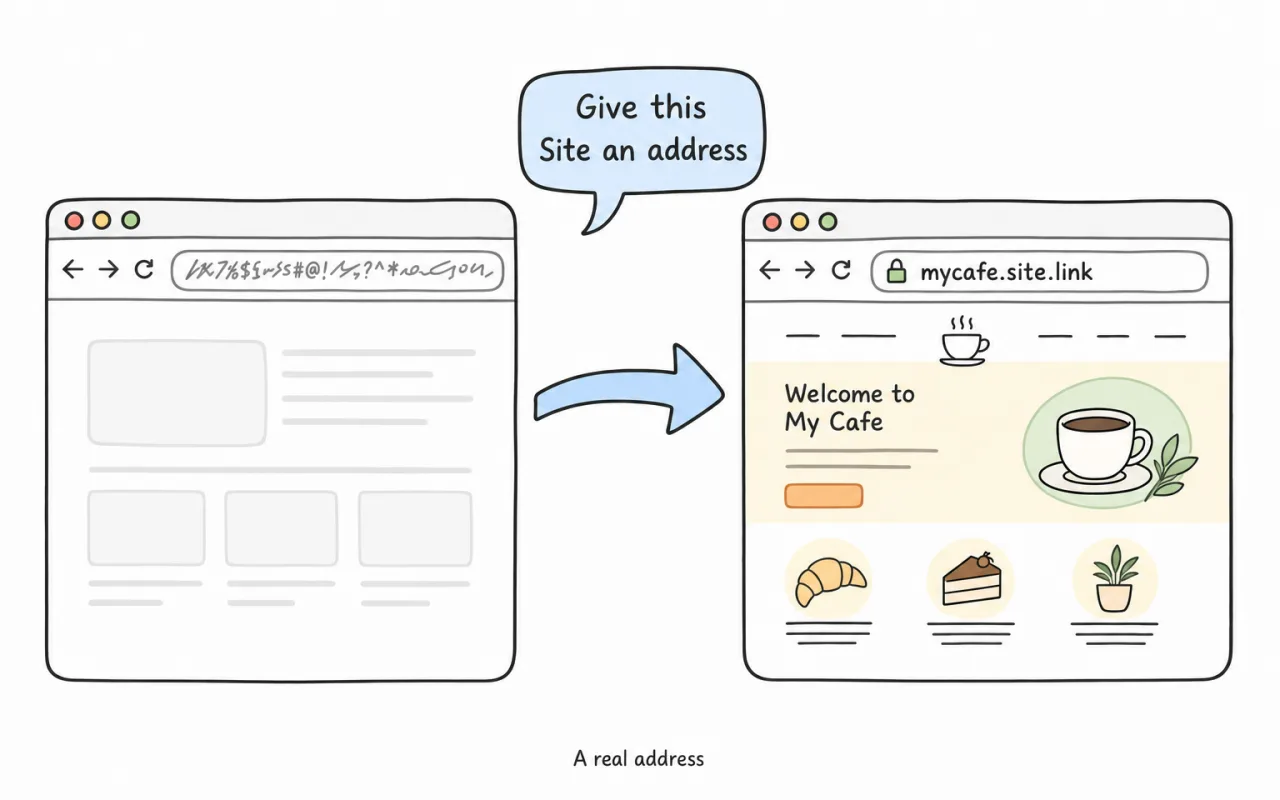 A site built in chat, live at a name like mycafe.site.link.
Another disclosure: Sitelink is made by Microcompany, the same small team behind Formms. It earns its place because it fixes the last step of building a website in ChatGPT. The site works, but it lives at a random address nobody can remember or type from a flyer.
With the plugin installed, you stay in the chat where you built the Site, type @site.link and ask for a name: “Give this Site the address mycafe.site.link.” A few minutes later the site is live there with HTTPS. There is no domain to buy and no DNS to set up, because Sitelink owns the domain and gives you a name under it.
What it handles well:
- Restaurant and small business sites that need an address people can type from a menu or a sign.
- Portfolios, link-in-bio pages and app demos you want to share without a random-looking URL.
- Pages made in Claude. Sitelink also hosts pages built in Claude, so one name can move between the two apps.
Good to know: Install it from the Plugin Directory, then sign in with your email and a six-digit code. Every name is free for its first 30 days with no card, and most names cost $9 a year after that. Free sites carry a small, closable “Made with Sitelink” badge until you pay.
3. Canva: turn an outline into a finished design
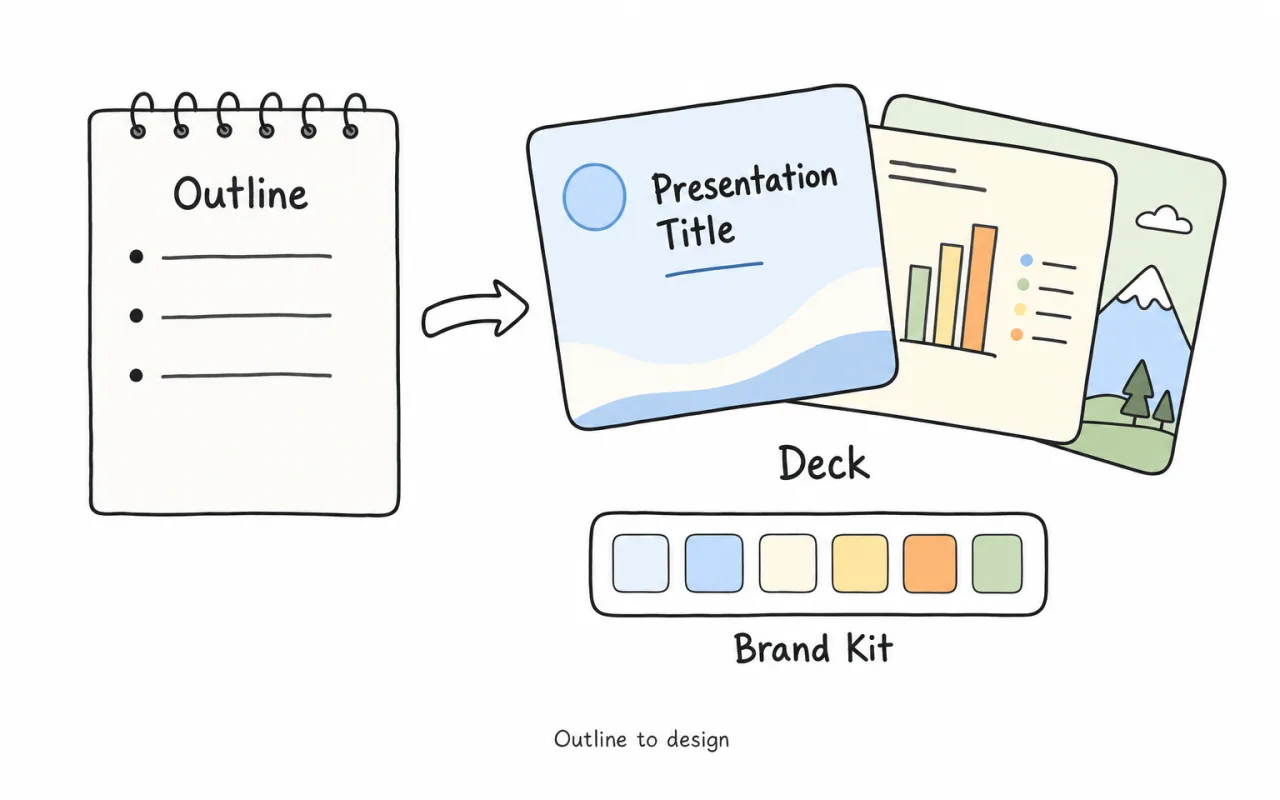 From bullet points to an editable design, with your brand applied.
Canva is the plugin to reach for when the words are ready and the visuals are not. Give it an outline or a draft and ask for a pitch deck, a poster, a flyer or a social post, and it builds an editable Canva design you can preview and adjust in the chat.
The most useful part for teams is the Brand Kit. Canva’s announcement of its ChatGPT integration says designs can pick up your brand’s fonts, colors and voice from the start, which removes most of the clean-up work that AI-made designs usually need.
Good to know: Canva says the full design experience is rolling out to ChatGPT Free, Plus and Pro outside the EU. Open the design in Canva itself for detailed edits.
4. Figma: diagrams and slides from a conversation
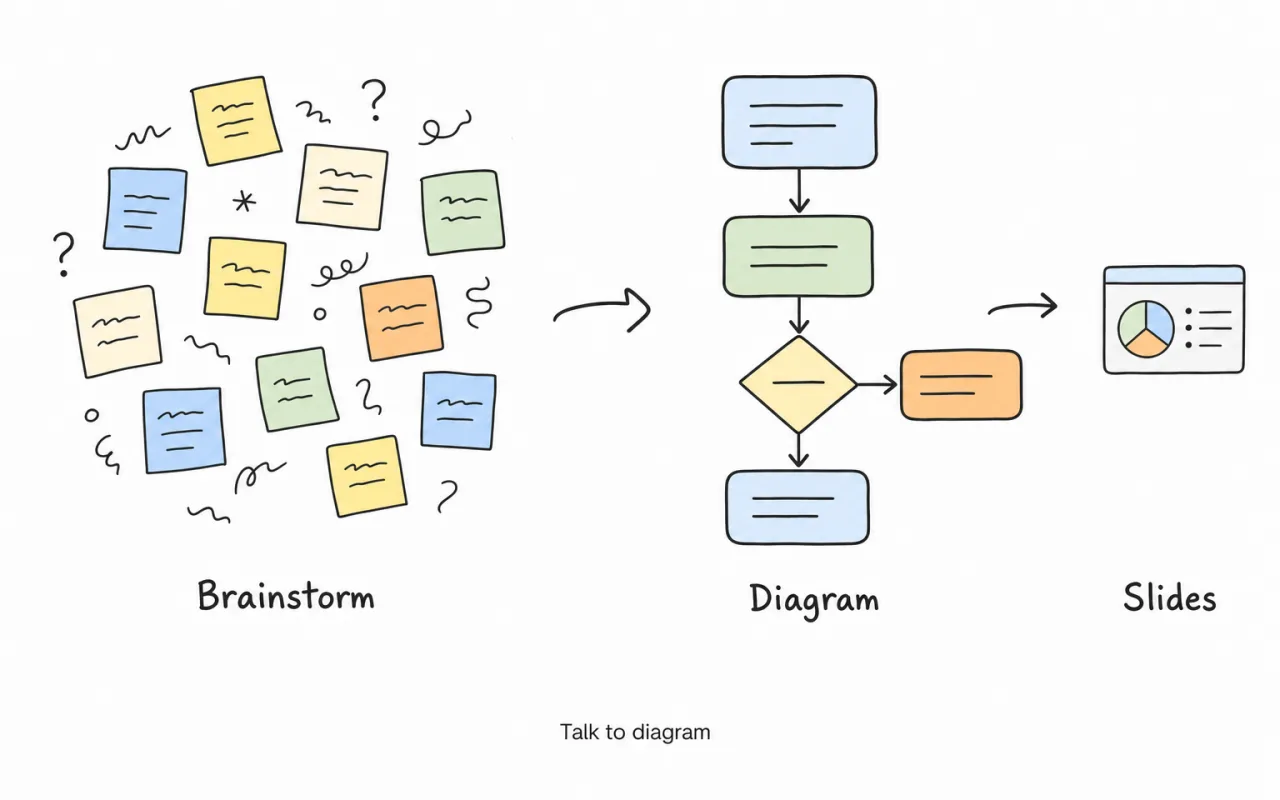 A messy brainstorm in, an editable FigJam diagram out.
The Figma plugin is at its best when you have been talking through a process and want to see it. Ask it to turn the conversation into a flow chart, a sequence diagram, a state diagram or a Gantt chart, and it creates an editable FigJam file. It can also draft a Figma Slides deck, and you can upload a photo of a whiteboard sketch to guide it.
Figma’s help article on using ChatGPT with Figma has two details worth knowing. Starting your prompt with “Figma” gives the most reliable results, and the integration only creates FigJam and Slides files, not design files.
Warning: A file created from ChatGPT that you have not claimed yet is viewable by anyone with the link. Open it and save it to your drafts if it contains anything private.
5. Slack: know what happened while you were away
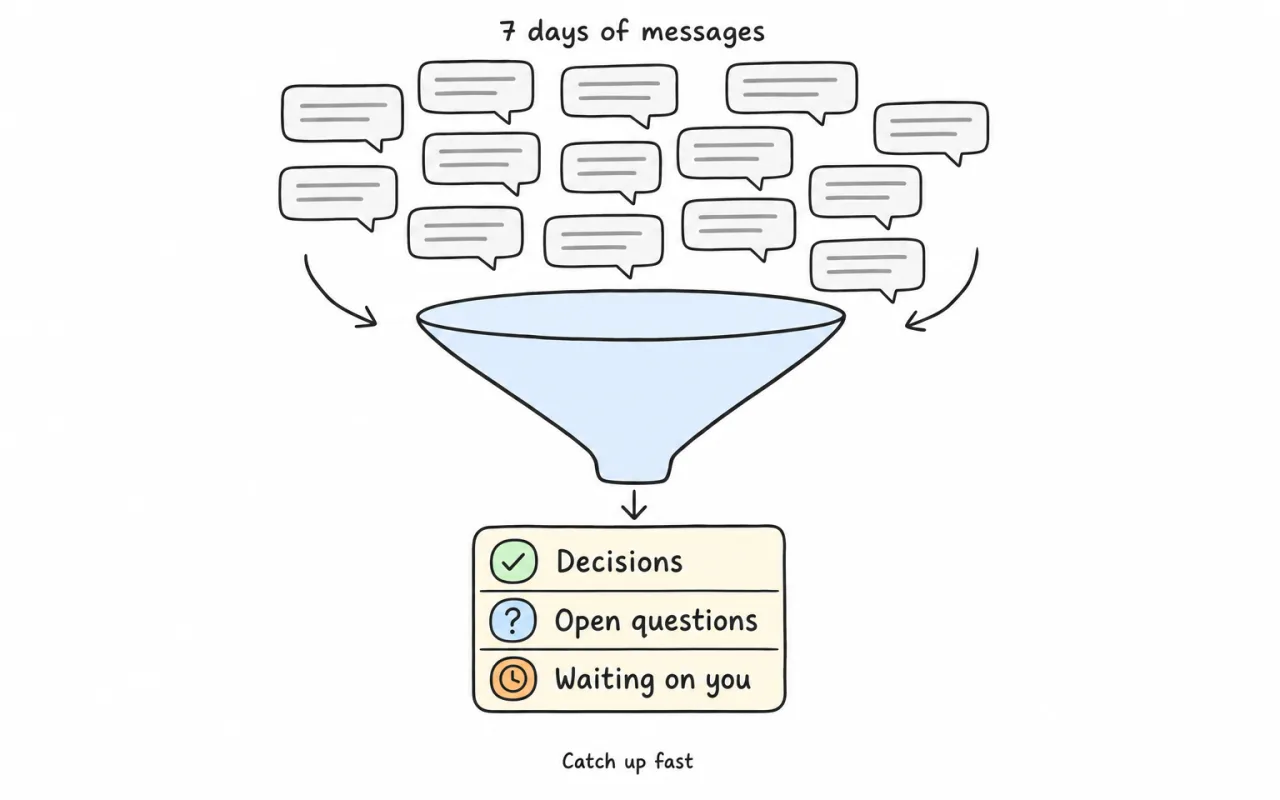 A week of channel messages, reduced to decisions and open questions.
Slack’s directory listing suggests a prompt that shows what it is for: summarize what mattered most in a channel over the last seven days. After a holiday or a busy week, that turns hours of scrolling into a short list of decisions, open questions and things waiting on you.
It also works well for pulling context into other work, such as “find what the team decided about the launch date and draft an update for the client.”
Good to know: On ChatGPT Business, plugins are on by default. On Enterprise and Edu, an admin has to enable them, and your Slack workspace may need to approve the connection too.
6. Stripe: ask your revenue questions in plain words
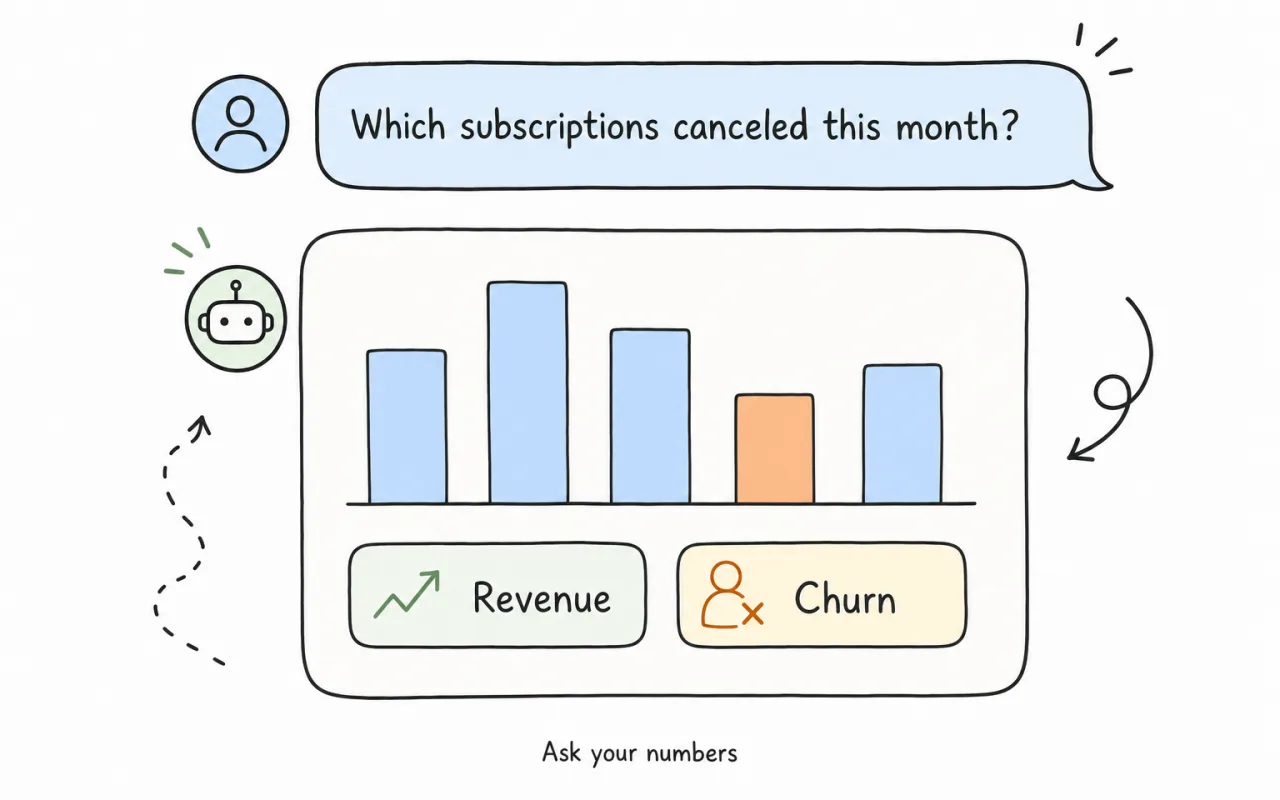 Questions about revenue, churn and disputes, answered from live data.
For anyone running a small online business, Stripe is the plugin that replaces a lot of dashboard clicking. OpenAI’s listing describes it as able to analyze live revenue, customers, subscriptions, disputes and refunds, and to help build payment integrations.
The questions it answers well are the ones that need filtering: “which subscriptions this month were canceled within 60 days of starting?” or “list past-due accounts from this week.” Because it reads live data, double-check any number you plan to share outside the company.
7. Lovable: turn an idea into a working app
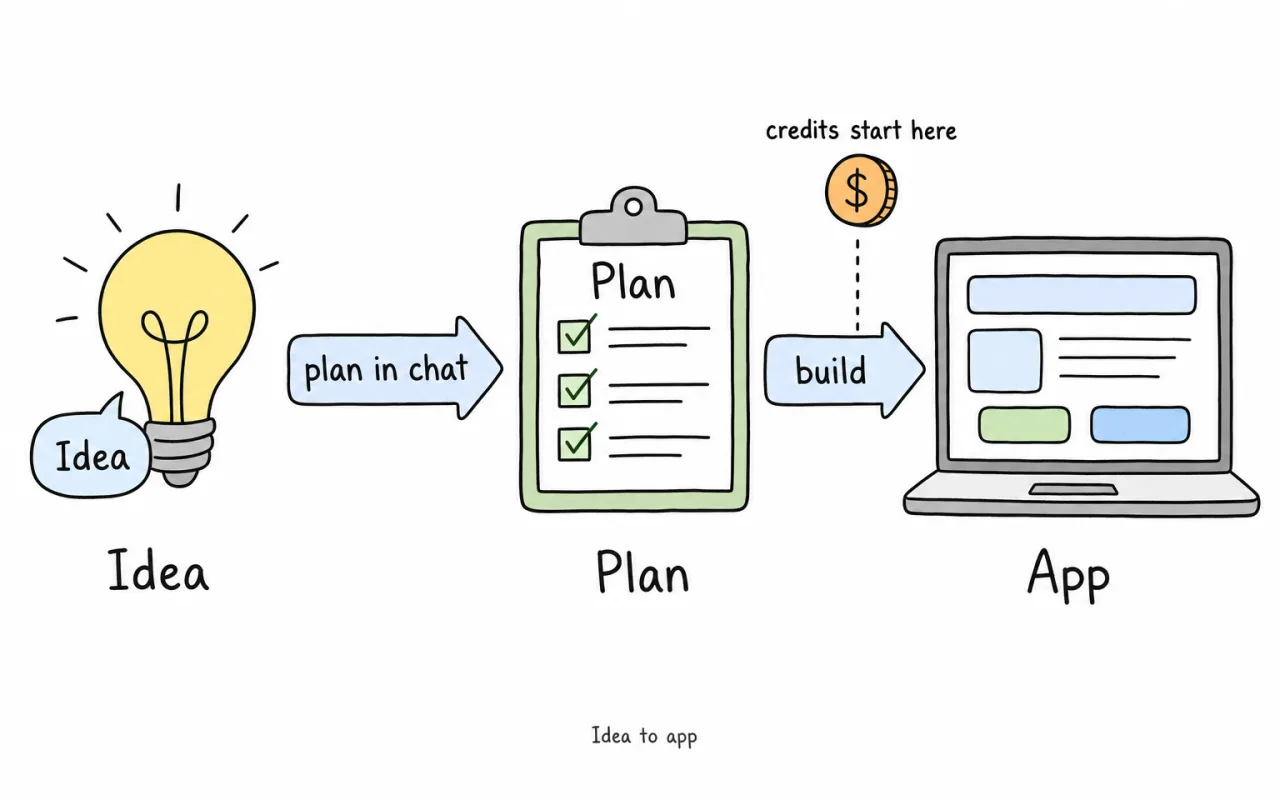 Brainstorm in ChatGPT, then hand the plan to Lovable to build.
Lovable builds full web apps from a description. The plugin lets you shape the idea in ChatGPT first, then tag @Lovable to turn the conversation into a real project.
According to Lovable’s documentation, brainstorming and tagging Lovable in ChatGPT costs no credits. Credits are only used once the build starts in Lovable, so you can refine the plan for free. Continue editing the app in Lovable itself once the first version exists.
8. Expedia: compare trips without twenty tabs
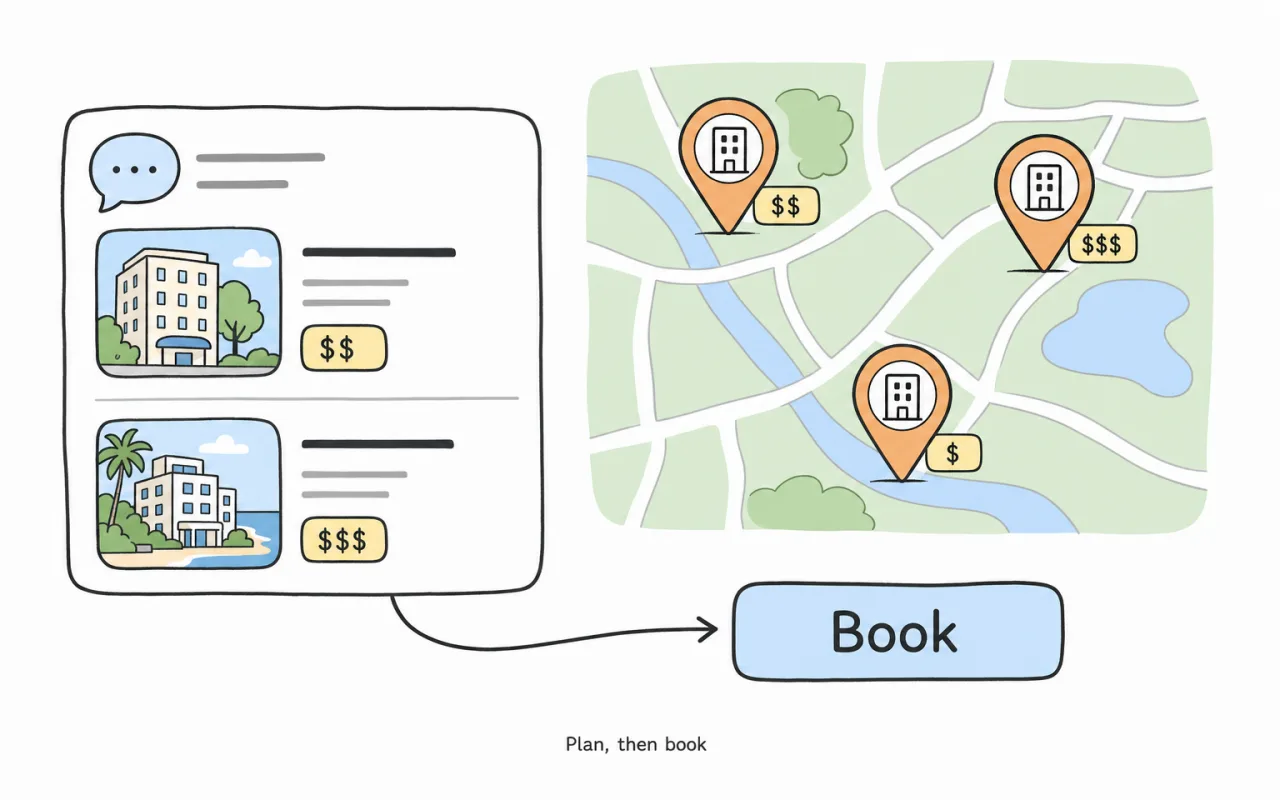 Live prices and photos in the chat, booking on Expedia.
Expedia was one of the first partners when apps arrived in ChatGPT, and it is still one of the most practical. Ask for hotels near a venue with free cancellation, or flights that land before noon, and it shows real-time prices, availability and photos in the conversation. Linking your Expedia account adds member prices.
Good to know: Booking happens on Expedia. When you pick something, it opens the property or flight page there to confirm. Check dates and totals on that page, since AI summaries can occasionally be out of date.
9. DoorDash: from recipe to grocery cart
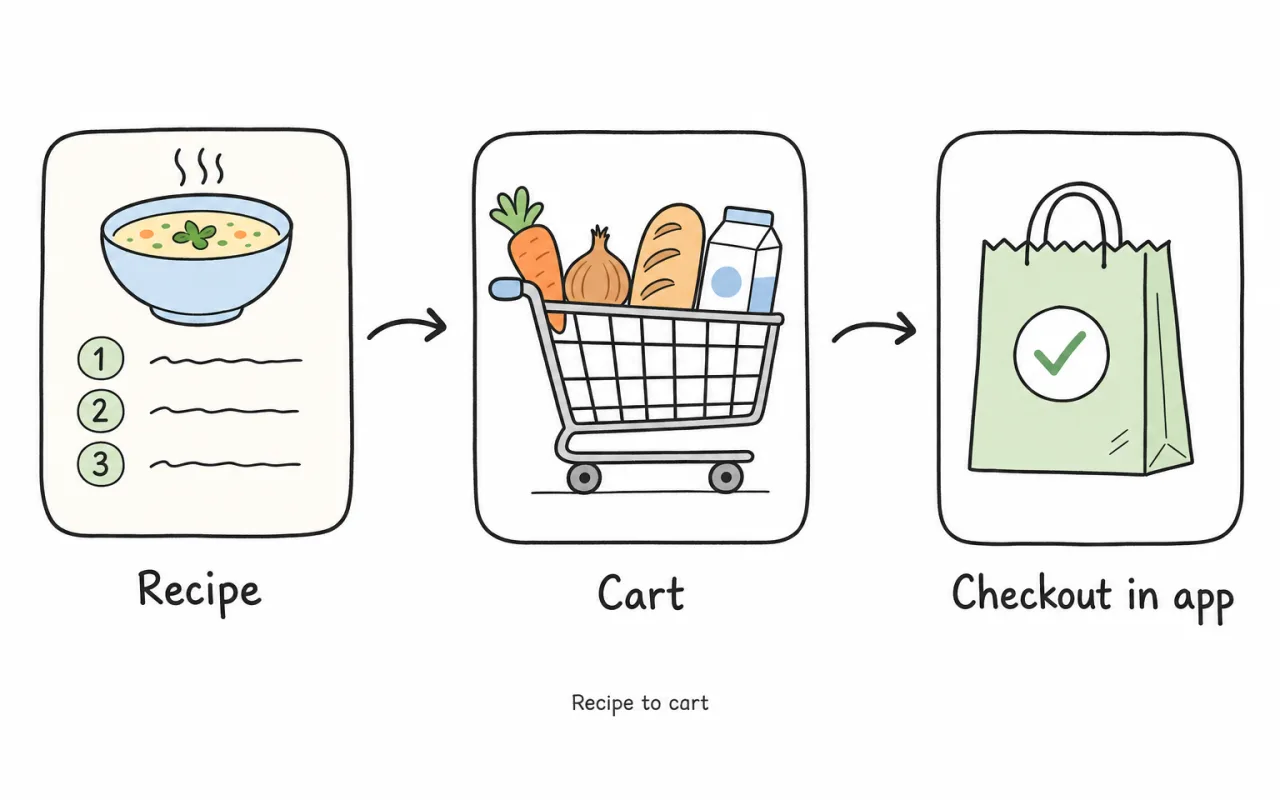 Pick a recipe, get a cart of ingredients from a nearby store.
DoorDash solves a small but constant problem: you found a recipe, now you need the ingredients. Ask ChatGPT for dinner ideas, choose one, and ask it to shop for the ingredients. The DoorDash plugin turns the list into a cart from a nearby grocery store.
Good to know: You review the cart and check out in the DoorDash app. Store availability depends on where you live, and the integration launched in the US with groceries first.
10. Spotify: music and podcasts on request
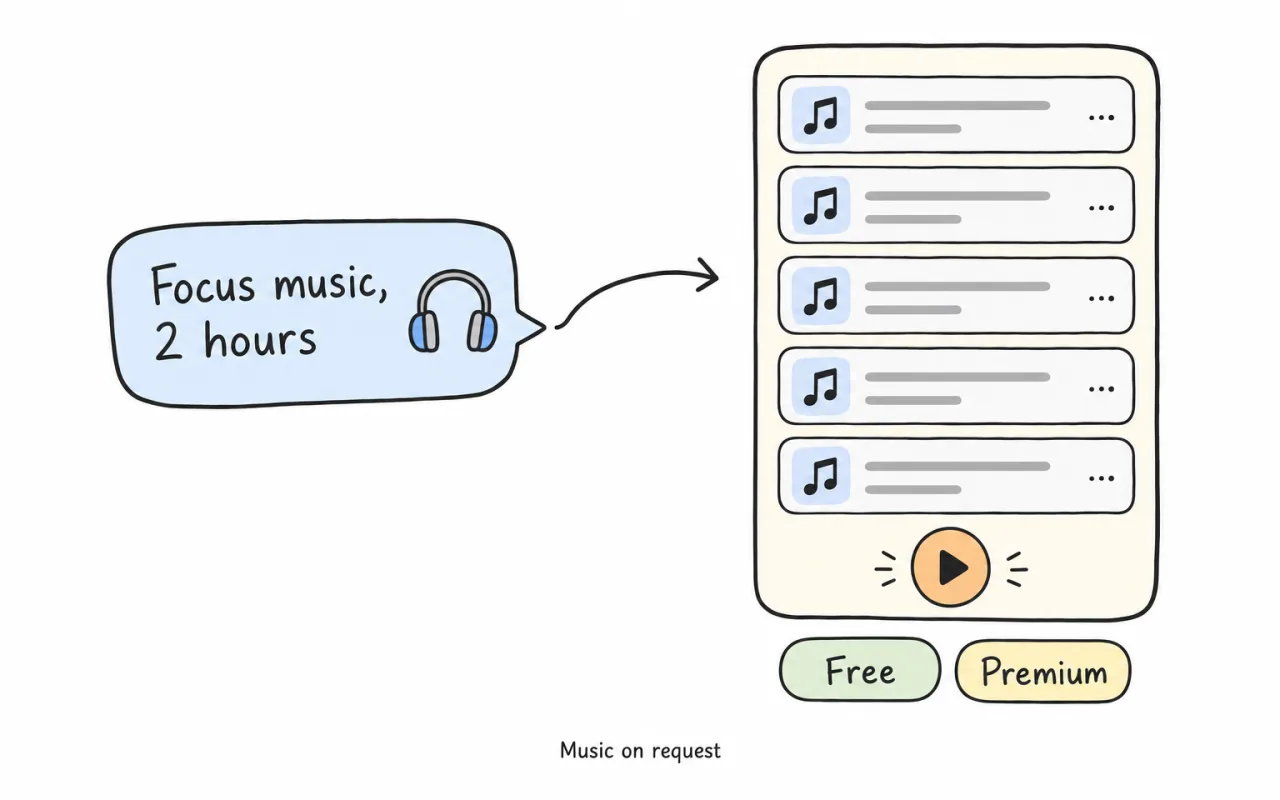 Describe a mood or an activity, get a playlist.
Spotify rounds out the list because it is the plugin people keep using after the novelty wears off. Mention Spotify in a prompt and ask for songs, albums, playlists or podcast episodes, like “upbeat instrumental music for a two-hour focus session.”
Spotify’s launch post for Spotify in ChatGPT explains the difference between plans. Free listeners get recommendations from Spotify’s existing playlists, while Premium listeners can turn detailed prompts into a fresh, fully personalized selection of tracks.
How to install and use a ChatGPT plugin
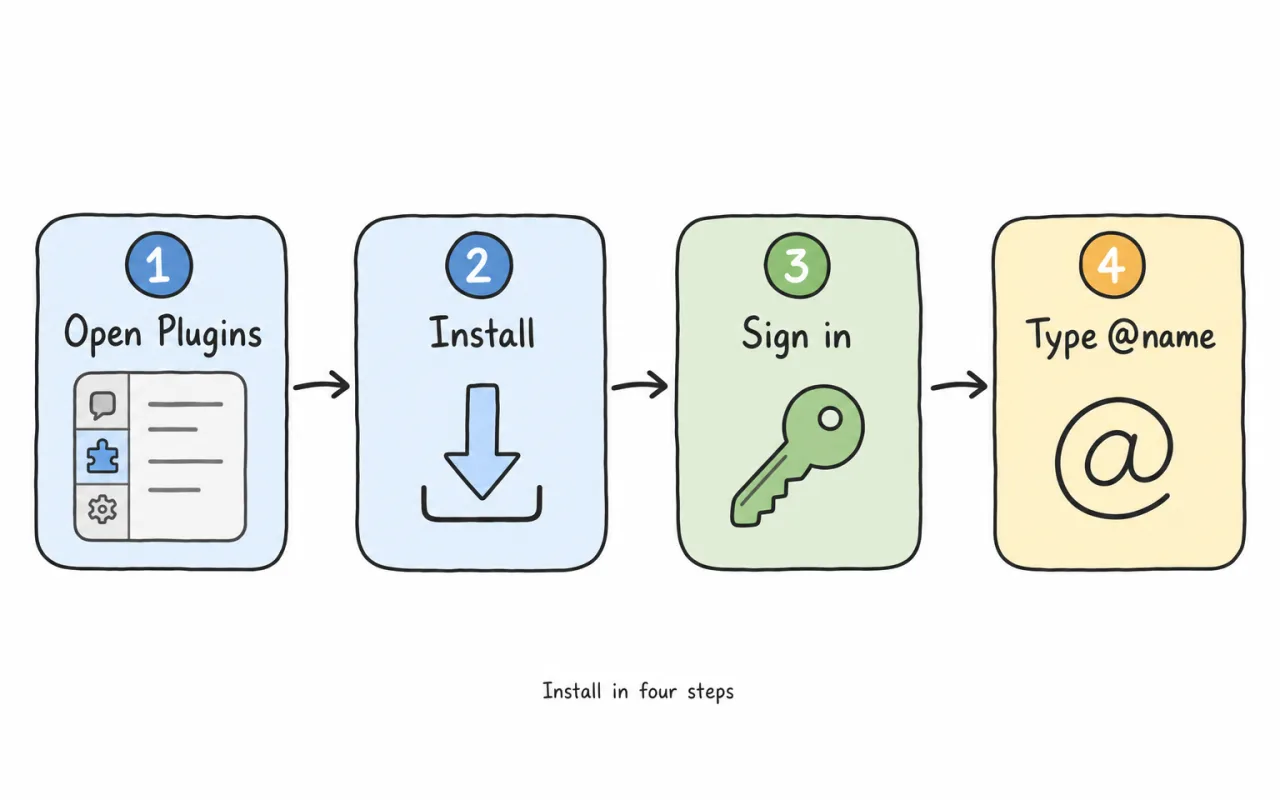 Open Plugins, install, sign in, then mention it in a chat.
Installing works the same way for almost every plugin in the directory:
- Open Plugins in the ChatGPT sidebar, or go to chatgpt.com/plugins.
- Find the plugin by searching or browsing a category, then select Install.
- Connect your account when asked. This is the permission screen, so read what it can do.
- Use it in a chat by typing
@and its name, or by picking it from the tools menu.
For a service that is not in the directory but offers an MCP server, use + in Plugins and choose Add custom MCP server, as in the Formms steps above. If your workspace hides that option, an admin may have turned it off.
Best practice: Install plugins for the jobs you do every week and leave the rest. Fewer plugins means fewer accounts connected and fewer surprises about which one ChatGPT picks.
Common mistakes to avoid
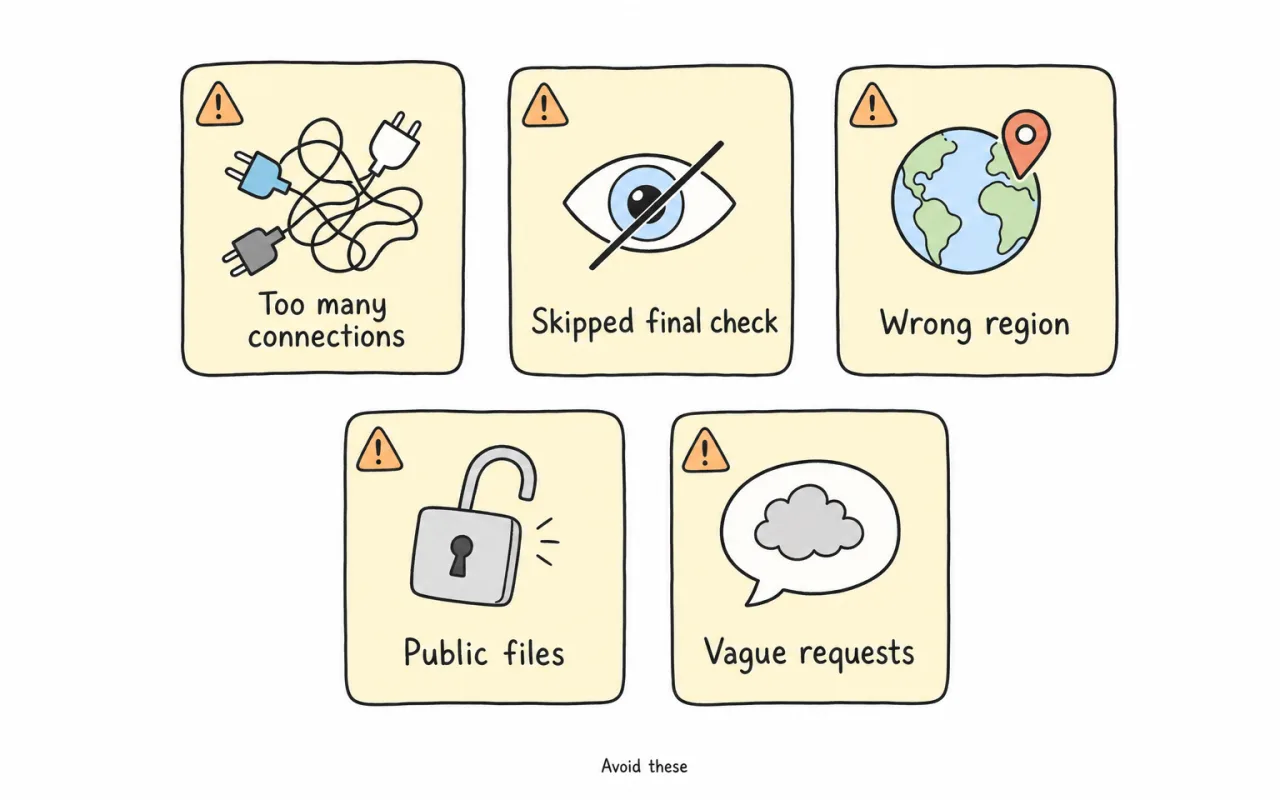 Most problems come from permissions, regions and skipped checks.
- Connecting everything at once. Each connection is access to an account. Start with two or three plugins you will actually use.
- Skipping the final check. Plugins that end in a purchase (Expedia, DoorDash) hand you off to finish there. That handoff is your chance to check prices, dates and quantities.
- Assuming it works everywhere. Several plugins launched outside the EU first, and some features depend on your plan in the other service, not just in ChatGPT.
- Leaving generated files public. Some services create files that are open by link until you claim them. Save anything private to your own account.
- Being vague. Plugins respond to specific requests. “A five-question feedback form for a cooking class” works better than “make a form.”
Frequently asked questions
Are ChatGPT plugins free?
Installing them is free, and select plugins work on every ChatGPT plan, including Free. Some plugins need a paid ChatGPT plan, and many depend on the plan you have with the other service. Spotify, for example, gives Premium listeners more personalized results.
Did OpenAI shut down ChatGPT plugins?
The original 2023 plugins were retired in 2024 and replaced by GPTs and later apps. In July 2026 OpenAI replaced the App Directory with a new Plugin Directory, so “plugins” now refers to the new, more capable packages. Existing app connections kept working through the change.
What happens to custom GPTs?
OpenAI plans to retire custom GPTs and move them to plugins. Custom GPTs are scheduled to stop running on December 11, 2026, and their instructions and files can be carried over to a plugin. Custom actions do not transfer, so those need to be rebuilt as an app connection. OpenAI says the dates can change, so check the notice in your account or workspace.
What is the difference between a plugin and an app in ChatGPT?
An app is the connection to an outside service. A plugin is the package you install, which can include one or more apps plus skills. In everyday use you install the plugin and the app connection comes with it.
Can I use ChatGPT plugins in Codex?
Yes. The Plugin Directory is shared by ChatGPT and Codex, so a plugin published there can be used in both.
How do I add a plugin that is not in the directory?
If the service offers an MCP server, open Plugins in ChatGPT, click +, choose Add custom MCP server and paste its URL. Formms works this way, using https://api.form.ms/mcp.
Are ChatGPT plugins safe to use?
Each plugin lists what data it can access and what actions it can take, and you approve that when you connect it. On Business, Enterprise, Edu and ChatGPT for Teachers, OpenAI says plugin data is not used to train models by default. Connect only services you trust, and disconnect plugins you stop using.
Can a ChatGPT plugin make forms or surveys?
Yes. With the Formms plugin you describe the form in chat and get a published link with real question types, and you can ask ChatGPT for a summary of the responses later. If you need a form that never caps responses, see our guide to creating a free form with unlimited responses.
Why does ChatGPT not use my plugin?
Mention it by name with @, or start your request with it, as Figma recommends. Also check that it is still connected and that your workspace allows it.
Conclusion
The best ChatGPT plugins in 2026 are the ones that finish a job inside the chat: a published form, a site with a real address, an edited deck, a diagram, a filled cart. Pick the two or three that match your week, connect them, and ask for outcomes rather than steps. Check anything that involves money, dates or other people before it goes out, and you get most of the time savings with none of the surprises.