
Blog / How-To Guides
AI Form Builder for WordPress: How It Works

Context
Discover how an AI form builder for WordPress works, from creating forms with AI to customizing, publishing, and managing responses with ease.
On this page
An AI form builder for WordPress starts from a description instead of an empty list of form fields and question types. You say what the form is for, who will fill it in, and what you need to collect. It returns a draft. You still read every question, change what does not fit, and only then publish and place the form on a WordPress page. This guide explains that AI workflow with examples, from the first description through publishing and embedding the form on a WordPress page.
Why an AI form builder is ideal for WordPress
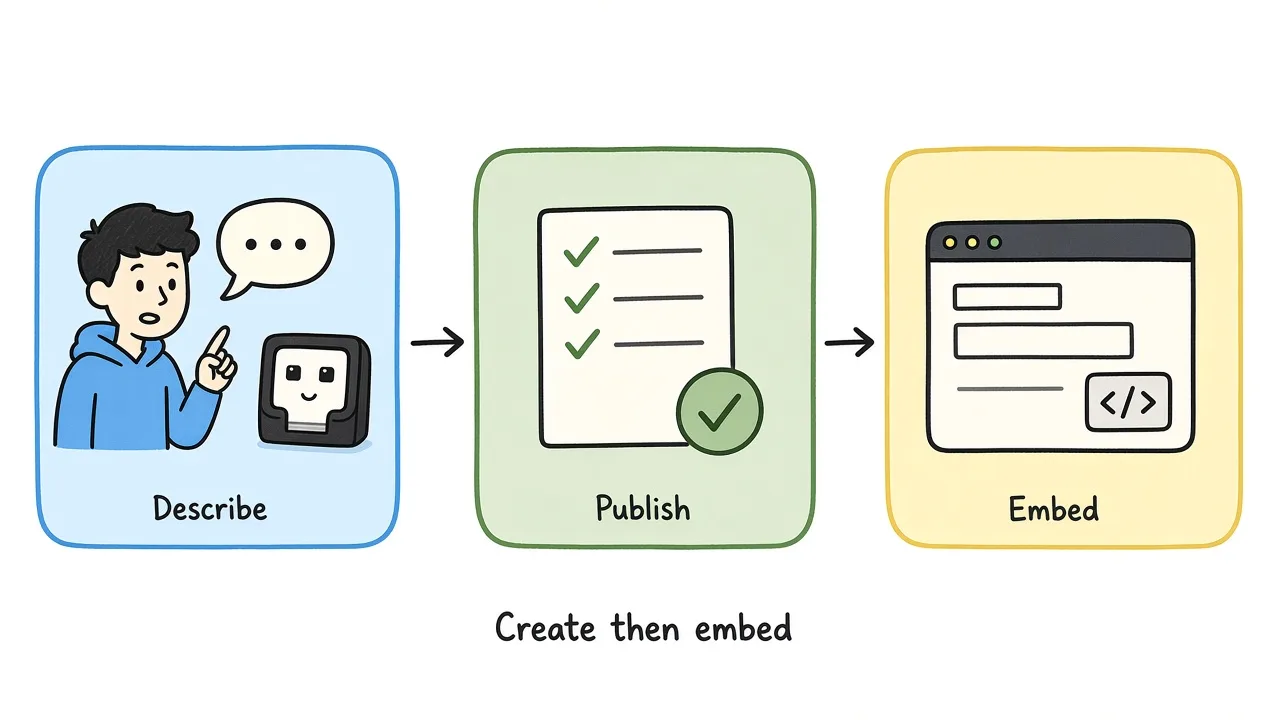
Describe the form, publish it, then paste the snippet into the page.
Most of the time you already know what the page needs. An RSVP needs a headcount, a feedback form needs a rating and a question about the repair, and a volunteer application needs skills, availability, and experience. Describing those form building jobs to AI is often quicker than choosing a field type for each one by hand. The draft is still yours to edit. Drop a question you do not need, change a paragraph into a choice, and rewrite any label that does not sound like the site.
Why a hosted form keeps the WordPress work small
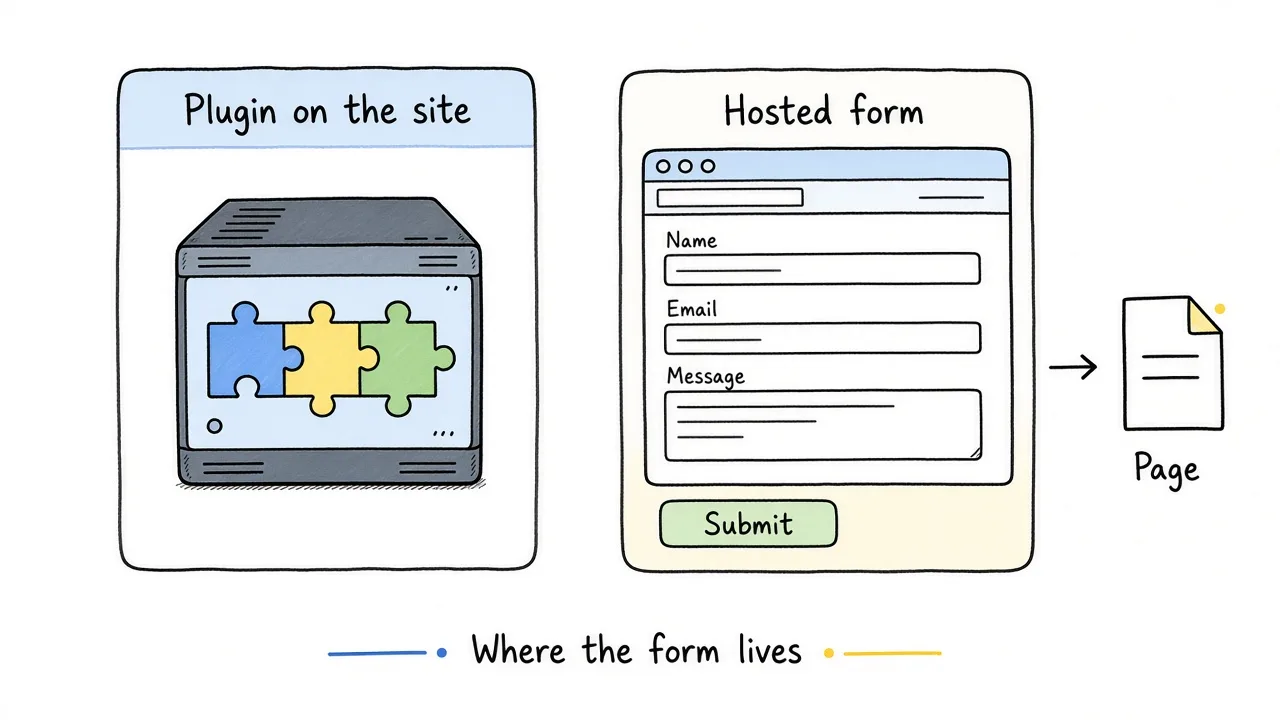
The page displays the form. The questions and the replies live with the form.
Once the form is published, WordPress only has to show it. The questions and the replies stay with the form, and a visitor can fill it in on the page without a WordPress login or an account on the form tool. If you later change the wording, you do that in the online form builder’s web or mobile app dashboard. The embed on the page can stay where it is. Just keep in mind that a draft form cannot be embedded yet, because there is no public form for the page to load. Publishing is what creates the address and the iframe snippet.
Why Formms is the best AI form builder for WordPress site owners
Formms makes it easy to create a form, because you can build it from anywhere, on the iPhone app, the Android app, or the web, and embed it on your WordPress site in the way you prefer.
Share has a WordPress option with the iframe ready to copy, so the page holds a snippet and Formms holds the questions. When someone sends a reply, it shows up in Responses, including as a notification on your phone, which is useful when you are not sitting in wp-admin.
A site usually needs more than one form, and more than one way to offer it. The free plan includes ten published forms and unlimited responses, so a contact page, an RSVP, a feedback survey, and a volunteer application can all be live without buying a plugin. Each published form also has a short link and a QR code. Replies from the WordPress page, an email, and a printed poster land in the same list, and a wording change in Formms shows up in all of those places.
If the WordPress page already has its own heading, Hide form title keeps the form title off the embed so it does not appear twice. Visitors fill the form in the browser on your page. They do not need a WordPress login, and they do not need a Formms account.
Example prompts for a contact page and three event pages
These are the prompts we gave Formms: one for a contact page, then an RSVP, a feedback survey, and a volunteer application for an event.
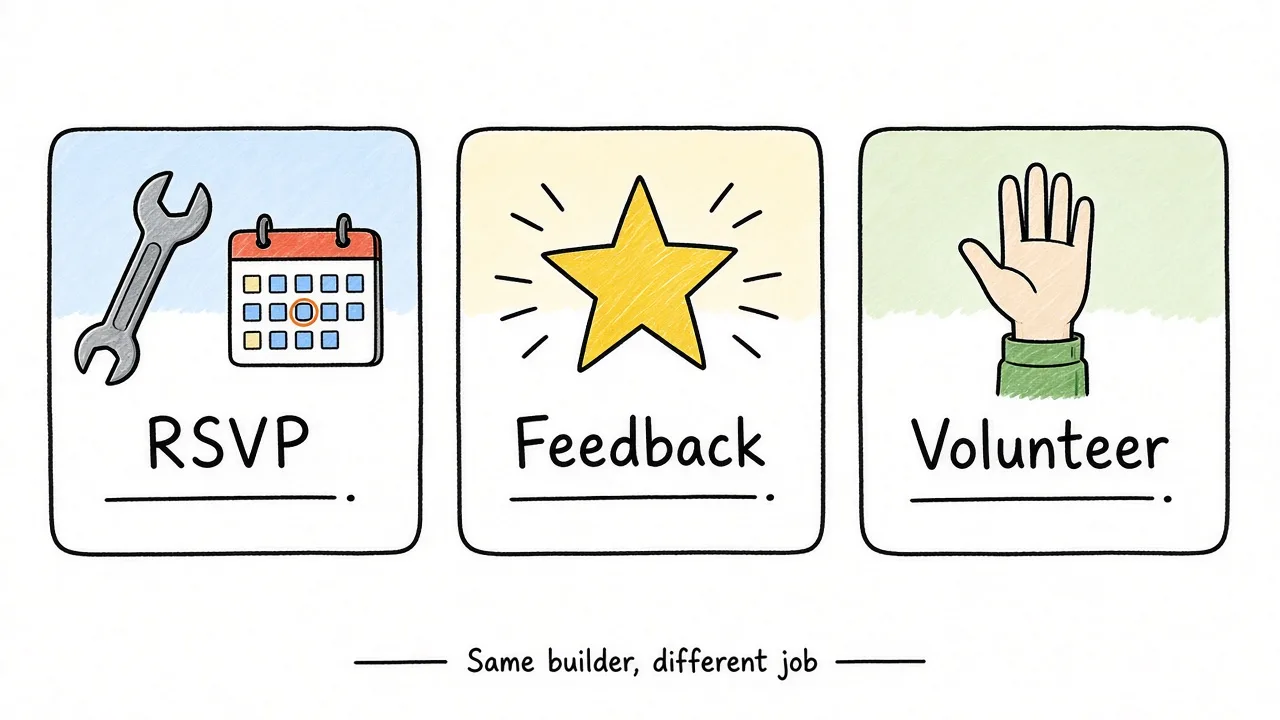
Same chat, different jobs: a contact form, then RSVP, feedback, and volunteers.
The Formms AI asks three questions in order:
- What is the form for?
- Who will fill it in?
- What do you need to collect?
A rough question count keeps the form from growing, and a short note about tone gives the wording a direction. We used that shape for four published forms. The contact form is the one pasted into WordPress later in this guide.
| Form | Where it could be used | What it collects |
|---|---|---|
| Harbor Community Center contact form | The contact page | Name, email, optional phone, what the message is about, and a message |
| Saturday Repair Cafe RSVP | The event page | Name, email, item for repair, morning or afternoon, and party size |
| Saturday Repair Cafe Feedback | A follow-up after the cafe | Overall stars, repair outcome, wait time, one improvement, and optional email |
| Saturday Repair Cafe Volunteer Application | A page recruiting helpers | Name, email, skills, an available Saturday, and repair experience |
Here are the exact messages we sent. Each block contains the three answers in the order the chat requested them.
Contact form prompt
Contact form for the Harbor Community Center website
Neighbors and visitors who want to send a message
Name, email, an optional phone number, a multiple choice question for what the message is about (a visit, a repair, volunteering, or something else), and a message box. About five questions. Friendly neighborhood tone.
RSVP prompt
RSVP for the Saturday Repair Cafe at the Harbor Community Center
Neighbors who want a repair slot this Saturday
Name, email, what they are bringing to repair, preferred time slot (morning or afternoon), and how many people are coming. About five questions. Friendly neighborhood tone.
Feedback prompt
Feedback survey after the Saturday Repair Cafe, for people who came
Neighbors who just had something repaired at the cafe
Overall star rating, whether the repair was finished, wait time 1 to 5, one thing to improve, and optional email. About five questions.
Volunteer application prompt
Volunteer application for helpers at the Saturday Repair Cafe
Adults who want to volunteer as repair helpers
Name, email, skills they can offer, which Saturday they can come, and a short note about experience. About five questions.
The same three answers work for other pages too. We did not publish these two. They are here to show the shape:
Workshop waitlist example
Workshop waitlist for the Thursday evening pottery class at the studio
People who want a seat if someone cancels
Name, email, experience level (beginner or some experience), and whether they can come this month. Four questions.
Bookkeeping intake example
New client intake for a neighborhood bookkeeping practice
Small business owners booking a first call
Name, email, business name, what they need help with, and a preferred call day. About five questions. Plain language.
If you would rather start from a finished set of questions, these templates are a longer version of the contact form, the RSVP, and the volunteer application:
You can also read more about turning a prompt into a shareable form. If the form is mainly for feedback, how to create surveys with AI goes further into survey wording.
How to use Formms AI “Chat” to create a form
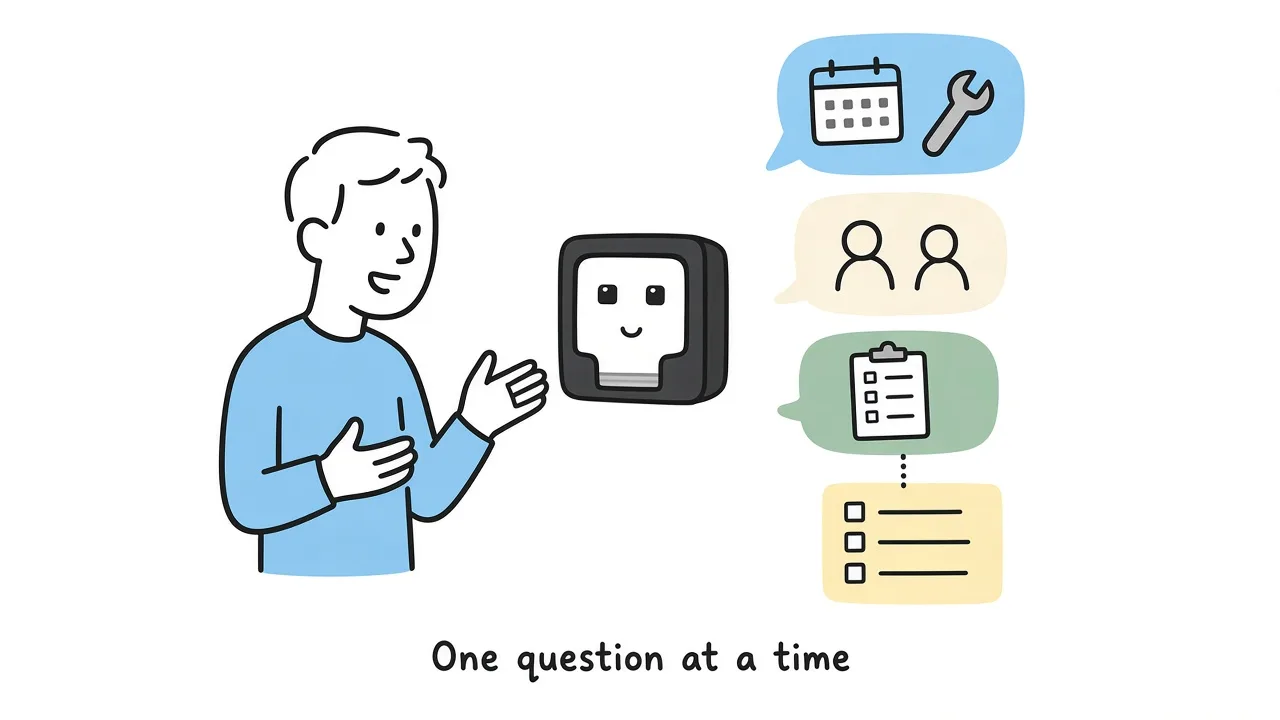
The helper asks for the job, the audience, and the fields, one at a time.
On the dashboard, click New form. The next screen offers Blank, Import, and Chat. Choose Chat. The message box is not on that first screen. It appears after you select Chat.
The chat then asks what the form is for, who will fill it in, and what you need to collect. Answer the question on screen. If you paste all three answers at once, you skip the chance to narrow the audience or adjust the purpose before the draft is built.
Detailed form creation steps with screenshots below:
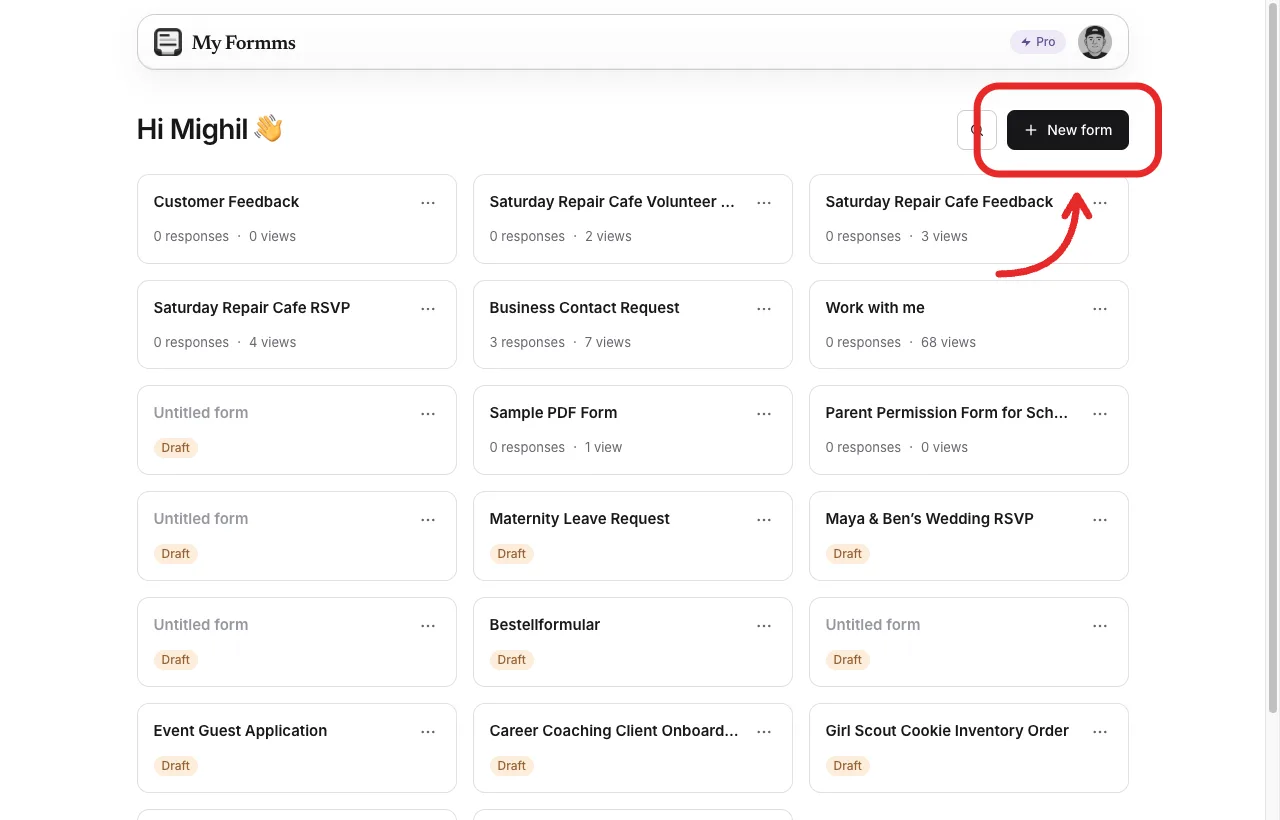
Start from New form on the dashboard.
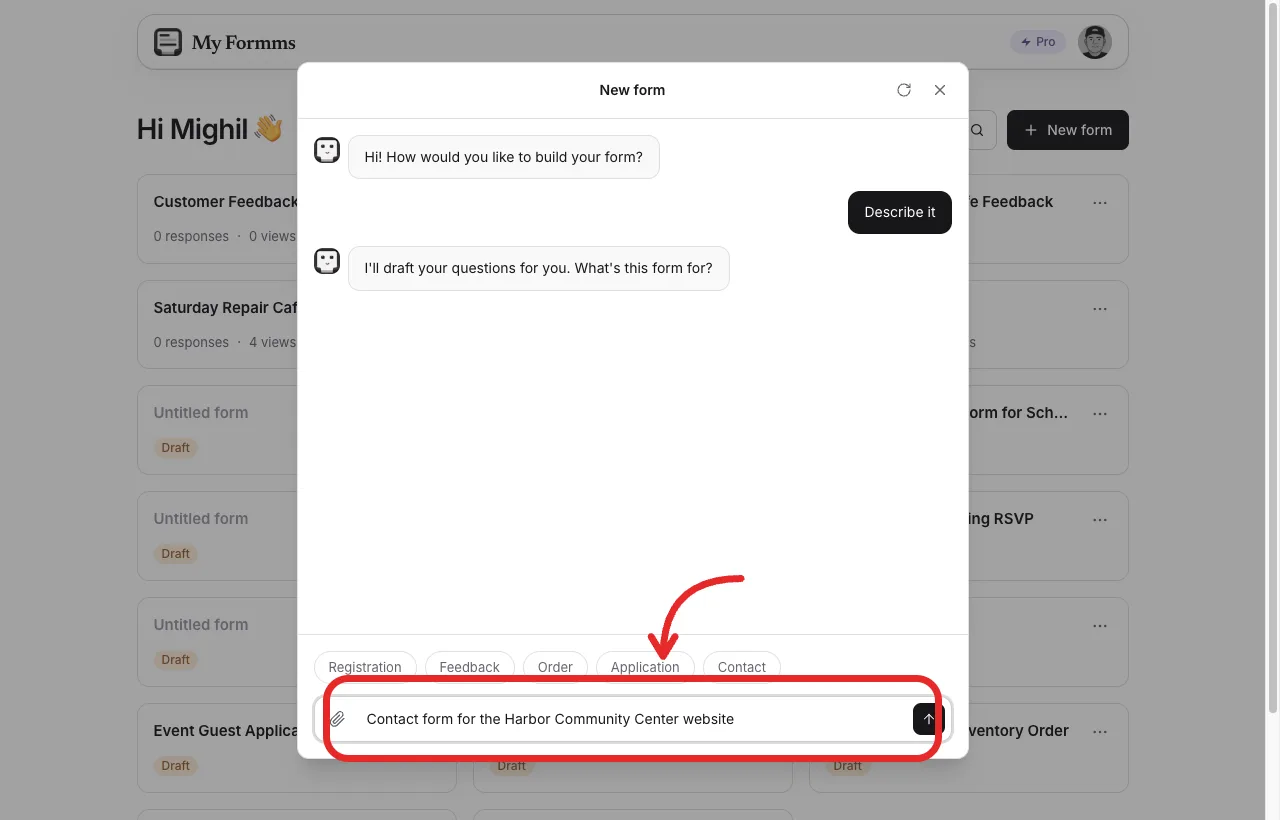
The chat, with the contact form purpose filled in.
Review the draft before building
When the chat has enough to go on, it shows a draft card with a title, a question count, and the fields it plans to use. Build this form opens that draft in the editor. Continue chatting is there if you want a change before you commit to it.
This is the easiest place to fix the shape of the form. If a time question came back as a long paragraph, say that it should offer morning or afternoon. If a phone number appeared and you do not want one, take it off the card before you build.
A quickview of the sample forms we created:
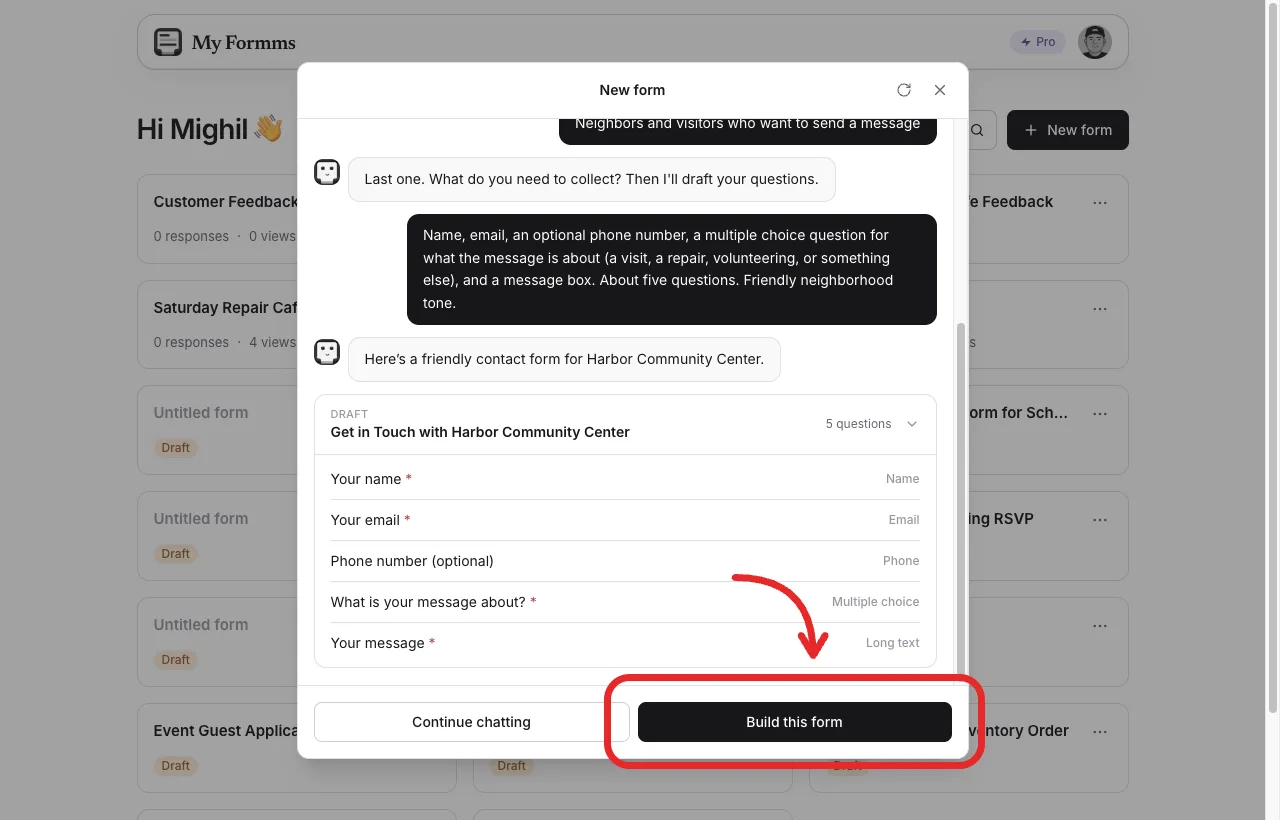
Harbor Community Center contact form: five questions, then Build this form.
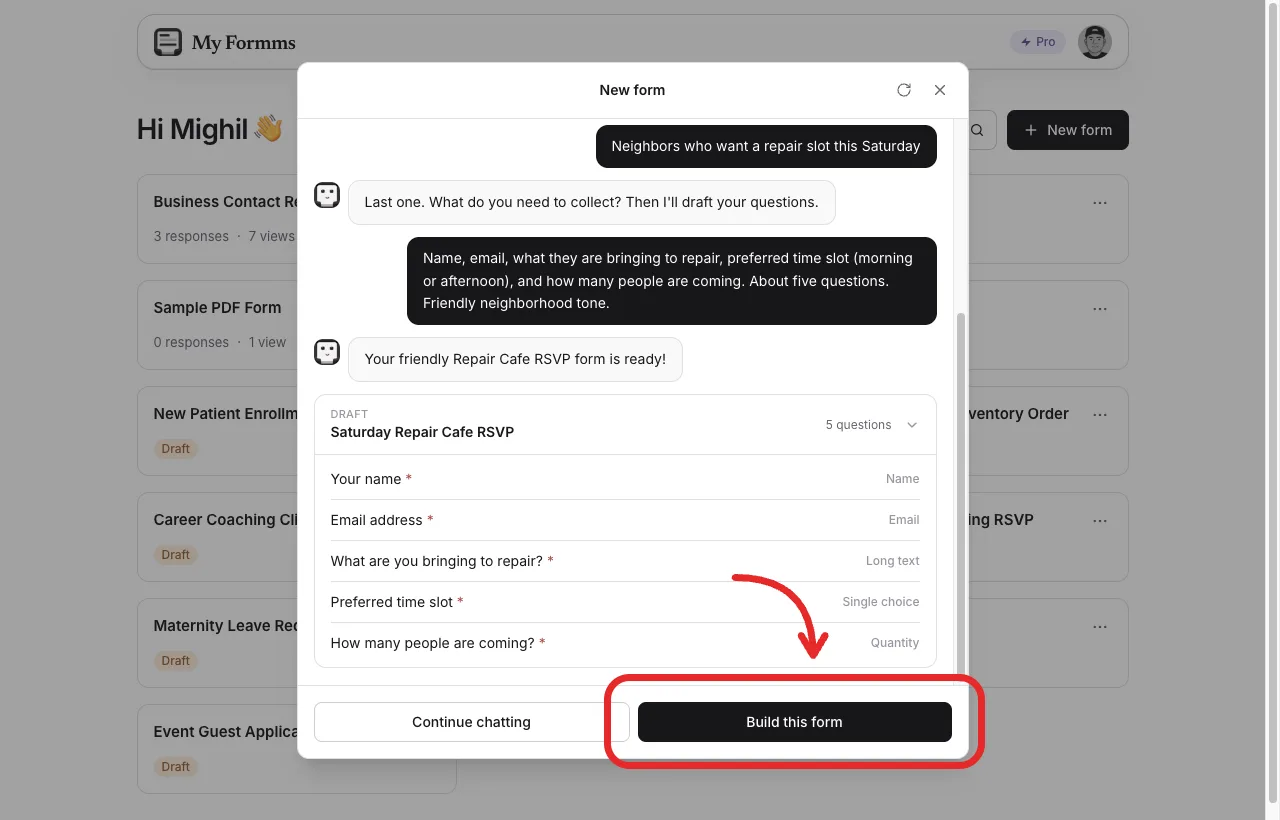
Saturday Repair Cafe RSVP: five questions, then Build this form.
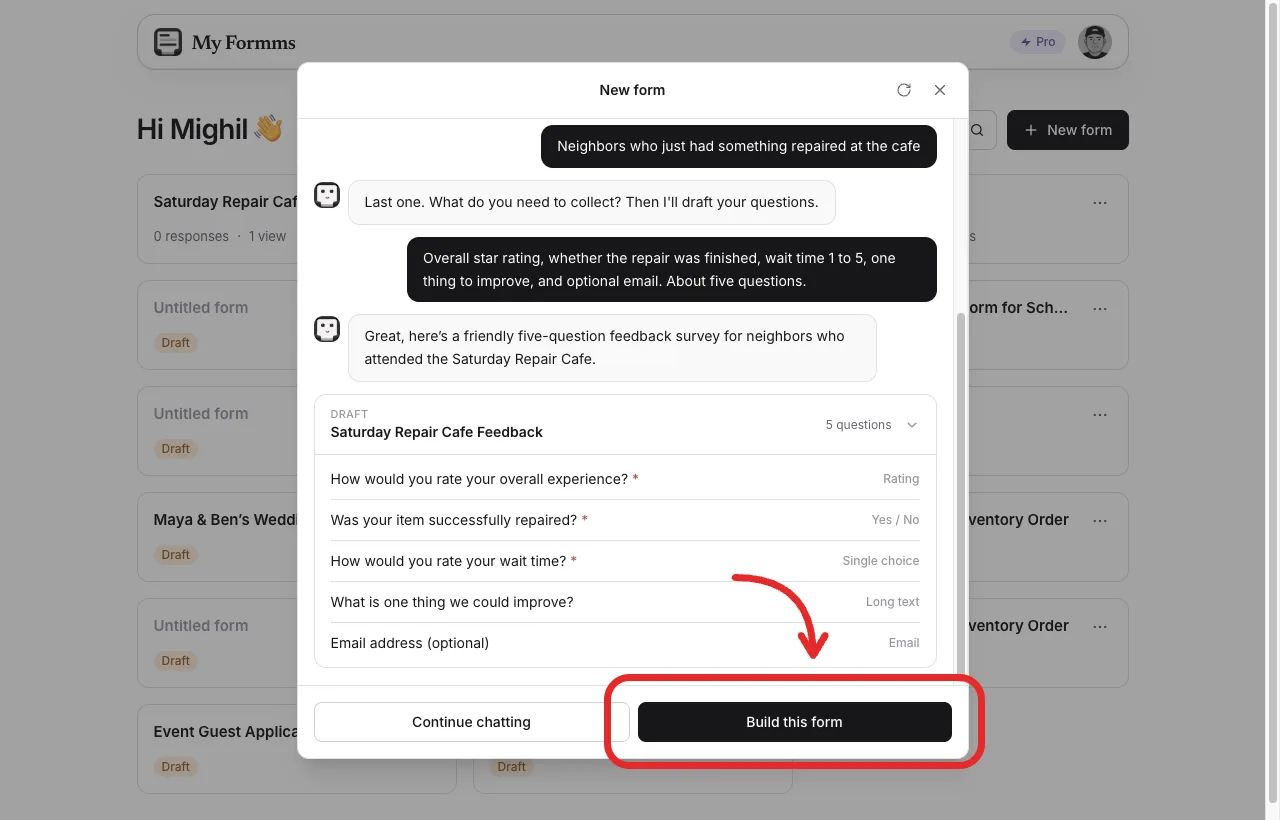
The feedback draft uses a rating, yes/no, a wait-time scale, and an optional email.
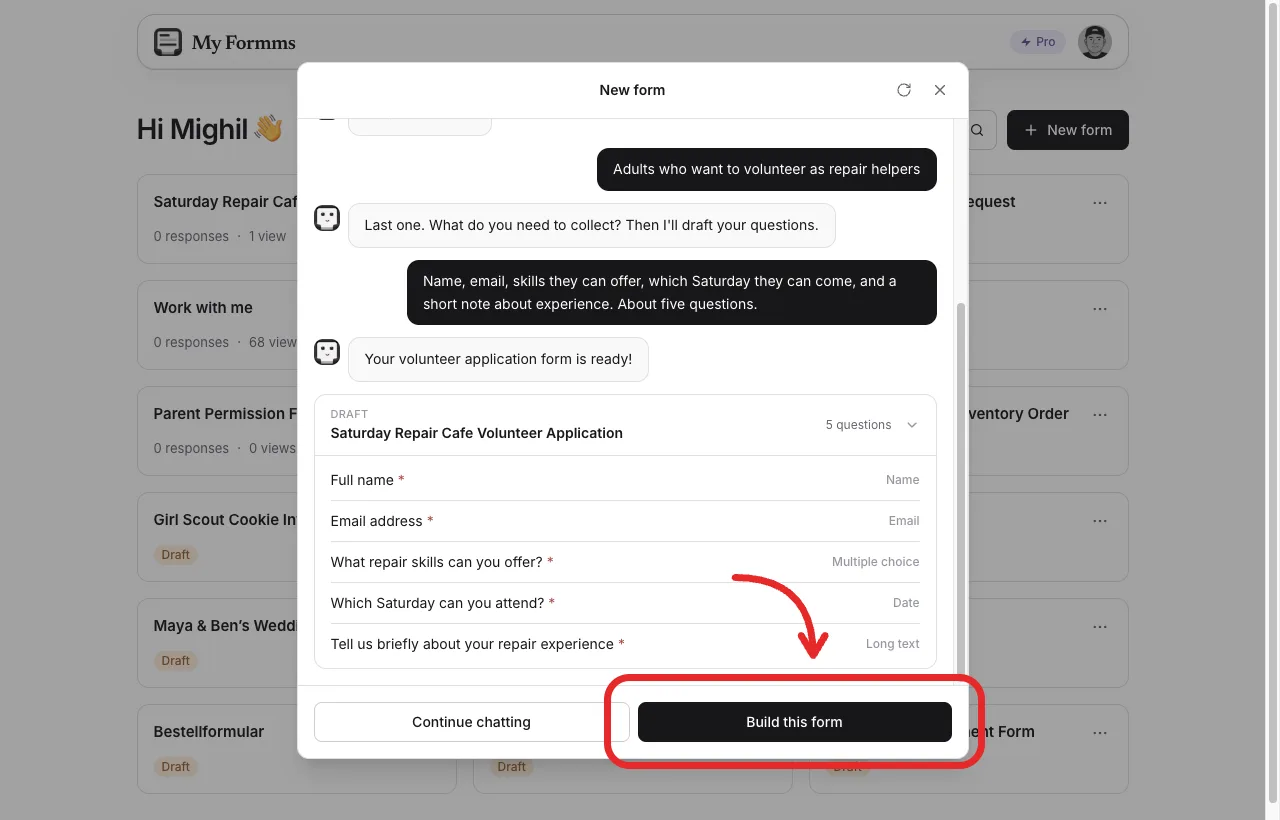
The volunteer draft collects skills, a Saturday, and a short note on experience.
Edit the wording and publish
Build this form opens the editor. Across the top are Build, Share, Settings, and Responses. Stay on Build long enough to read the form the way a visitor will. Change a label that feels out of place, check which answers are required, and add a question if the draft left one out.
While the form is unpublished, Publish sits in the toolbar. After you publish, that button goes away, Preview stays, and the editor moves you to Share, where the public link and the WordPress embed live.
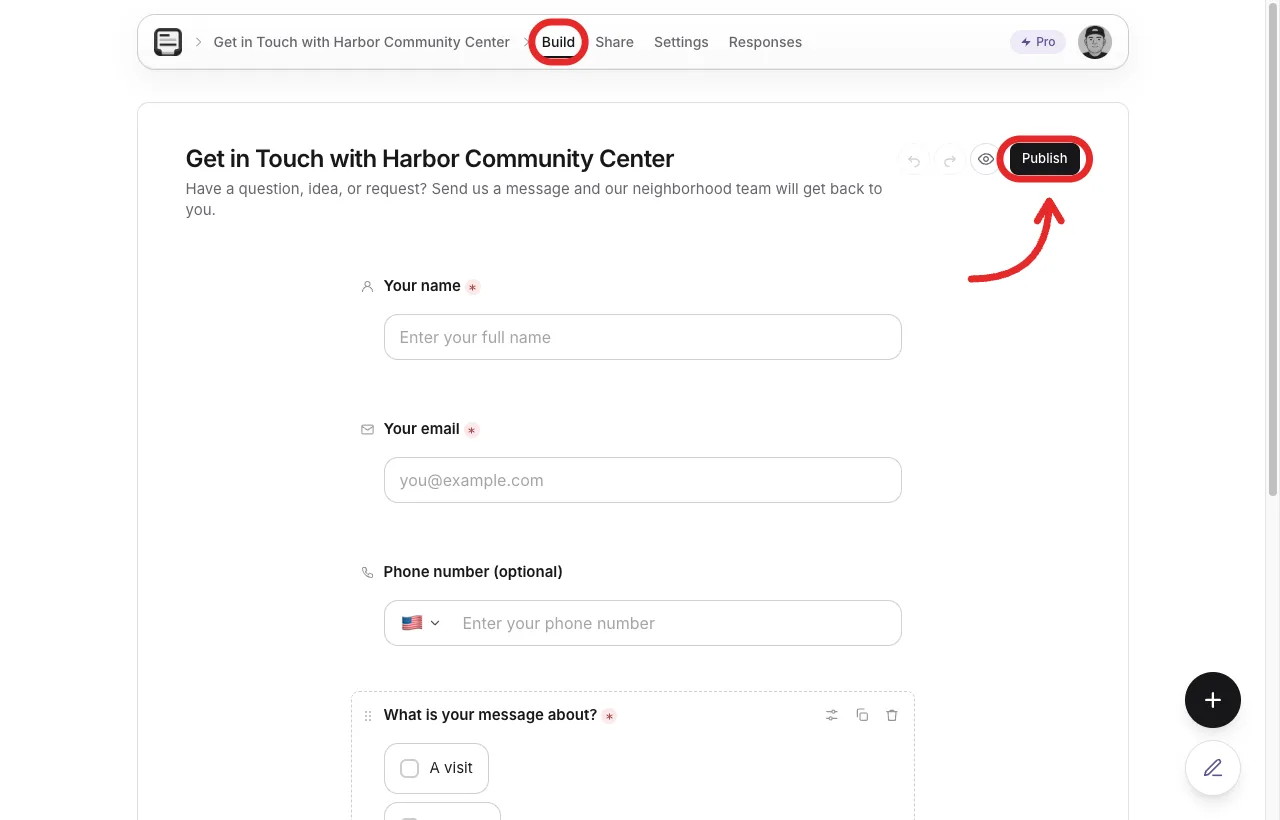
The contact form on Build, before publishing.
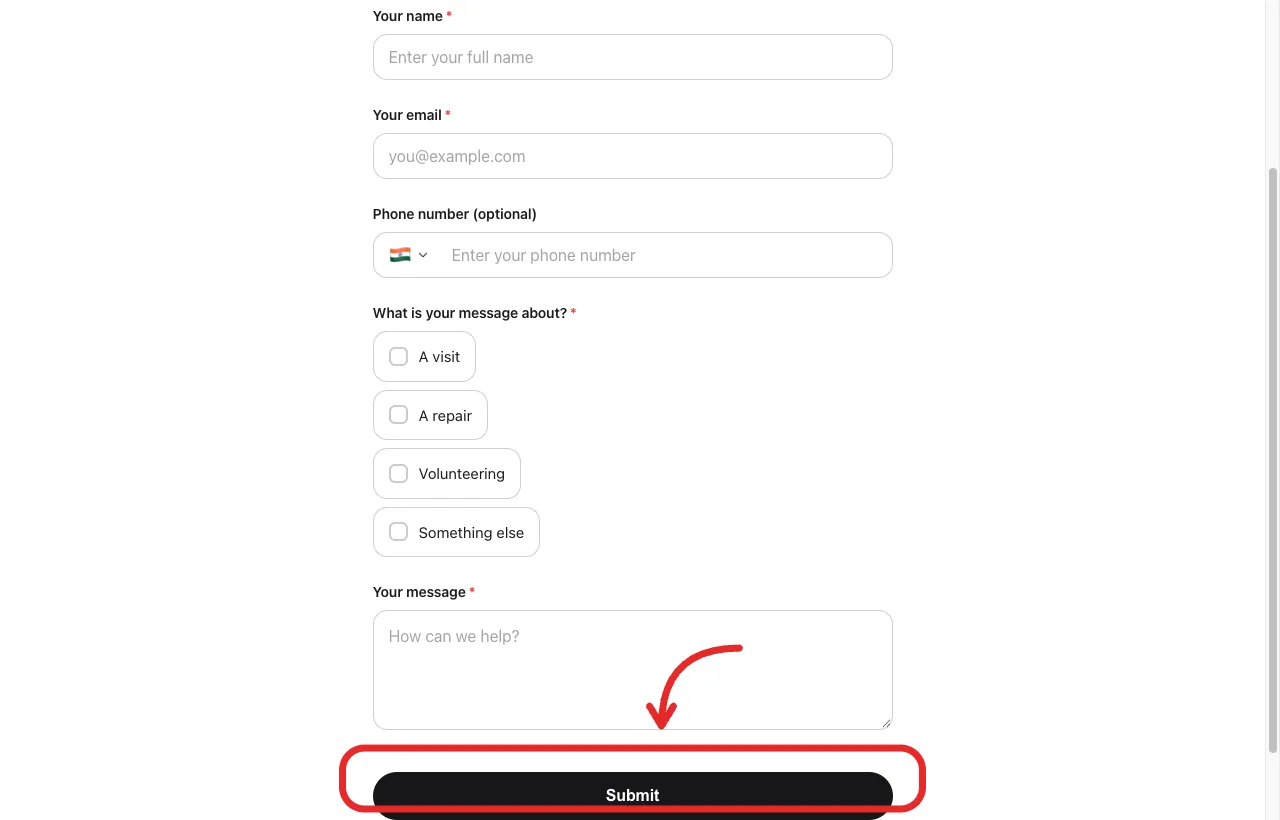
The published contact form at form.ms/7bccu3. Guests choose a topic, then write a message.
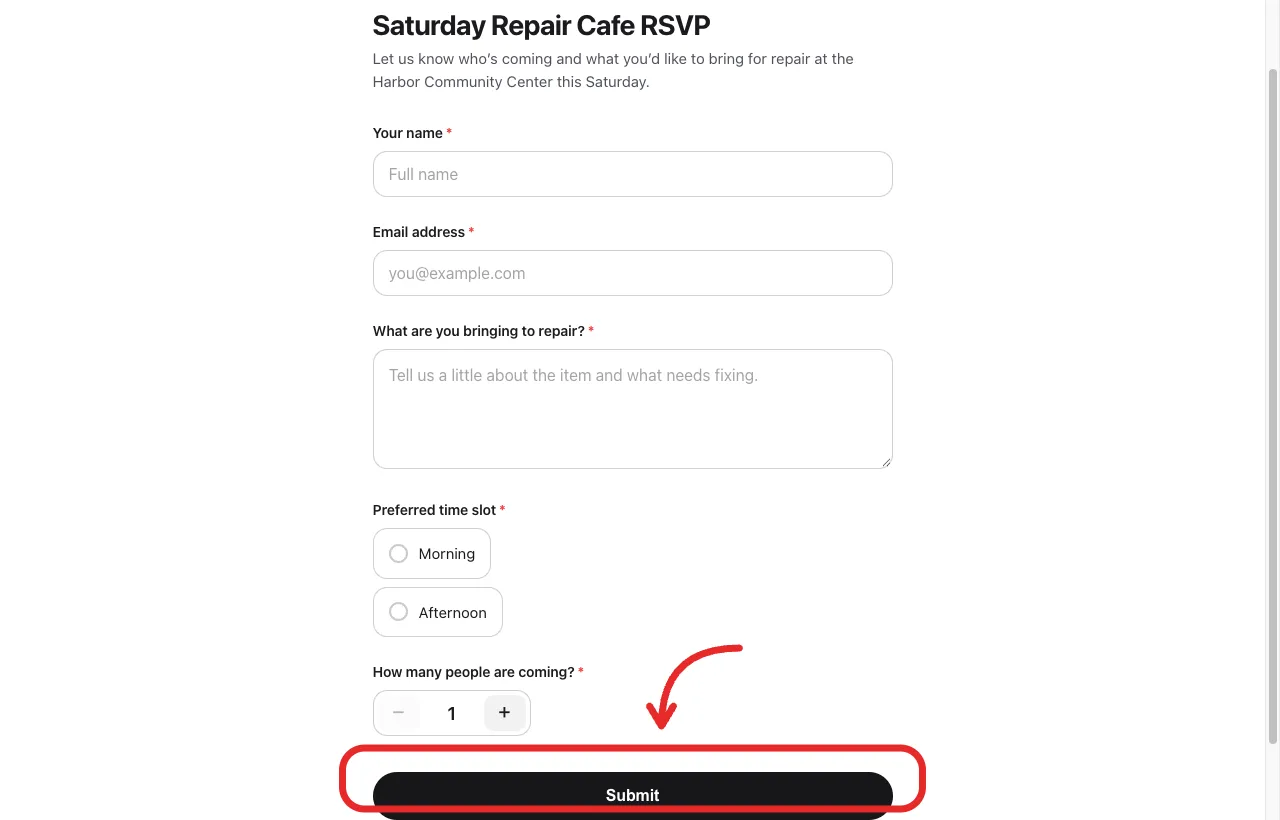
The published RSVP at form.ms/tztuvi. Guests pick morning or afternoon and a party size.
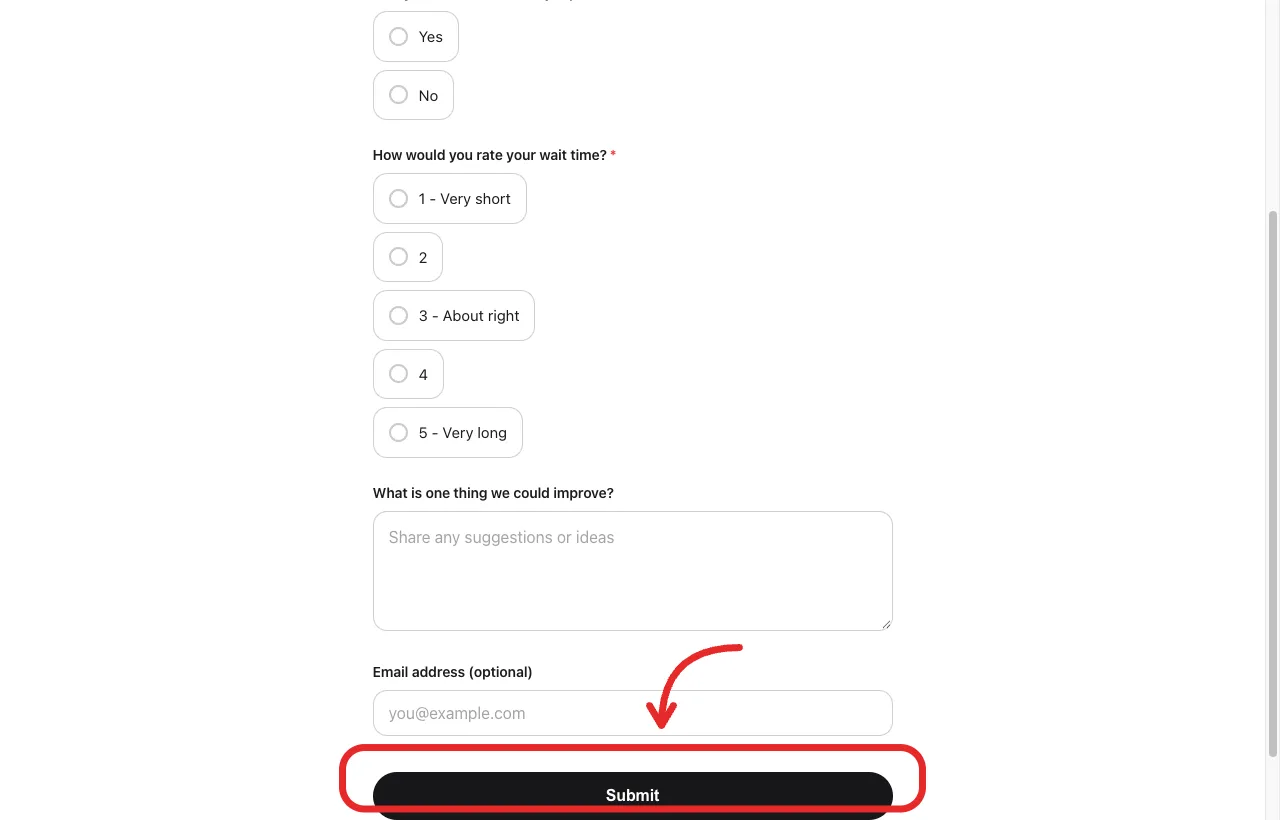
Feedback asks for a star rating, whether the repair finished, wait time, and one improvement.
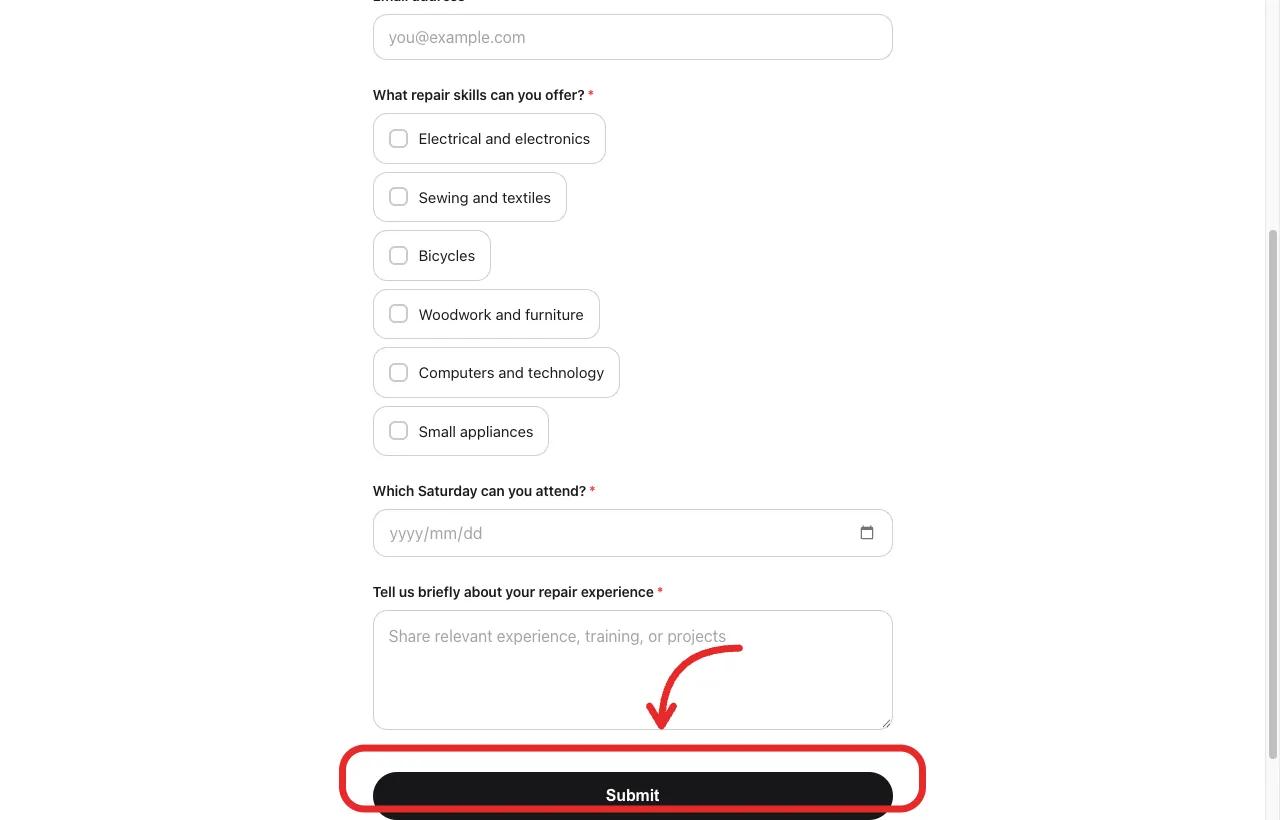
The volunteer form asks for skills, a Saturday, and a short note.
Copy the WordPress iframe
Open Share and choose WordPress in the sidebar. The iframe is under Add it to WordPress, next to a Copy control. That snippet is what you paste into a Custom HTML block, or into the Text tab if you are still on the classic editor.
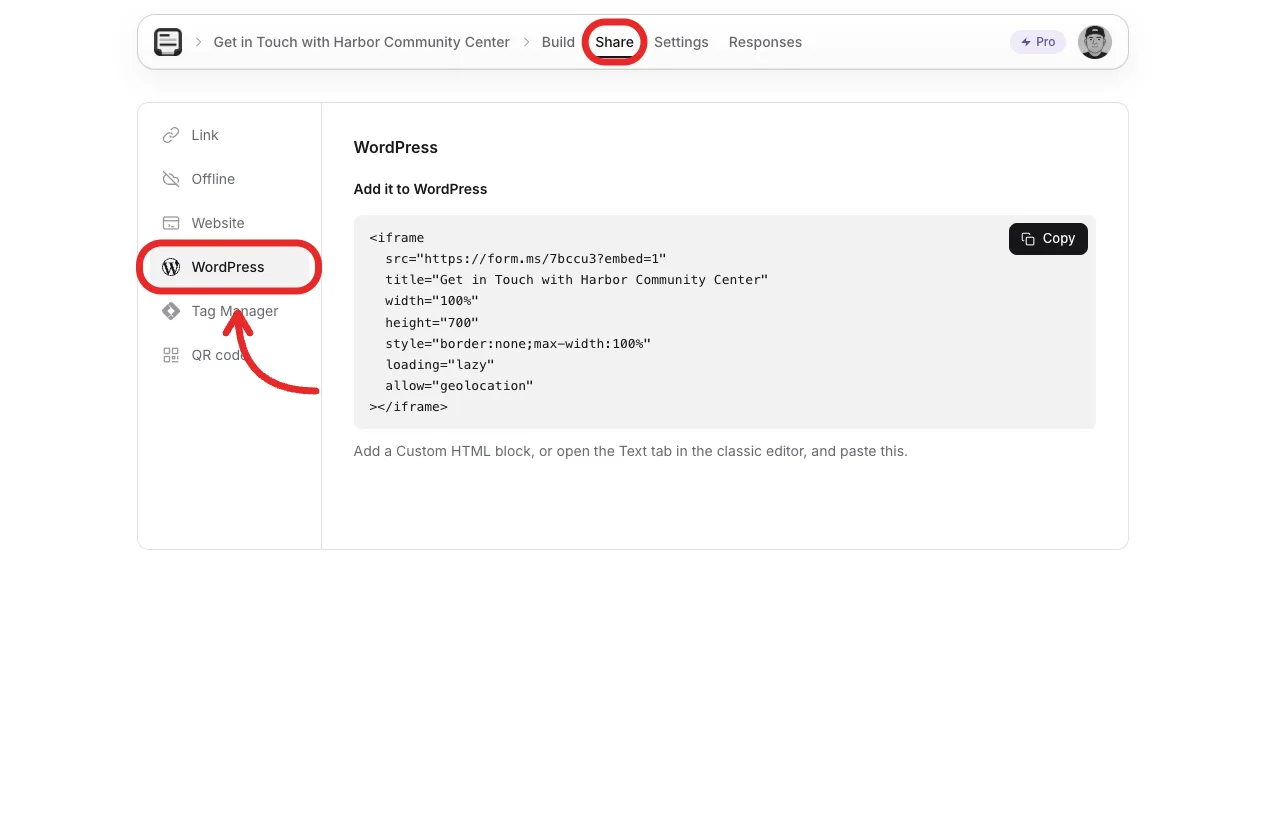
WordPress selected on the Share tab.
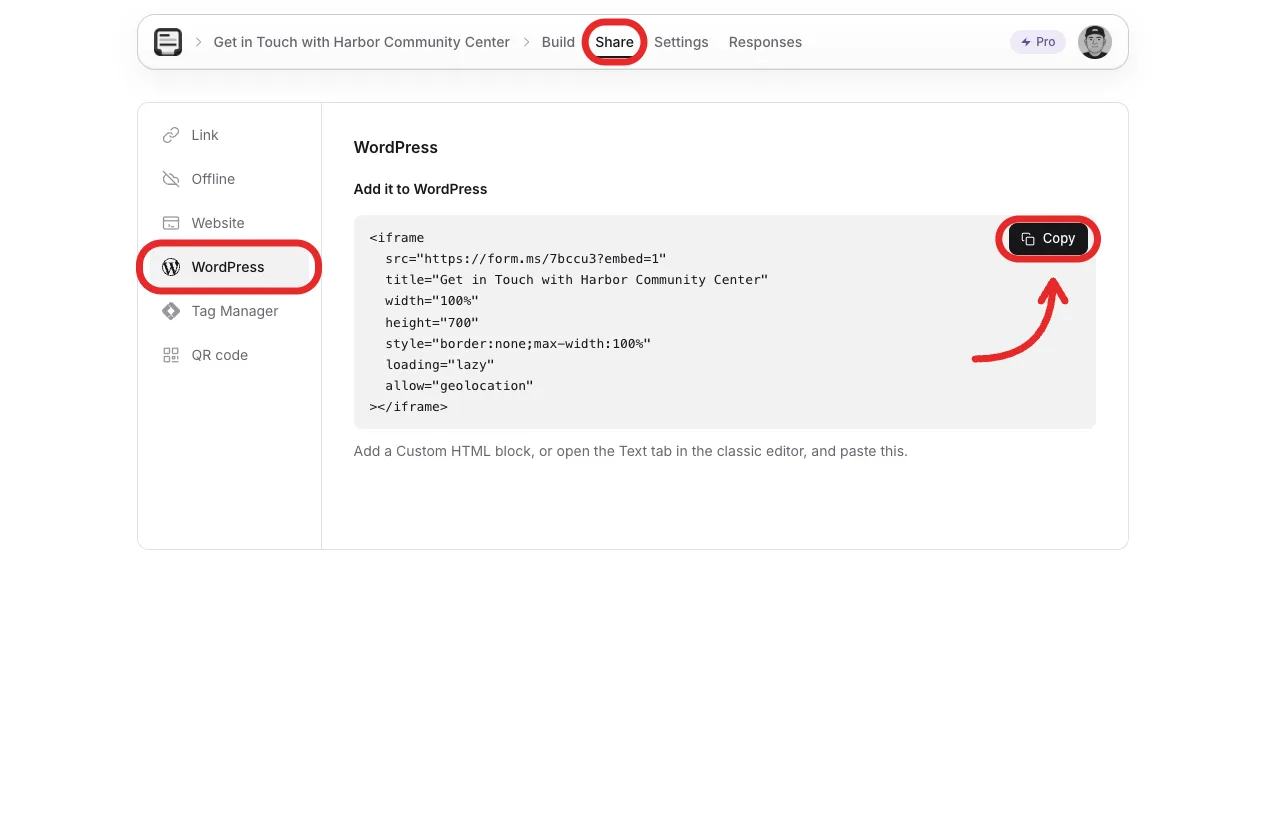
The Copy control on the WordPress iframe.
The contact form produced this snippet. The WordPress page is already titled Contact, so the form’s own heading would have appeared a second time. Hide form title lives under Share, then Website, then Customise and preview. Turning it on adds hideTitle=1 to the embed address. The public link still shows the title.
<iframe
src="https://form.ms/7bccu3?embed=1&hideTitle=1"
title="Get in Touch with Harbor Community Center"
width="100%"
height="700"
style="border:none;max-width:100%"
loading="lazy"
allow="geolocation"
></iframe>Leave the generated src and title as they are, and keep hideTitle=1 when the page already has a heading of its own. height="700" is only a starting point. If the preview cuts the form off, or leaves a tall empty gap, change the height after you have looked at the page.
Paste the iframe into WordPress
In the block editor, add a Custom HTML block. You can type /html in an empty paragraph, or pick the block from the inserter. The official WordPress documentation for Custom HTML describes the same block.
Open Edit HTML. The modal has HTML, CSS, and JavaScript panels. Paste the iframe into the HTML panel, leave the other two alone, and click Update. We did this on a draft page titled Contact.
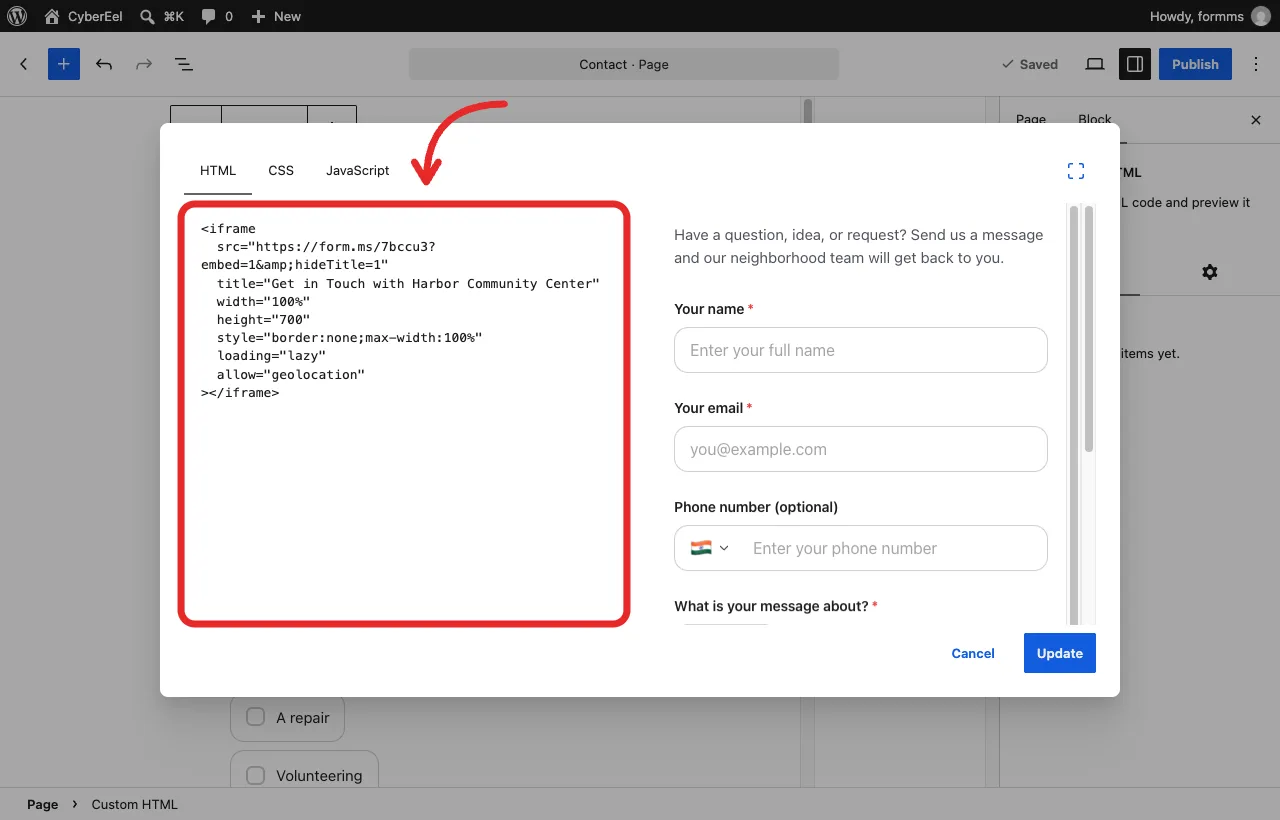
The contact form iframe in Edit HTML, on a page titled Contact.
On the classic editor, switch to the Text tab before you paste. The Visual tab can rewrite the tags, and the iframe then fails to load.
There is a permissions catch in WordPress 7.0. Custom HTML saved by an account without the unfiltered_html capability is sanitized, and the iframe can be stripped out. Our test account was an Administrator, and the iframe stayed in the preview. If it vanishes after you save, ask an administrator, or anyone else who is allowed to save that markup, to update the page.
Preview the page before publishing it
We previewed the draft page instead of publishing it. The contact form loaded under the Contact title, with the name, email, optional phone, topic, and message. Use that preview to check that you embedded the form you meant to, that the submit button is not cut off, and that the frame is not leaving a large empty gap.
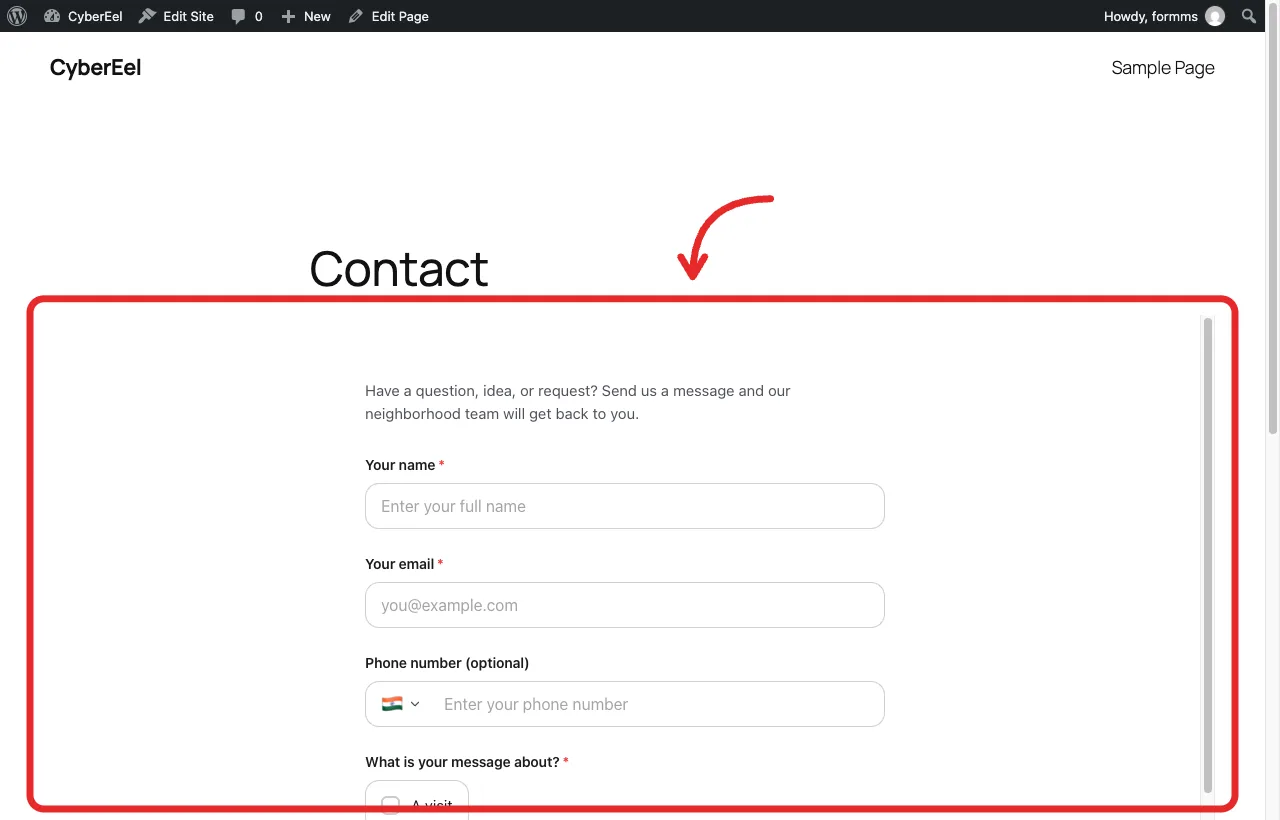
Preview of the Contact page, with the form embedded.
Share the same form beyond WordPress
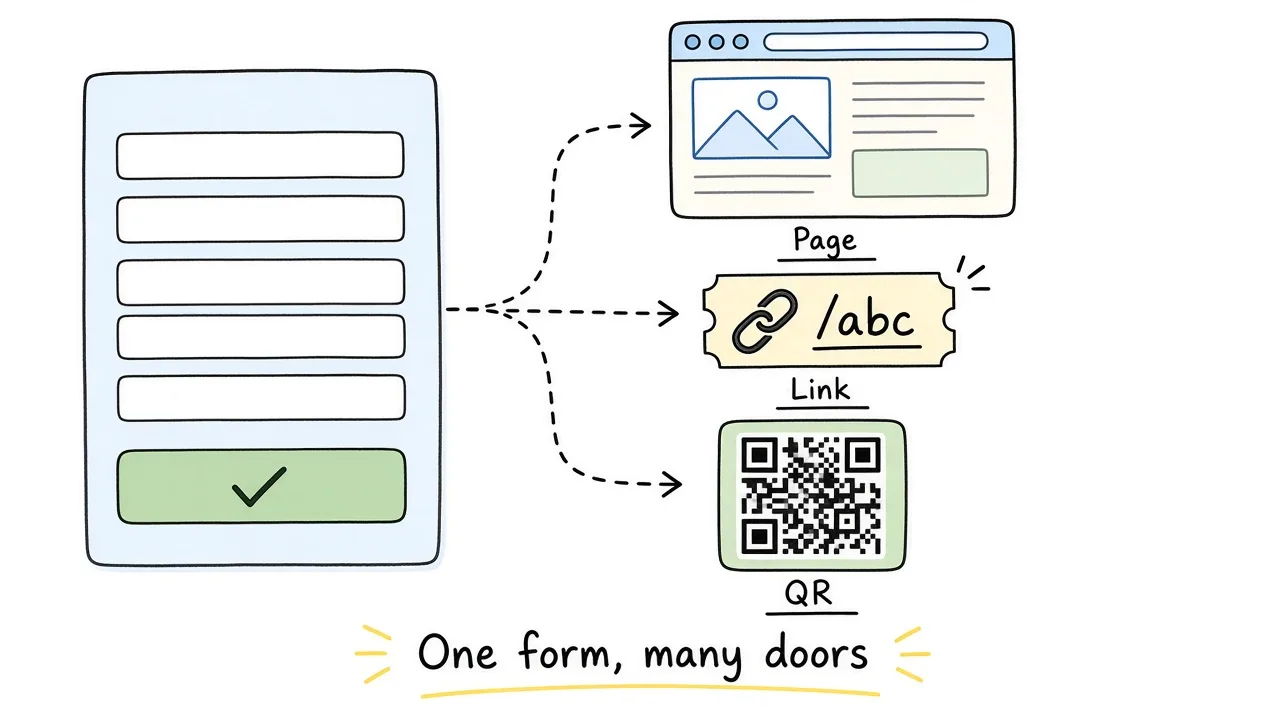
The page, the short link, and a QR code all open the same published form.
Link and QR code are on the same Share tab. The link can go in an email or a neighborhood message, and the QR code can go on a printed poster. Both open the form you embedded, so the replies land in one list, and a wording change shows up everywhere the form is opened.
How to troubleshoot a missing form embed
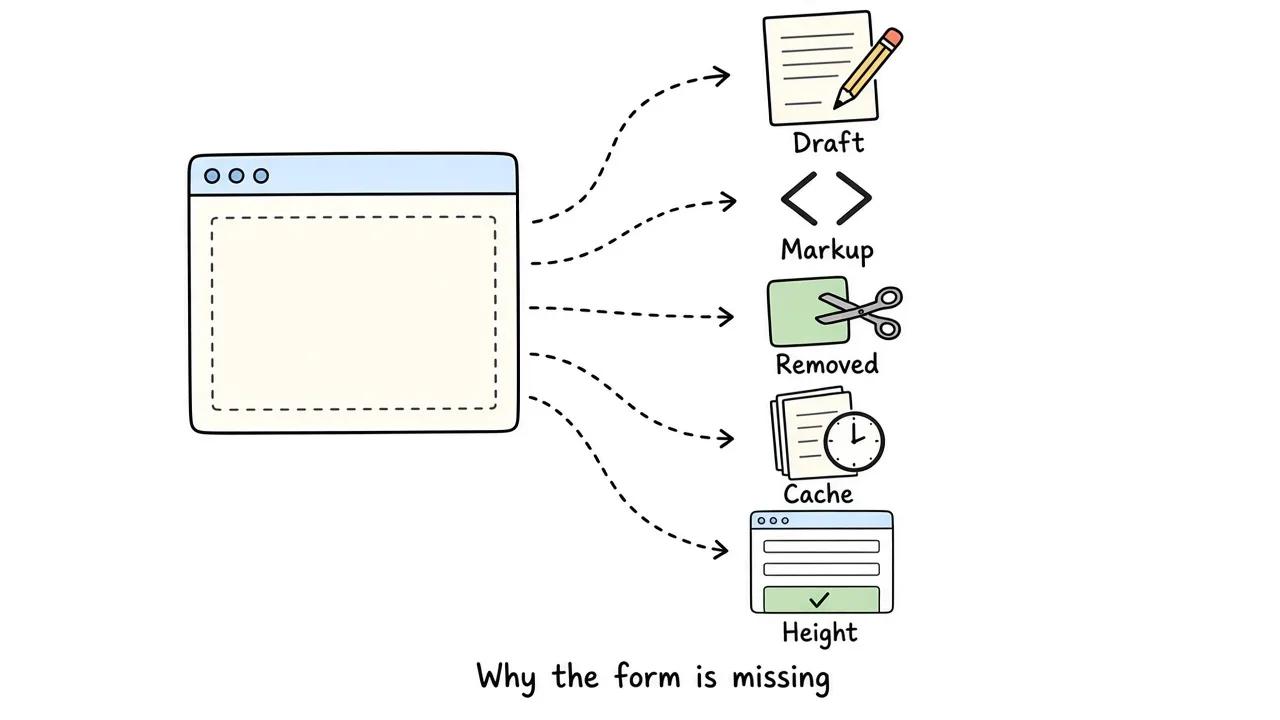
A blank page usually means a draft, rewritten markup, a removed iframe, a cached page, or a frame that is too short.
If the page shows a blank gap where the form should be, it is usually one of these:
- The form is still a draft, so there is no published page for the iframe to load.
- The snippet was pasted into a normal paragraph or the classic editor’s Visual tab, which changed the HTML.
- WordPress removed the iframe because the account could not save unfiltered HTML.
- A cache plugin is serving an older version of the WordPress page.
- The iframe height is too small to show the form properly.
Open the HTML block again and check that the whole iframe is still there after the update. Then open the form’s public link and confirm it was actually published.
If you’re still facing issues with embeding a form on the WordPress site, please connect with Formms support team.
Read responses and close the form
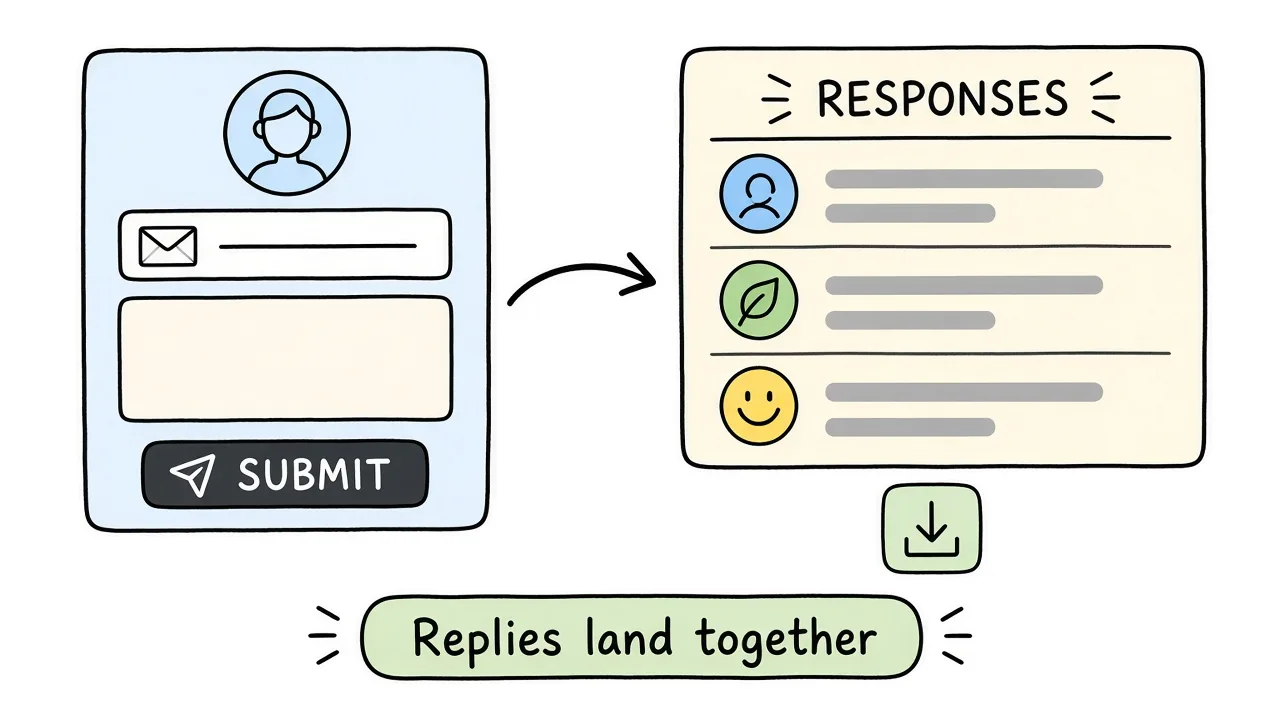
Answers from the page show up with the form’s other replies.
Replies sent through the embed, the public link, and the QR code all show up under Responses. WordPress only displays the form, so the answers are read there, in the form tool.
When you are done collecting, open Settings and turn off accepting responses. The iframe can stay on the page. Anyone who opens it will see that the form is closed.
Frequently asked questions
Why use an AI form builder if I already have a WordPress form plugin?
A plugin is enough when you already know every question and would rather build each field yourself. The AI path is for the other case: you know who the form is for and what you need back, and you would rather edit a draft than start from a blank builder.
Do visitors need an account?
No. They fill in the form in the browser, on the WordPress page. They do not need a WordPress login, and they do not need an account with the form tool.
Do I need a WordPress plugin?
No. Publish the form, open Share, choose WordPress, and copy the iframe. Paste that snippet into a Custom HTML block, or into the Text tab of the classic editor. WordPress only has to display the form.
Can I embed a form that is still a draft?
No. A draft has no public address, so the page has nothing to load. Publishing is what creates the link and the iframe.
Why is the form title showing twice?
The page already has a heading, and the form has one too. Hide form title is under Share, then Website, then Customise and preview. Turning it on adds hideTitle=1 to the embed address. The public link still shows the title.
The iframe disappeared after I saved. What happened?
WordPress 7.0 sanitizes Custom HTML saved by an account without the unfiltered_html capability, and the iframe can be stripped out. Ask an administrator to update the page. On the classic editor, paste in the Text tab. The Visual tab can rewrite the tags so the form never loads.
Where do the replies go?
They show up under Responses in Formms, including a notification on your phone. Replies from the WordPress page, the short link, and the QR code land in that same list. WordPress does not store them.
If I change a question, do I paste the iframe again?
No. Edit the wording in Formms. The snippet on the page can stay, and the next visit loads the updated form.
Can I close the form and leave it on the page?
Yes. Open Settings and turn off accepting responses. The iframe can stay. Anyone who opens it will see that the form is closed.
Is this free for a WordPress site?
Yes. The free plan includes ten published forms and unlimited responses, so a contact page, an RSVP, a feedback survey, and a volunteer application can all be live. You can build them on the iPhone app, the Android app, or the web dashboard.
Conclusion
AI already helps people with writing, planning, and everyday tasks. It can help you build forms faster too, and save the time you would spend adding each field by hand. You describe what the page needs, then edit the draft until it sounds like your site.
A mobile-friendly form is a good fit for many WordPress sites: a business, a personal brand, a school, a community group, and plenty of others. Visitors are often on a phone, so the form should be easy to fill in there. Formms lets you create that form on your own phone or on the web, then embed it on the site.