
Blog / Customer Experience
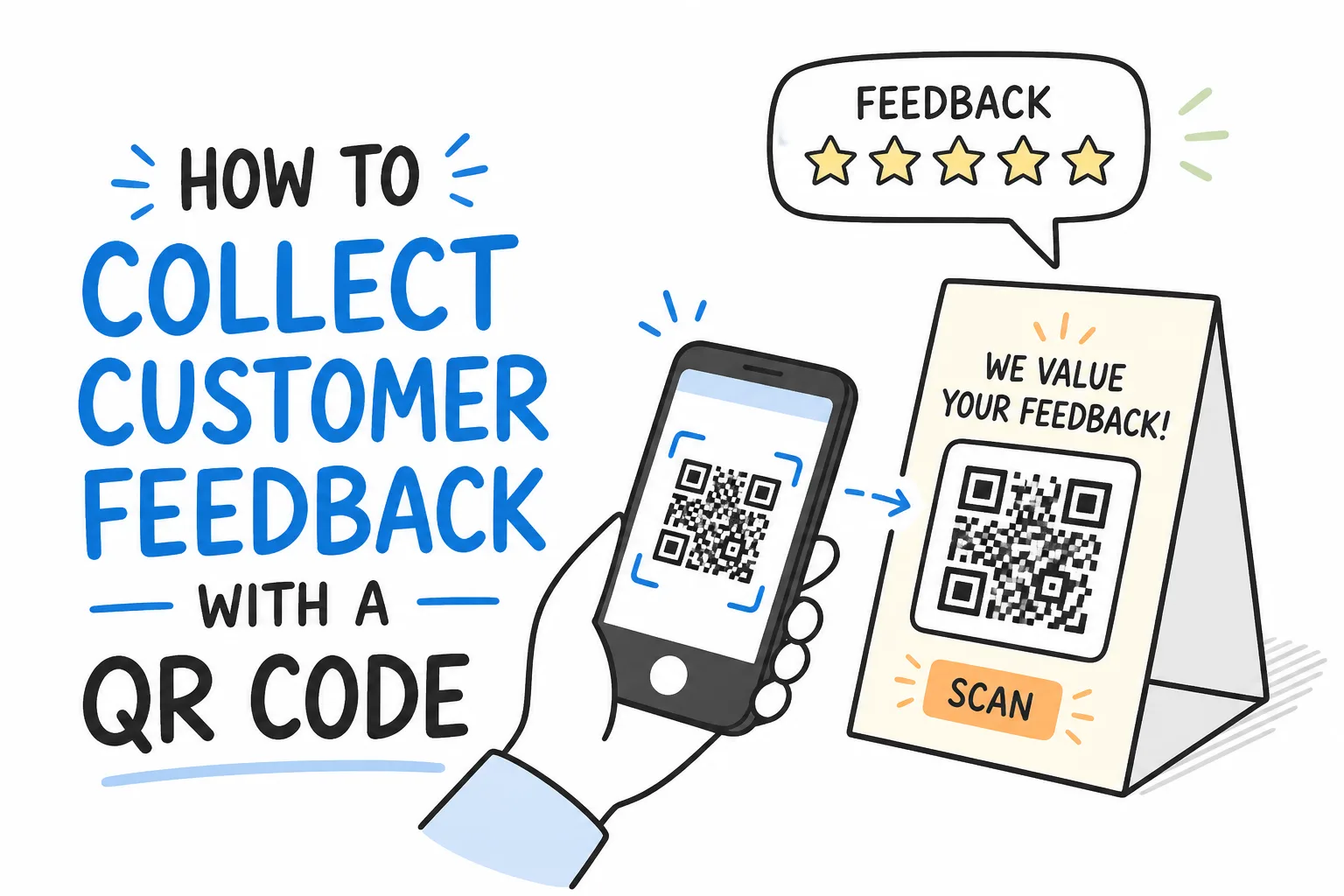
How to Collect Customer Feedback With a QR Code
Context
Learn how to collect customer feedback with a QR code. Discover best practices, setup tips, and ways to increase response rates for valuable customer insights.
On this page
Customer feedback is most useful when it arrives while the visit is still fresh. A printed QR code turns that moment into a phone-sized survey: someone scans, answers a few questions, and you get structured replies without chasing email lists or paper slips.
This guide shows how to collect customer feedback with a QR code end to end: what to ask, how to generate a reliable code, where to place it, how to keep scans trustworthy, and how to act on what comes back. The workflow is tool-agnostic: any form builder that gives you a public URL can sit behind the code.
If you only need the print mechanics of QR generation, start with how to make a QR code for a form. If you need stronger question banks for support and CX, pair this with 100 customer service survey questions.
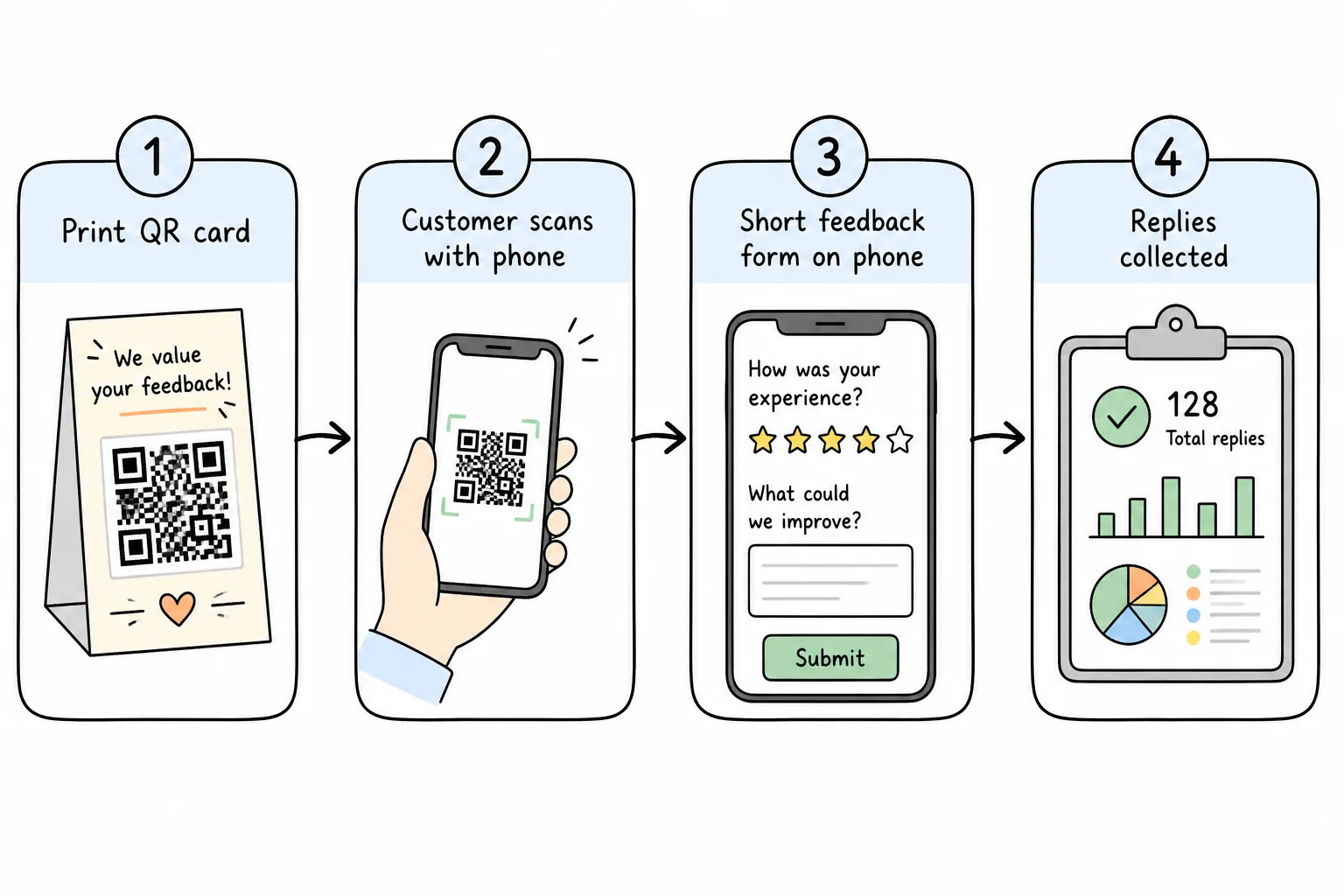
Print → scan → short mobile form → structured replies. That is the whole loop.
What “QR Code Customer Feedback” Means
A QR code for feedback is a printed (or on-screen) code that opens a live survey or feedback form in the phone’s browser. The person does not need your app. You do not need to type a long URL on a tiny keyboard.
Three pieces have to work together:
| Piece | Job | Failure mode |
|---|---|---|
| Feedback form | Ask the right questions on a phone | Too long, hard to tap, vague scales |
| QR image | Encode a stable public URL | Dense codes, low contrast, no quiet zone |
| Placement + CTA | Invite the scan at the right moment | Hidden codes, no context, untrusted surfaces |
The QR is not the survey. It is the door. If the door is hard to find or the room inside is messy, response quality collapses.
Key takeaway: Optimize the form for sixty seconds on a phone, then design the QR and its surroundings so scanning feels obvious and safe.
Why QR Codes Work for In-the-Moment Feedback
Email surveys arrive later, compete with inbox noise, and often miss the people who already left. Counter cards and table tents meet people where the experience happened, especially useful as Pew Research Center continues to show near-universal smartphone access among U.S. adults.
A U.S. Census Bureau usability study found that participants could scan a QR code and reach a survey on a smartphone in about 12.4 seconds on average, and rated the process as extremely easy. That speed is a design constraint: if your survey takes five minutes after a twelve-second scan, you broke the promise of the medium.
QR feedback also helps when:
- Customers are already holding a phone (checkout lines, waiting rooms, events)
- You lack email addresses for walk-in traffic
- You want location-specific feedback (this counter, this table, this session)
- Staff need replies during the shift, not next week’s export
It is weaker when people are in motion with no dwell time, when lighting is terrible, or when the printed code looks like spam. Trust and placement matter as much as the questions. Also remember selection bias: people who bother to scan often skew toward the very happy or the very annoyed, so read trends over time rather than a single average.
Build the Feedback Form Before You Print Anything
Do not generate a QR for a half-finished draft. Finalize the form first so reprints are rare.
Keep it short
Aim for three to five questions, completable in under a minute. A reliable pattern:
- One rating (stars, 1–5, CSAT, or NPS-style)
- One focused follow-up (“What should we improve?”)
- Optional contact for follow-up
Open text is valuable for “why.” It is expensive for everything else. Prefer taps over typing.
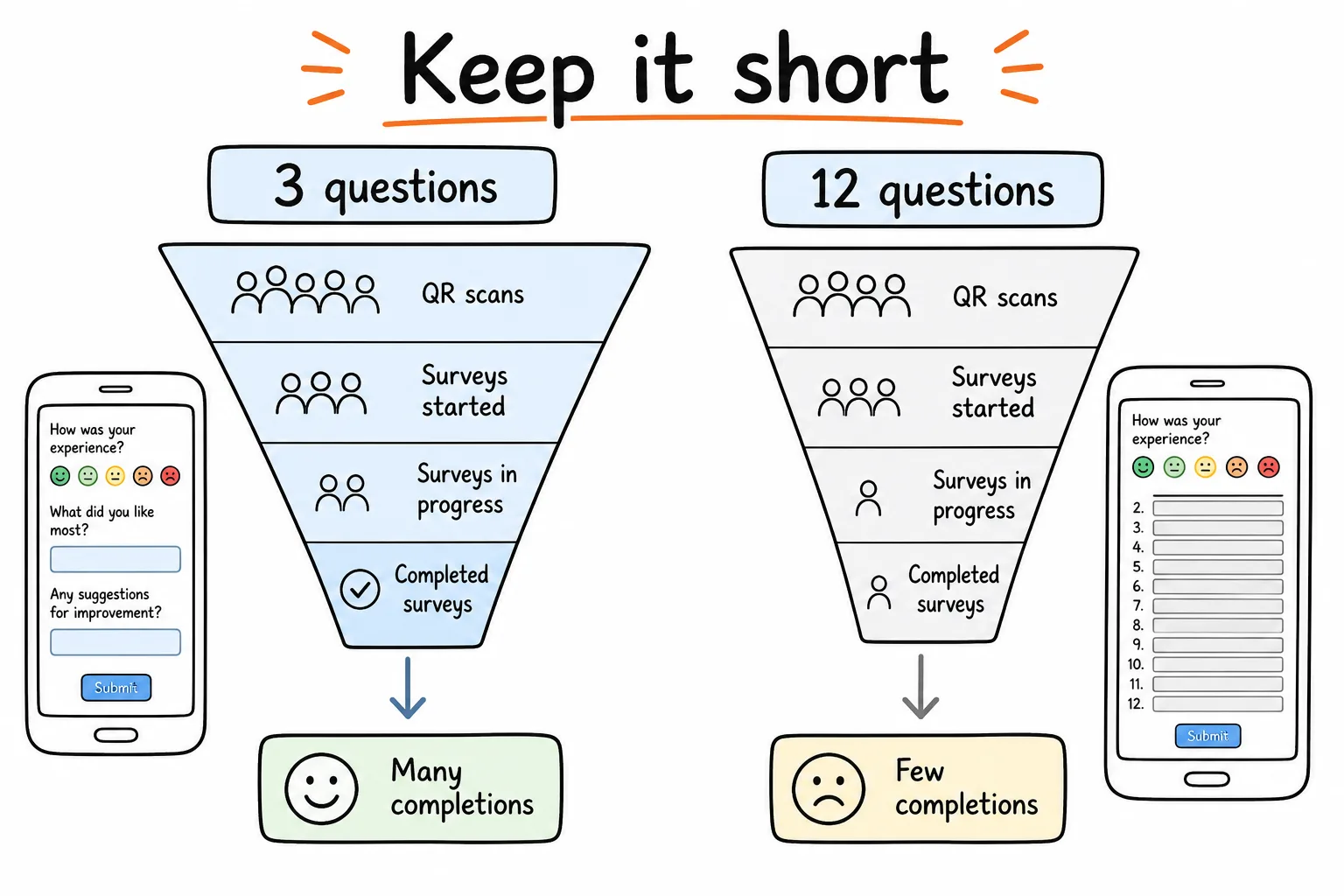
Fewer questions protect completion after a quick scan.
Match field types to decisions
| If you need… | Prefer… | Avoid… |
|---|---|---|
| Overall satisfaction | Stars or 1–5 scale | Long essay as the first question |
| One primary issue | Multiple choice | Free text for categories you already know |
| A story or quote | Short or long text | Required paragraph for every visitor |
| Permission to follow up | Optional email | Required phone number by default |
Write labels for thumbs, not for desktop mice. Large tap targets. One idea per question. Neutral wording.
For prompt-first drafting on a phone, see how to turn a prompt into a shareable form. A strong prompt might look like:
Create a mobile customer feedback form for a neighborhood cafe. Four questions max: overall stars, wait time (1–5), favorite item (short text), one improvement (long text). Optional email. Friendly tone. Under 60 seconds.
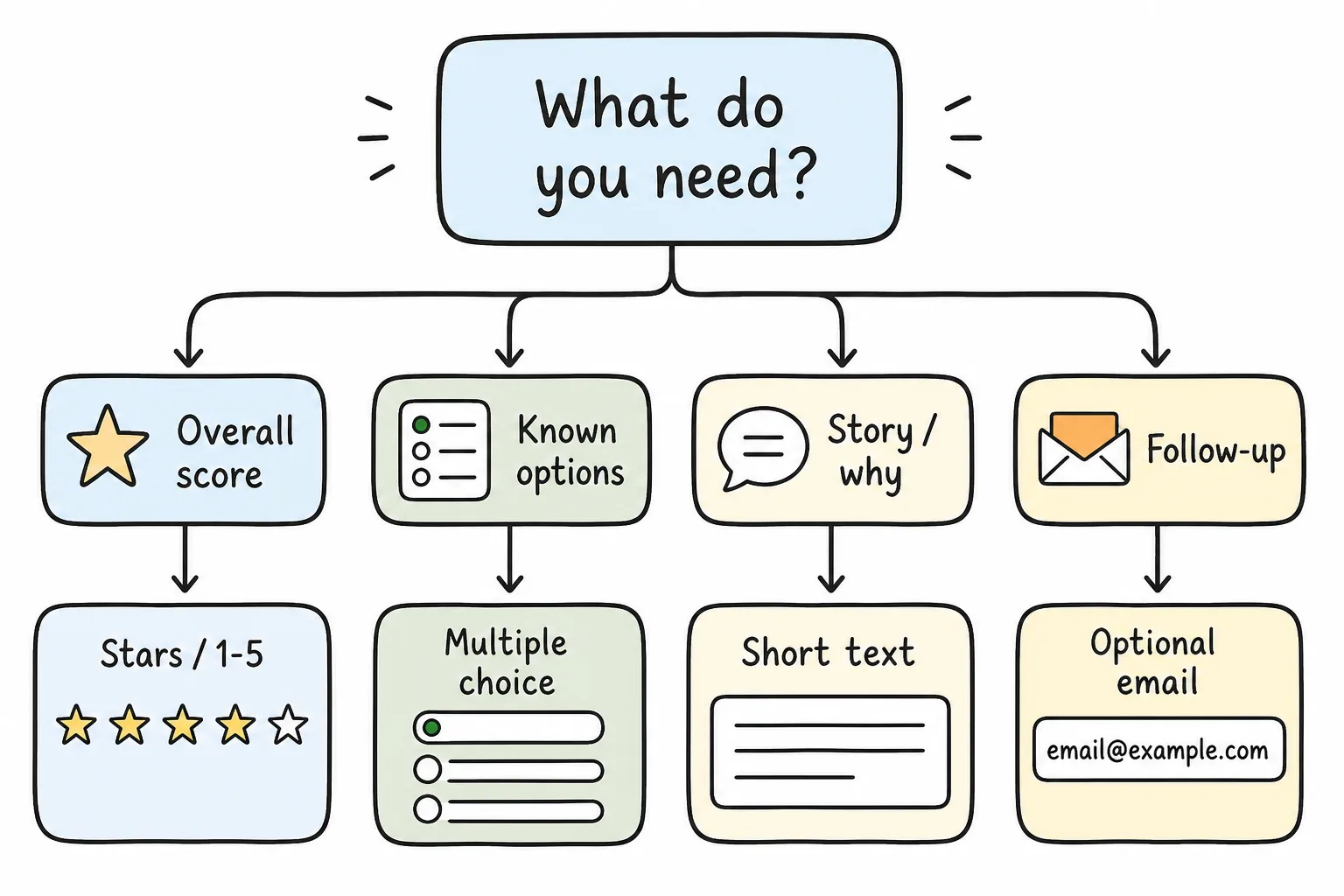
Pick the field that matches the answer shape you will actually use.
Make the destination feel safe
People are more careful about mystery codes. On the form itself:
- Show your business name in the title or intro
- State how long it takes (“About 30 seconds”)
- Say what you will do with the answers
- Avoid surprise account walls for respondents
Prefer a destination people can open in the phone browser without installing an app or creating an account. Keep that advantage by not inventing extra hurdles in your copy.
Create the QR Code From the Live Form Link
Once the form is published:
- Copy the public share URL.
- Generate a QR image that encodes that URL.
- Prefer SVG or a high-resolution PNG for print.
- Test-scan on iPhone and Android before you order prints.
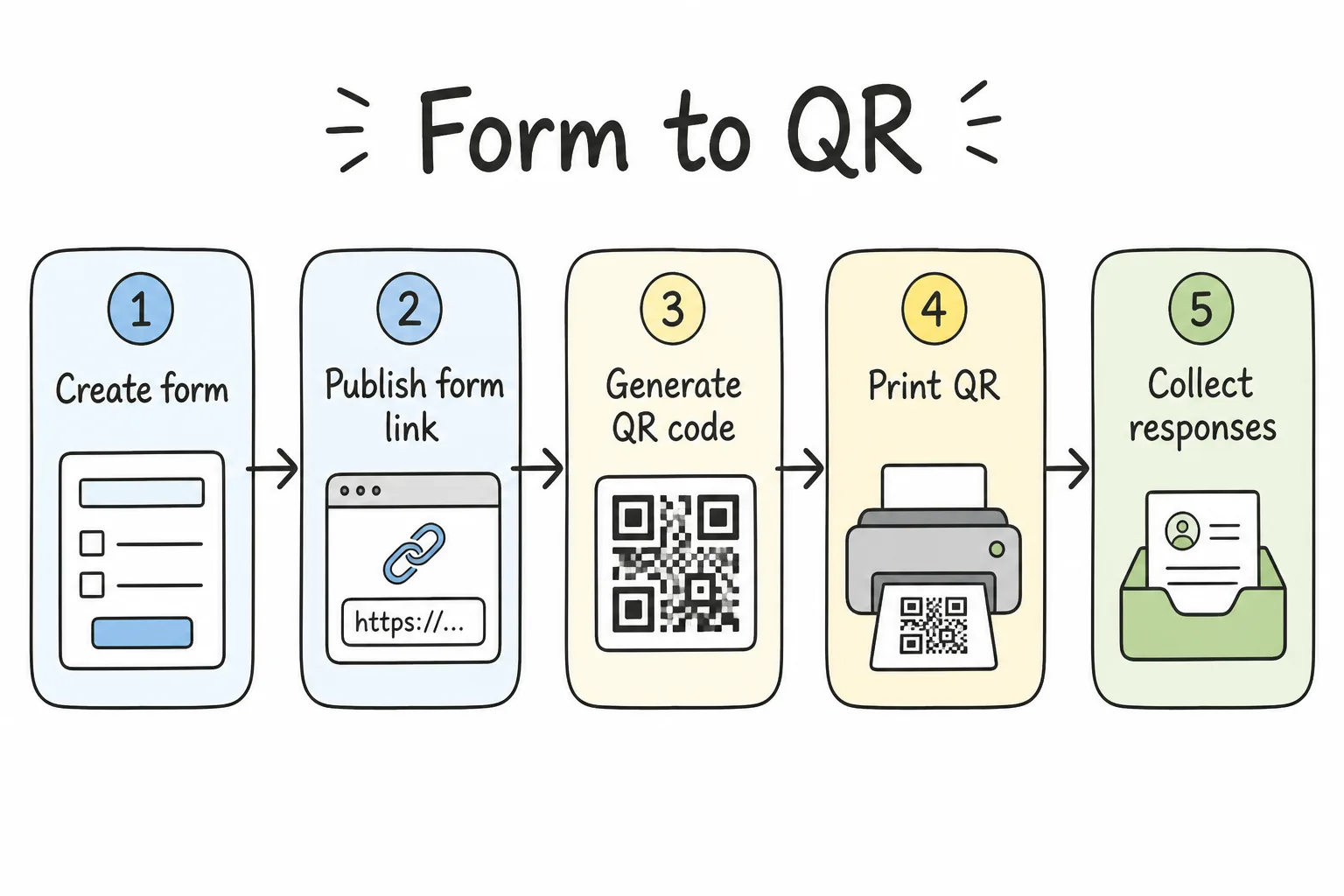
Publish the form, encode the link, download print-ready art, then test.
Two practical notes:
- Shorter URLs make cleaner codes. Dense codes fail more often at small sizes. Use a short public link when your form tool provides one, or a reputable shortener you control.
- Static vs dynamic. A static code points at a fixed URL. A dynamic/redirect code can change destinations later without reprinting, but free “dynamic” tools sometimes expire or gate tracking. If you reprint often anyway, a stable short URL is simpler.
Tip: Store the QR file next to the form name (“Cafe feedback – lobby tent.svg”). Orphaned QR files in Downloads are how yesterday’s event form stays on today’s poster.
How to Create a Feedback QR Code With Formms
If you want the form and the QR in one place, Formms builds both when you publish. Respondents open the form in a browser with no app or account required on their side.
- Open Formms on your phone or desktop and start a new form.
- Describe the feedback survey in plain language (or start from a feedback form template). Example:
Customer feedback for a neighborhood cafe. Four questions max: overall stars, wait time (1–5), one thing to improve (short text), optional email. Friendly tone. Under 60 seconds.
- Review the draft. Keep three to five fields. Cut anything you will not act on this week. Edit by hand or ask the AI to refine.
- Open Share. Every Formms form includes a short link like
form.ms/…and a downloadable QR code side by side, with no separate generator. - Save the QR (high-res image) and paste the short URL into your print layout as a fallback.
- Test-scan the file on another phone before you order cards or posters.
- Read responses in the app (notifications help) and close or update the form when the decision is done.
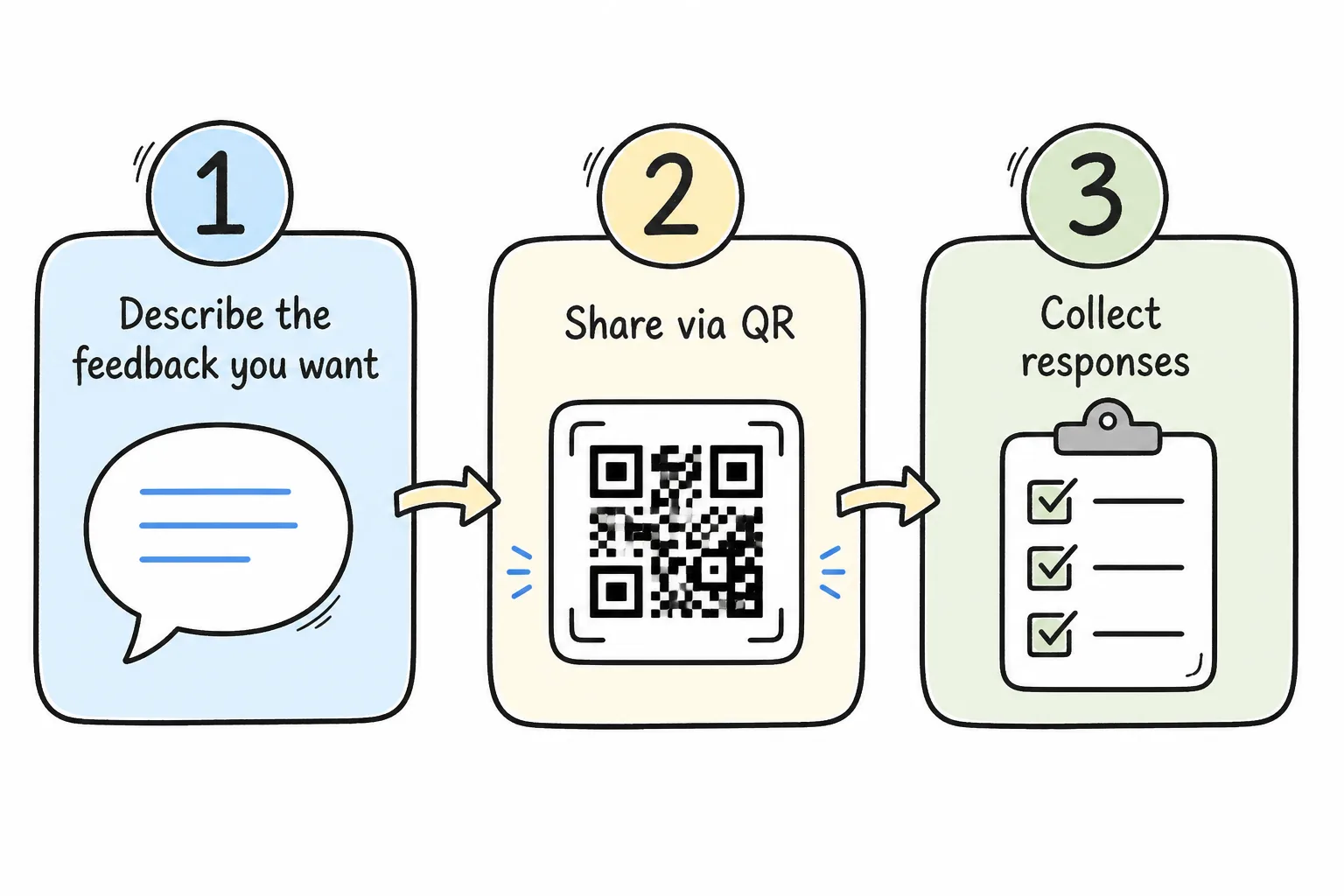
Describe the survey → share the built-in QR → collect replies on your phone.
Because the public link is short, the code stays relatively sparse and scans more reliably at small print sizes. The QR stays attached to that form, so you are not hunting a random PNG in Downloads weeks later.
For prompt wording tips: see how to turn a prompt into a shareable form. For QR print mechanics alone, see how to make a QR code for a form.
Design the Print So It Actually Scans
A beautiful poster with an unscannable code collects zero feedback.
Size for distance
A common rule of thumb is roughly one unit of code width for every ten units of scanning distance. Table tents can be small. Wall posters seen from across a room cannot.
| Placement | Typical scan distance | Practical code size |
|---|---|---|
| Receipt / sticker | Arm’s length | ~1 inch (2.5 cm) minimum |
| Table tent / counter card | 1–2 feet | ~2–3 inches wide |
| Poster / window | Several feet | Scale up; when unsure, go larger |
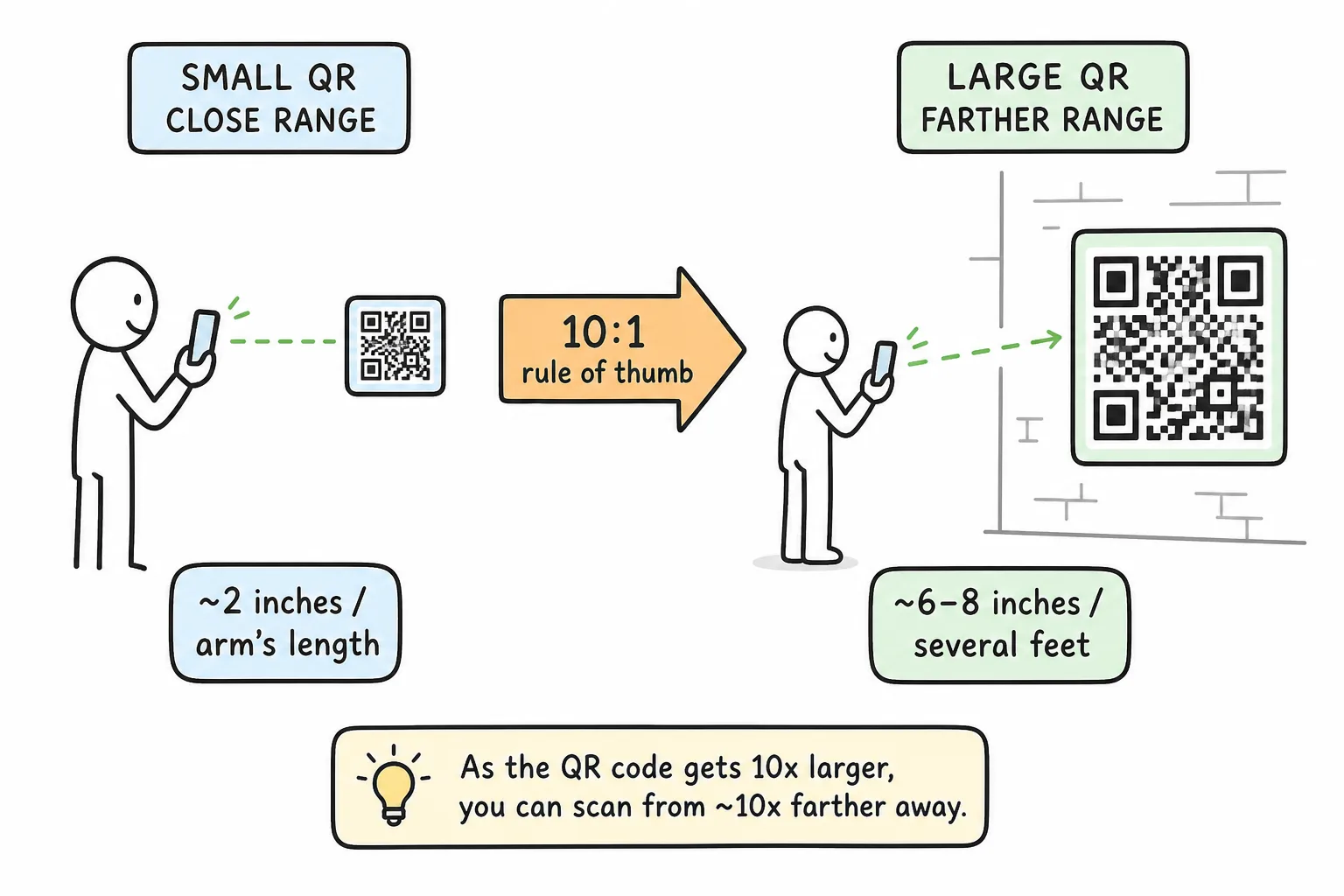
Farther eyes need bigger codes. Scale the QR to the room, not the template.
Contrast, quiet zone, and surfaces
- Dark modules on a light background scan most reliably
- Leave a quiet zone (empty margin) around the code (about four modules on each side)
- Avoid busy patterns behind the code
- Glossy lamination and glass glare can defeat cameras; matte finishes are safer
- Do not stretch or warp the code to fit a shape
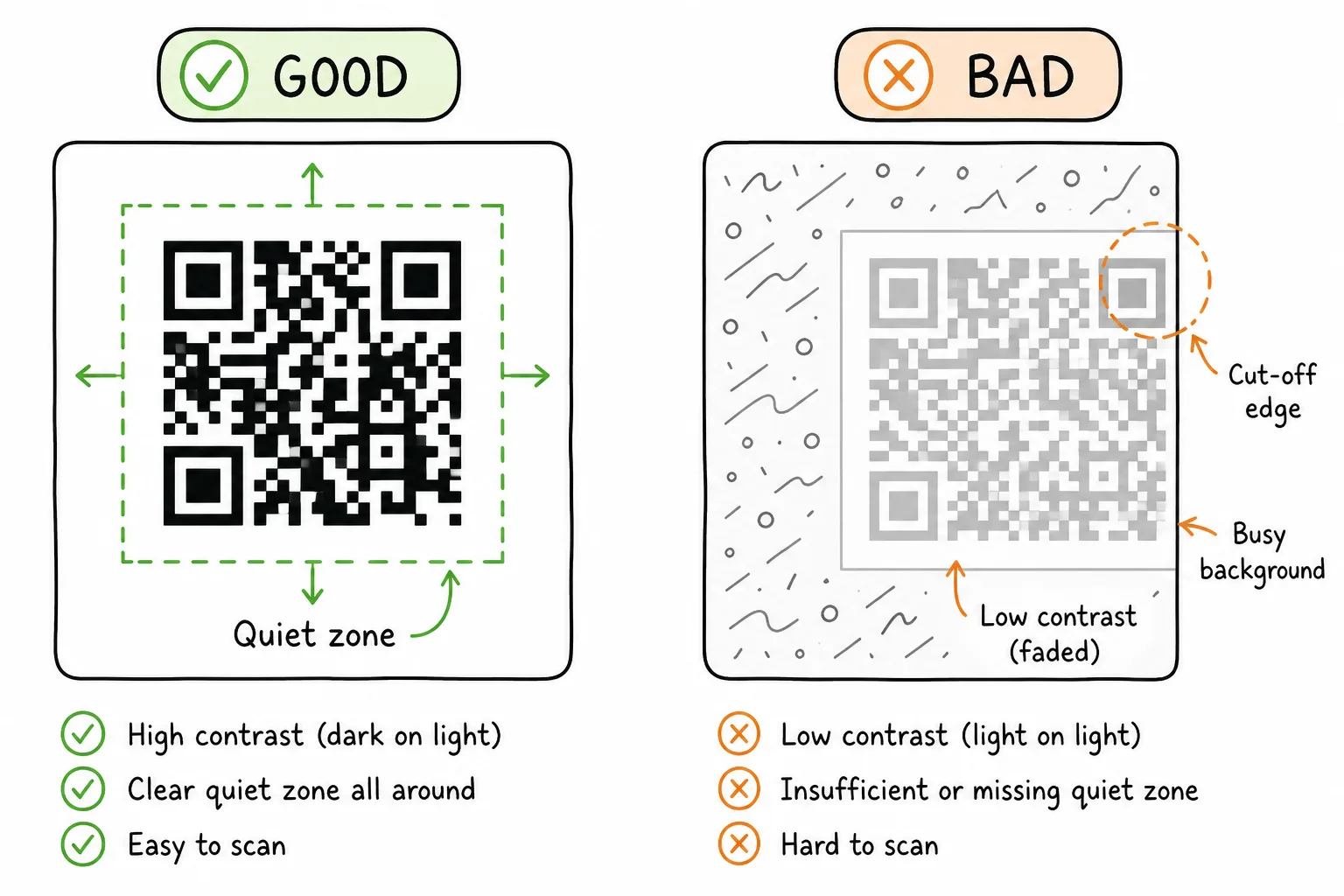
High contrast plus empty margin around the code prevents most scan failures.
Always add a call to action
A bare QR looks unfinished. Put a short frame around it:
- What it is: “How was today’s visit?”
- What it costs: “Takes about 30 seconds”
- Optional trust line: “Opens our feedback form”
- Optional short URL fallback for people who cannot scan
Keep repeating the print basics: size for distance, protect contrast and quiet zones, and give people a reason to scan now, not a mysterious square.
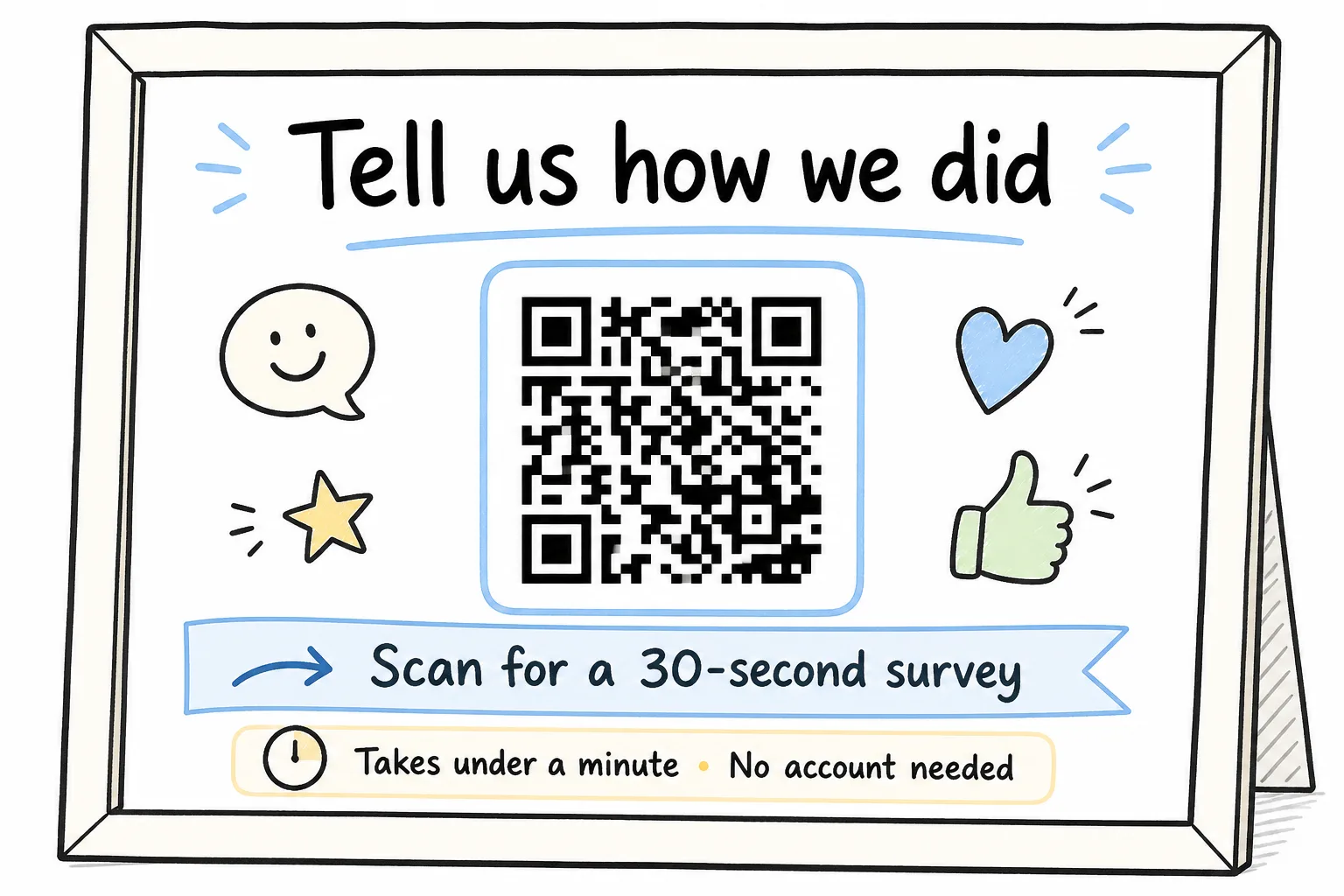
Headline + time estimate + short URL next to the code builds trust and scans.
Where to Place Feedback QR Codes
Put codes where people pause, not where they rush.
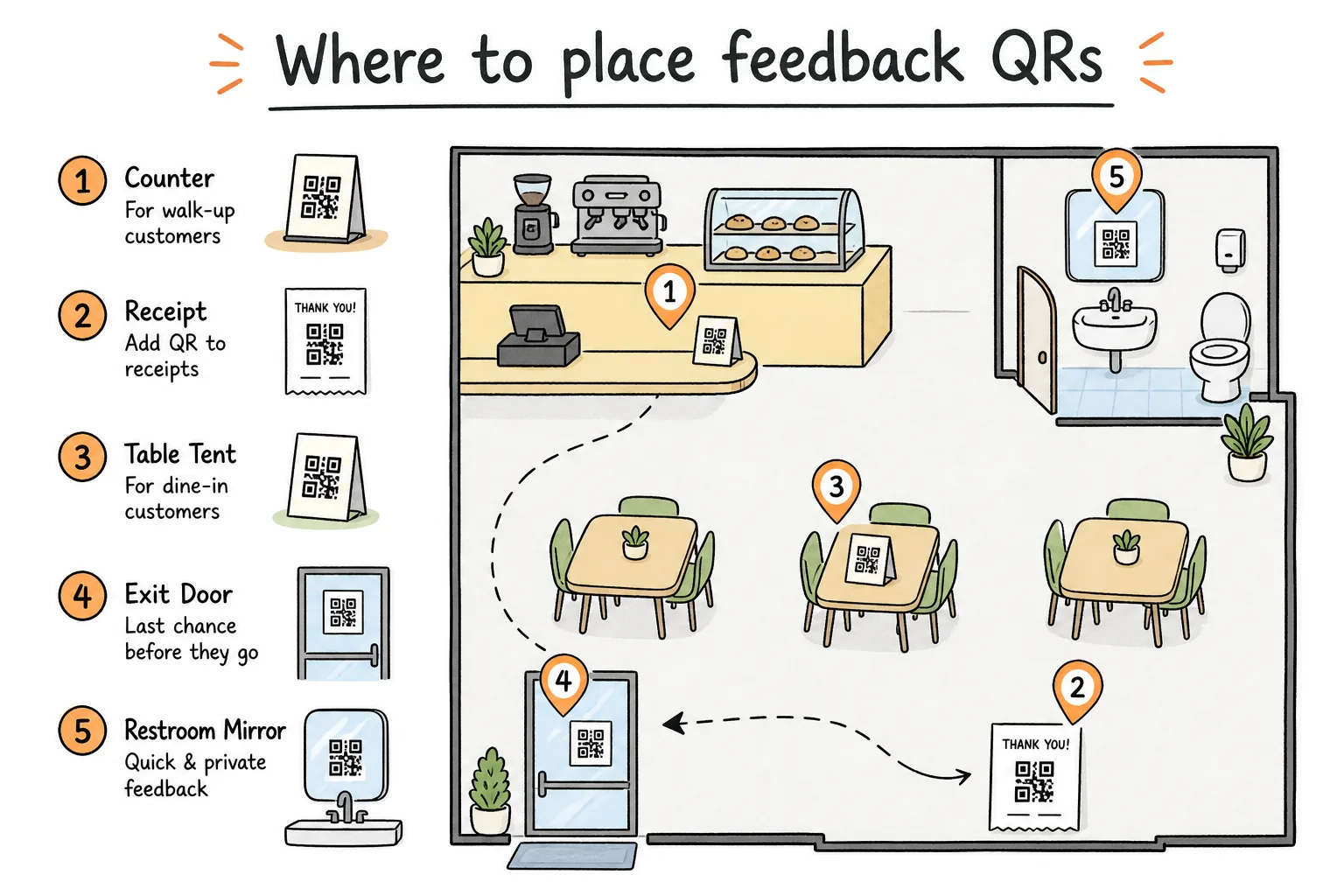
Counters, tables, receipts, and exit points beat hallway walls people walk past.
High-performing placements
| Place | Why it works | CTA idea |
|---|---|---|
| Table tent | Dwell time while seated | “Tell us about your meal (30 seconds)” |
| Checkout / counter card | End of purchase | “How did we do today?” |
| Receipt or packing slip | Private moment after the visit | “Rate this order” |
| Event slide or badge | Attention is already on a screen or badge | “Session feedback: 3 questions” |
| Restroom mirror / stall door | Captive attention (use carefully, keep clean) | “Facilities quick check” |
| Waiting room | Natural pause | “While you wait, share feedback” |
Weaker placements
- Behind doors people push through
- Floor stickers in busy aisles
- Tiny codes in dense flyer footers
- Unlabeled codes on outdoor poles (weather + trust issues)
Best practice: One primary placement per location first. Add a second only after you know the first scans and converts.
Step-by-Step: From Idea to Live Feedback Loop
Use this sequence with whatever form tool you already trust.
- Define the decision. What will you change with the answers this week: staffing, menu, wait time, cleanliness, training?
- Draft a short form. Rating + one improvement + optional email is enough for many shops.
- Publish and get the QR. Copy the public form URL, generate a QR (built-in to many form tools, or a separate generator), and save a print-ready file.
- Design the frame. Headline, time estimate, quiet zone, short URL.
- Proof-scan. Print a draft. Scan from the real distance in the real lighting on two phones.
- Place and announce. Staff can say one sentence: “If you have 30 seconds, the card on the table is our feedback form.”
- Read and act. Check replies daily at first. Close the loop when you fix something.
Incentives, Trust, and “Quishing” Awareness
Incentives can lift scans. They can also attract junk answers. Prefer small, immediate, relevant rewards over vague prize draws when you use them at all.
Trust beats gimmicks:
- Brand the card with your name or mark
- Say where the link goes
- Keep codes where staff can see them
- Check public posters periodically so stickers cannot be pasted over yours
Public guidance on QR safety often warns about quishing (fraudulent codes covering legitimate ones). The U.S. Postal Inspection Service explains how scammers use physical and digital QR codes to steal information, and the FTC has flagged QR-linked package scams. A clear business frame and periodic audits reduce that risk for customers and for you.
Measure What Works (Without Overcomplicating It)
You do not need a BI dashboard on day one. You do need to know which poster is dead.
Practical measurement:
- Use separate links or UTM tags per placement (lobby tent vs receipt vs event slide)
- Track starts, completes, and completion time
- Compare volume by location weekly
- Move or rewrite CTAs on low performers before reprinting everything
Once someone opens the form, completion can be high, but the scan itself is voluntary. Separate links tell you which placements earn those opens.
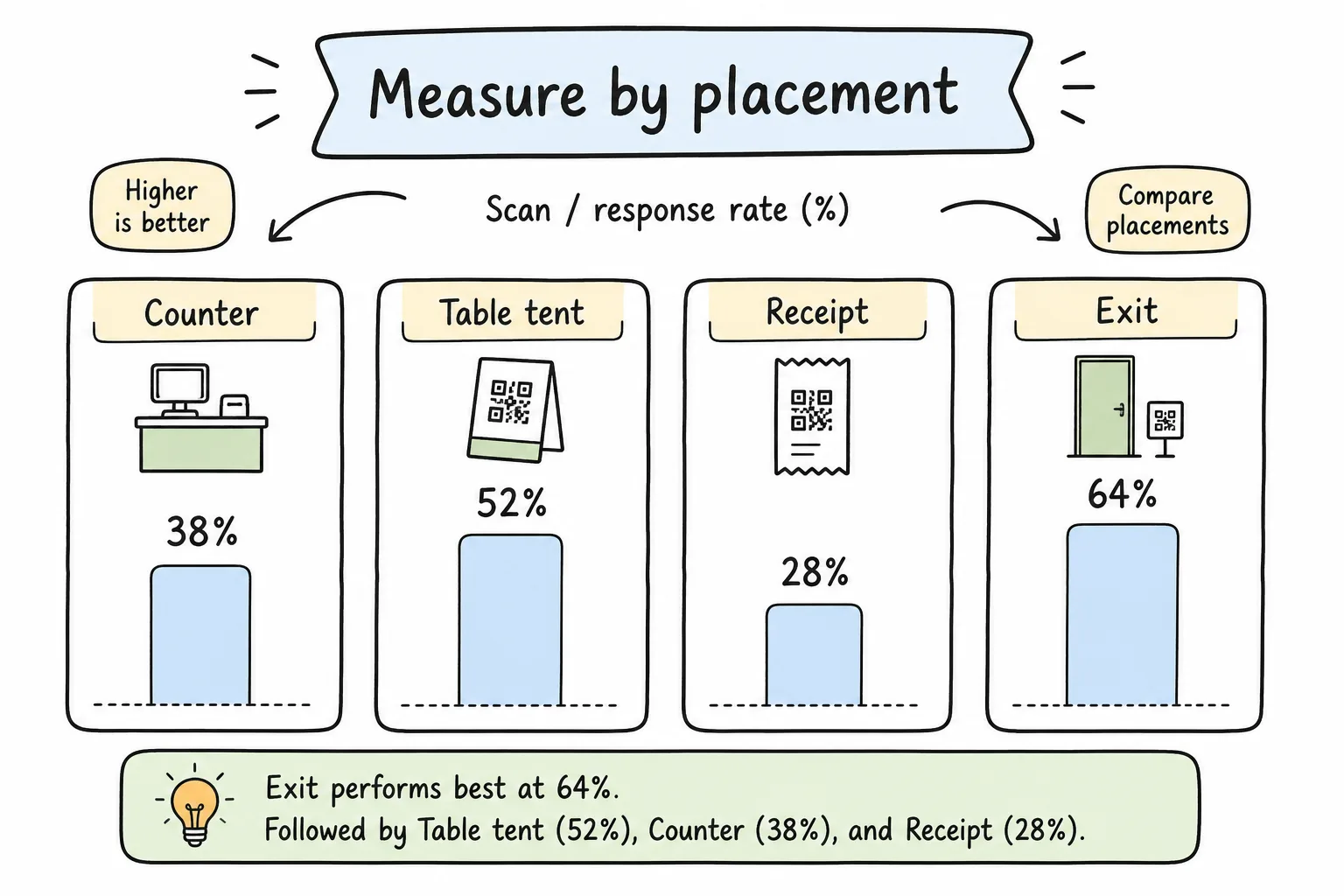
Unique links per placement show which table tent earns replies, and which is wallpaper.
Common Mistakes
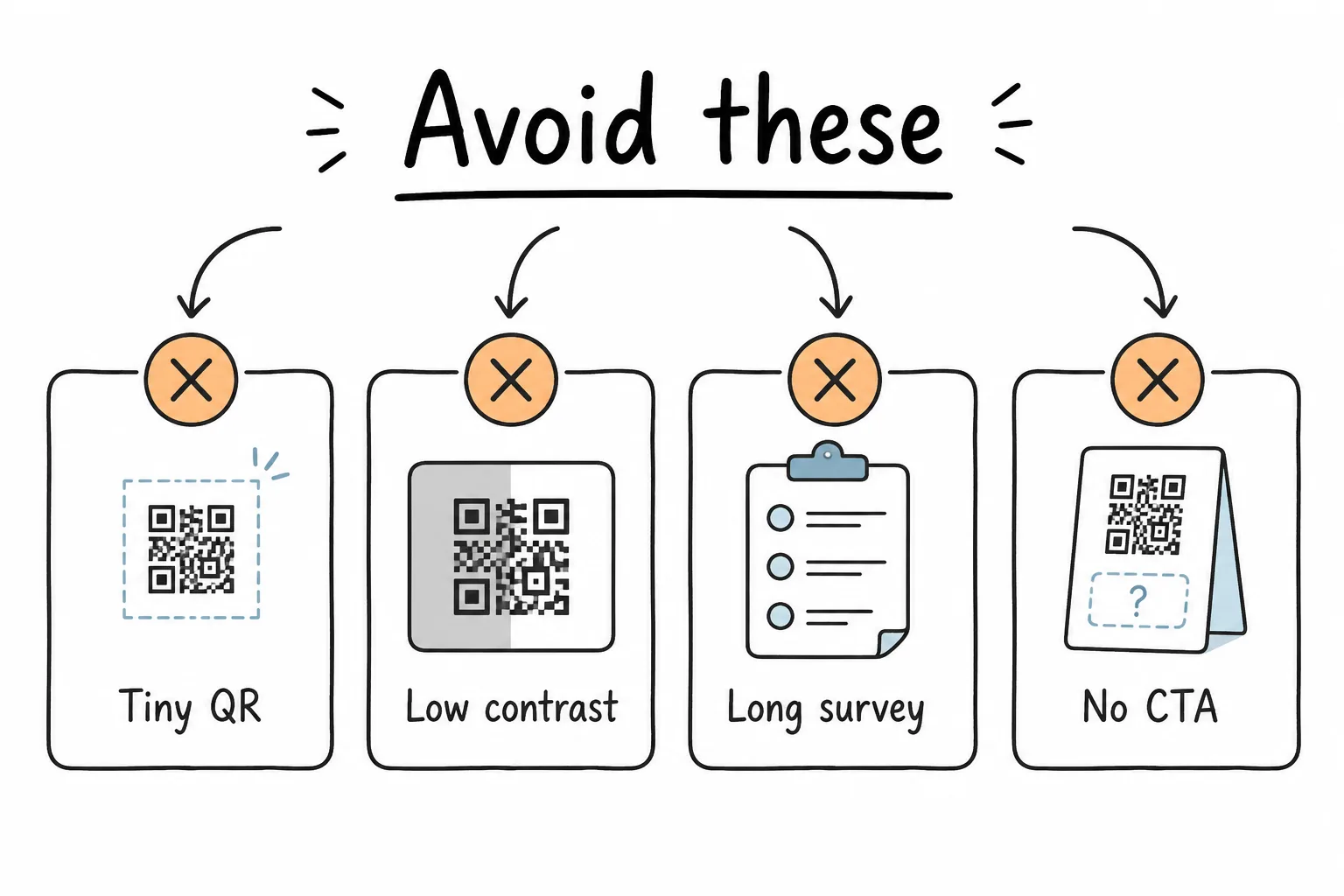
Long surveys, unscannable art, and silent placements waste print budget.
- Printing before the form is final. You will reprint.
- Ten-question “quick” surveys. They are not quick on a phone in a cafe.
- No CTA. Mystery squares get ignored or distrusted.
- Codes too small for the room. The 10:1 distance heuristic exists for a reason.
- Low contrast or cropped quiet zones. Cameras need edges.
- One shared URL for every location. You cannot tell which poster works.
- Collecting data you will not use. If the answer does not change an action, delete the question.
- Never closing the loop. People stop scanning when nothing changes.
Best-Practice Checklist
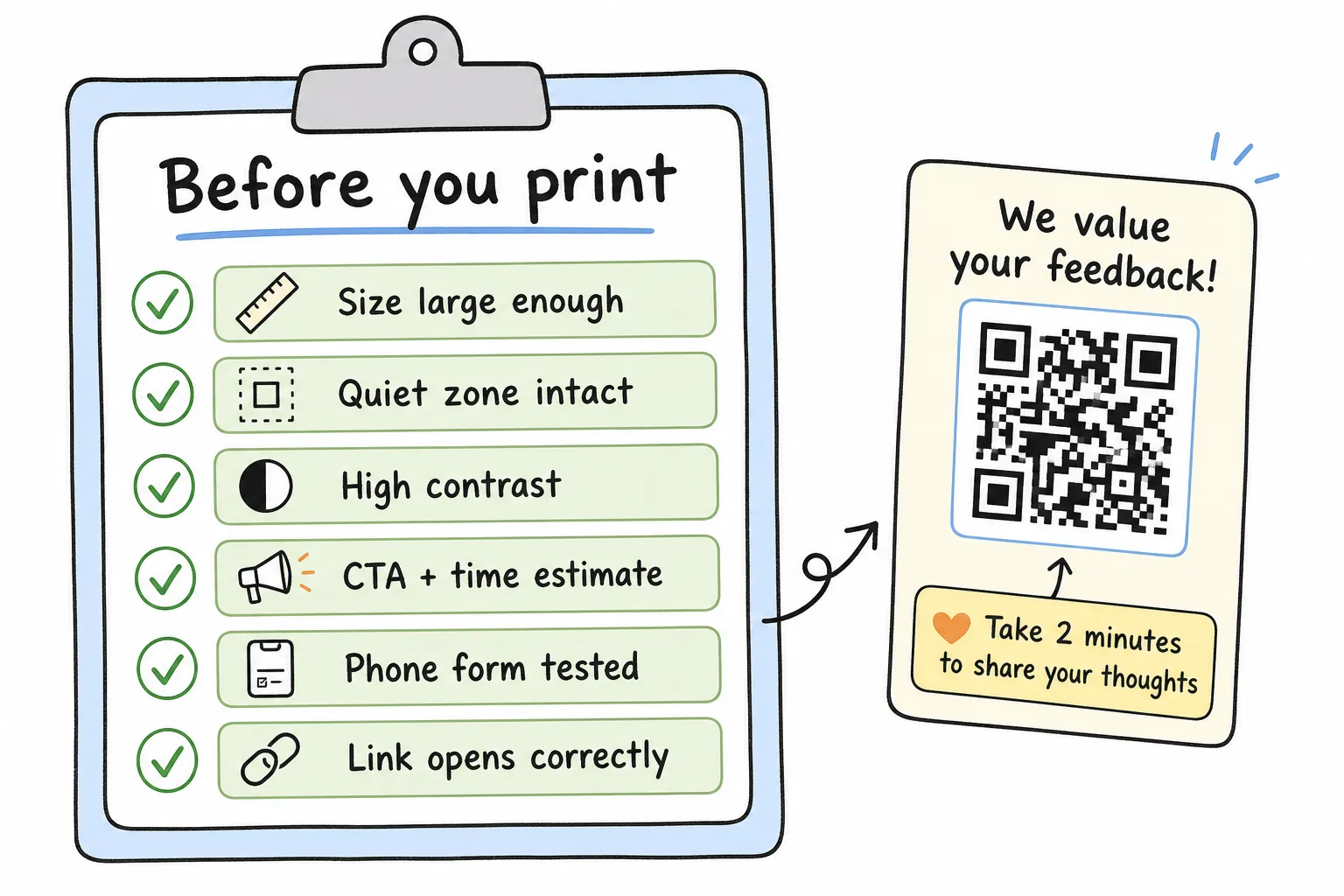
Form, QR art, CTA, test scans, then print.
Before you order a stack of cards, ensure:
- Form is mobile-friendly and under ~60 seconds
- Questions map to decisions you will actually make
- Public link is short and stable
- QR downloaded as SVG or high-res PNG
- Quiet zone and contrast look correct in the layout
- Headline + time estimate + short URL sit beside the code
- Proof scanned on iOS and Android at real distance
- Placement has dwell time
- You know who checks responses and how often
Frequently Asked Questions
How do I collect customer feedback with a QR code?
Create a short mobile feedback form, publish it, generate a QR that opens the form URL, print it with a clear call to action, place it where customers pause, and review responses regularly. On Formms, the short link and downloadable QR ship with the form. See the Formms section above for the full steps.
How many questions should a QR feedback survey include?
Three to five is a strong default. One rating plus one open comment often beats a long questionnaire after a casual scan.
What size should a feedback QR code be?
Use roughly one inch of code width per ten inches of scan distance. Counter cards often need about 2–3 inches; posters need more. When unsure, print larger.
Do customers need an app to scan?
No. Modern phone cameras open QR links in the browser. Your respondents should not need to install your form builder’s app.
Should I put a URL next to the QR code?
Yes. A short URL helps people who cannot scan, builds trust, and works when cameras fail. It is basic accessibility for print.
Static or dynamic QR codes: which is better for feedback?
A stable short link with a static QR is enough for most local businesses. Dynamic codes help if you must change destinations without reprinting, but watch for tools that expire free redirects.
Where should restaurants put feedback QR codes?
Table tents and receipts usually outperform walls people walk past. Pair with a time estimate (“30 seconds”) and keep the survey short.
How do I stop fake or low-quality responses?
Keep the form short, avoid huge public incentives, brand the card, and optionally make contact info optional rather than required. Review open text for spam patterns.
Can I use one QR for every location?
You can, but you will learn less. Separate links per placement show which spots earn scans.
What if the QR will not scan after printing?
Check size, contrast, quiet zone, glare, and URL validity. Re-test on multiple phones. Replace damaged or sticker-covered posters.
Is a QR better than an email survey for walk-in customers?
Often yes for walk-ins, because you may not have emails and the experience is still fresh. Email still helps for account holders and post-support follow-ups.
How fast should I respond to negative QR feedback?
Same day when possible. The value of in-the-moment collection is operational: fix the issue while the visit is still recent.
Conclusion
Collecting customer feedback with a QR code is a three-layer craft: a short phone form, a scannable code with a clear CTA, and a placement with real dwell time. Get those right and you turn quiet moments (tables, counters, receipts, sessions) into structured input you can act on.
Start with one location, one short survey, and one proof print. Scan it yourself. Then let customers tell you what to fix next.